Overview
The Automated State Forms feature streamlines the way communities prepare and submit required state assessment paperwork. After a resident’s assessment is submitted, Aline Care can automatically generate a state-specific form and pre-populate the form with the resident’s most recent assessment data.
Users can then review, edit, and finalize the form, ensuring accuracy before printing, submitting to state agencies, or attaching it to the resident’s record.
Automated State Forms During Resident Assessments
After completing a resident's assessment, if your community has Automated State Forms configured, you'll follow the steps below to generate an pre-populated state form!
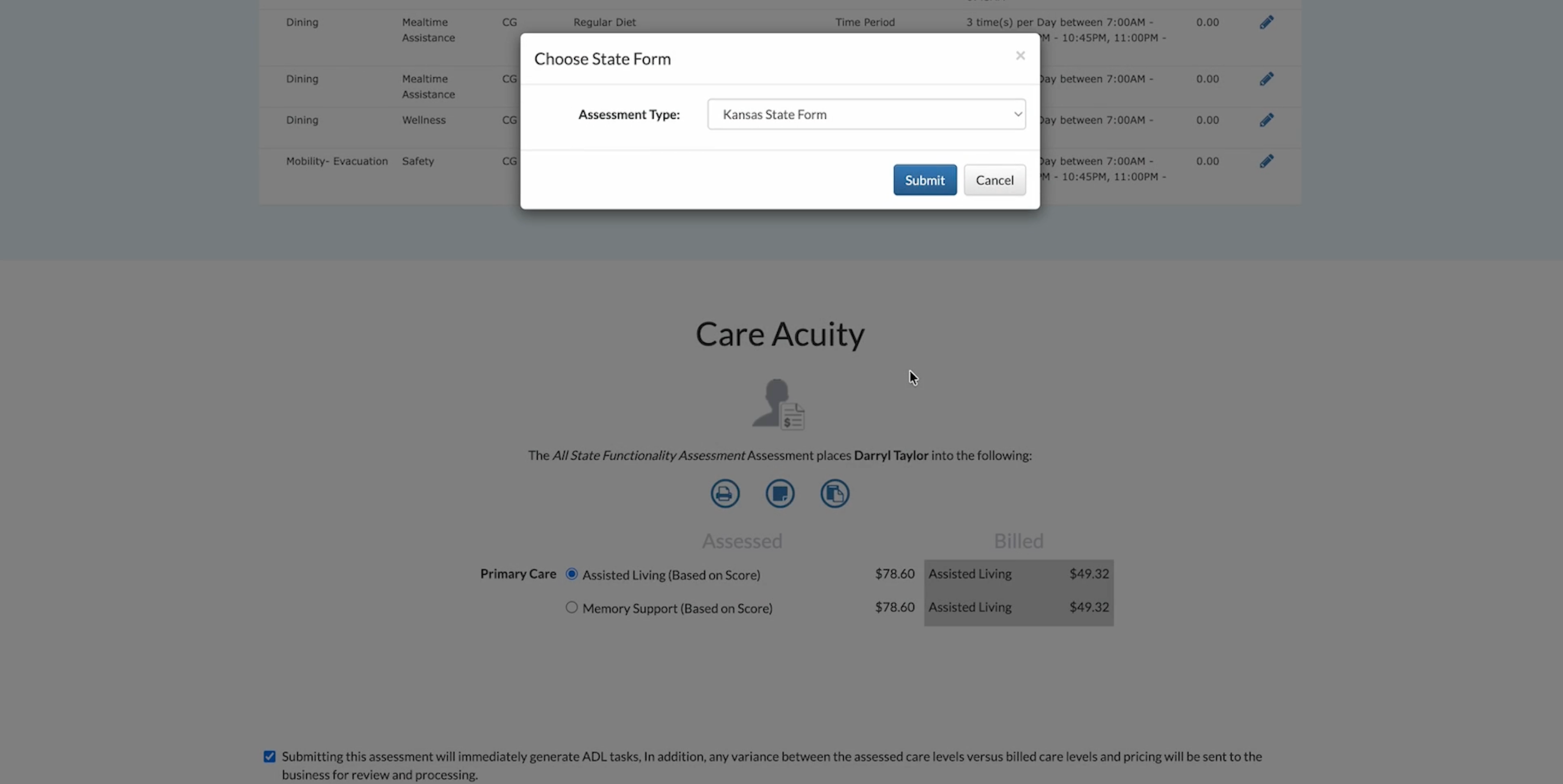
Step 1: You must first complete the resident assessment. Upon assessment submission, a Choose State Form box will appear. The Choose State Form box will contain a list of all configured, selectable state form. Select the appropriate state form.
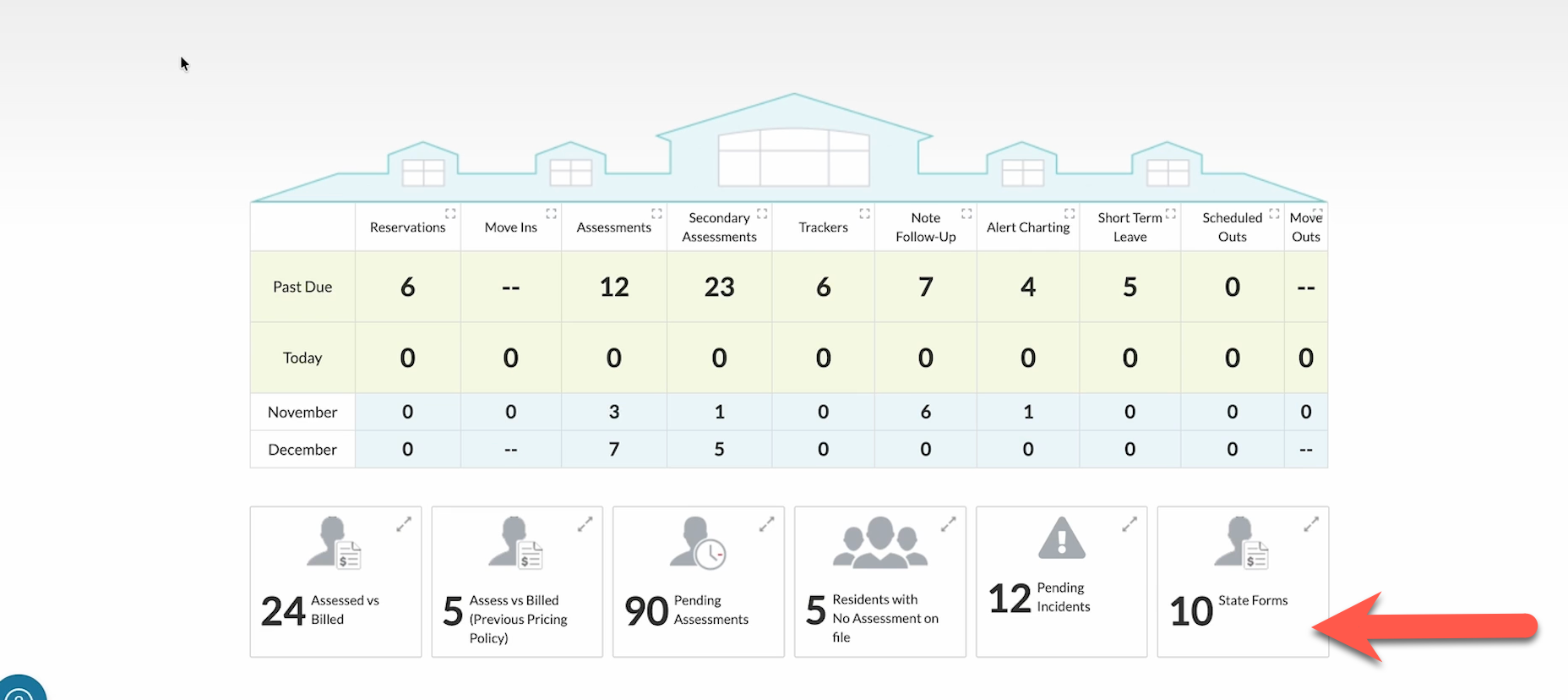
Step 2: After selecting the appropriate state form, select Submit. The state from will now begin processing and may take a few minutes to complete. You can find the state forms collected on the Aline Care Dashboard in the State Forms Panel. Select the expander icon to view the collected state forms within.
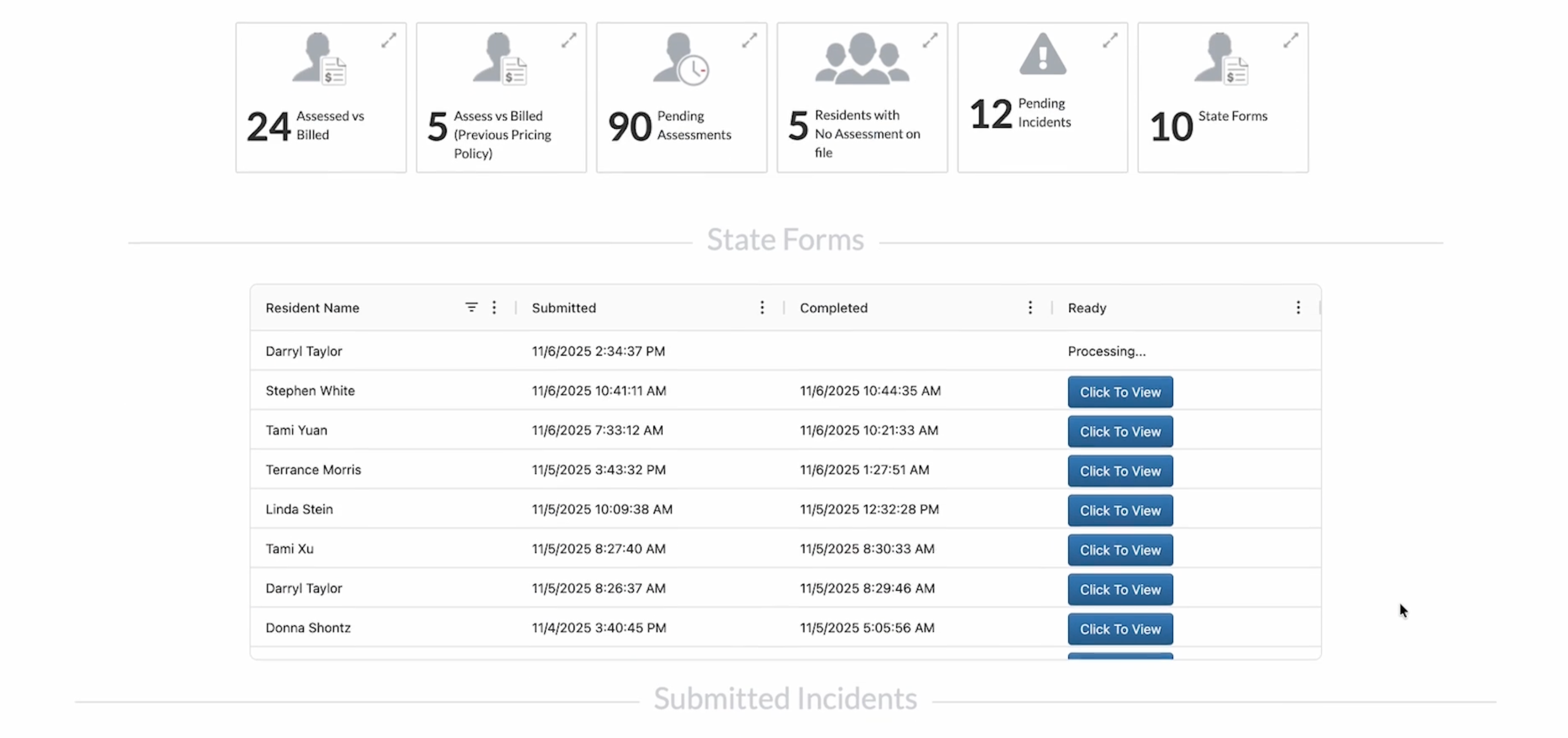
Step 3: State forms that are still processing will display a status of Processing. Compiled state forms ready for review will display at blue View State Form button. Select View State Form is review the new state form.
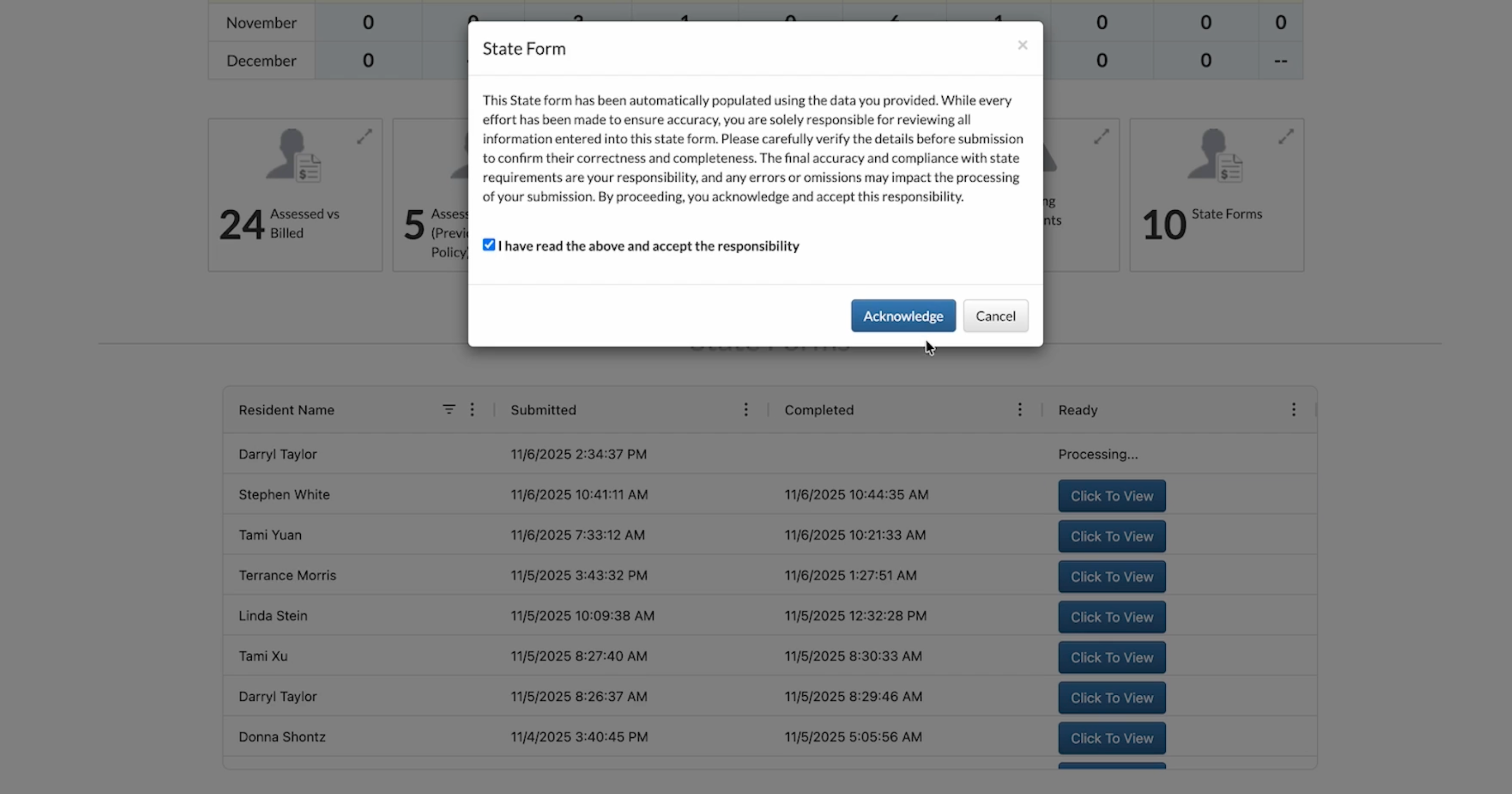
Step 4: Before viewing the state form, users will be presented with an acknowledgement wherein the user acknowledges that the form they are about to view has been pre-populated with data provided from the assessment, and that they understand that they are responsible for ensuring all data included in the form is accurate and up to date before submitting the form to any state agency. Select Acknowledge to move forward.
Step 5: The pre-populated state form will then display in the browser window in an editable state. Users must ensure all pre-populated data is accurate in addition to providing any extra data that is required on the form. Inaccurate pre-populated data can be edited, and missing data can be added.
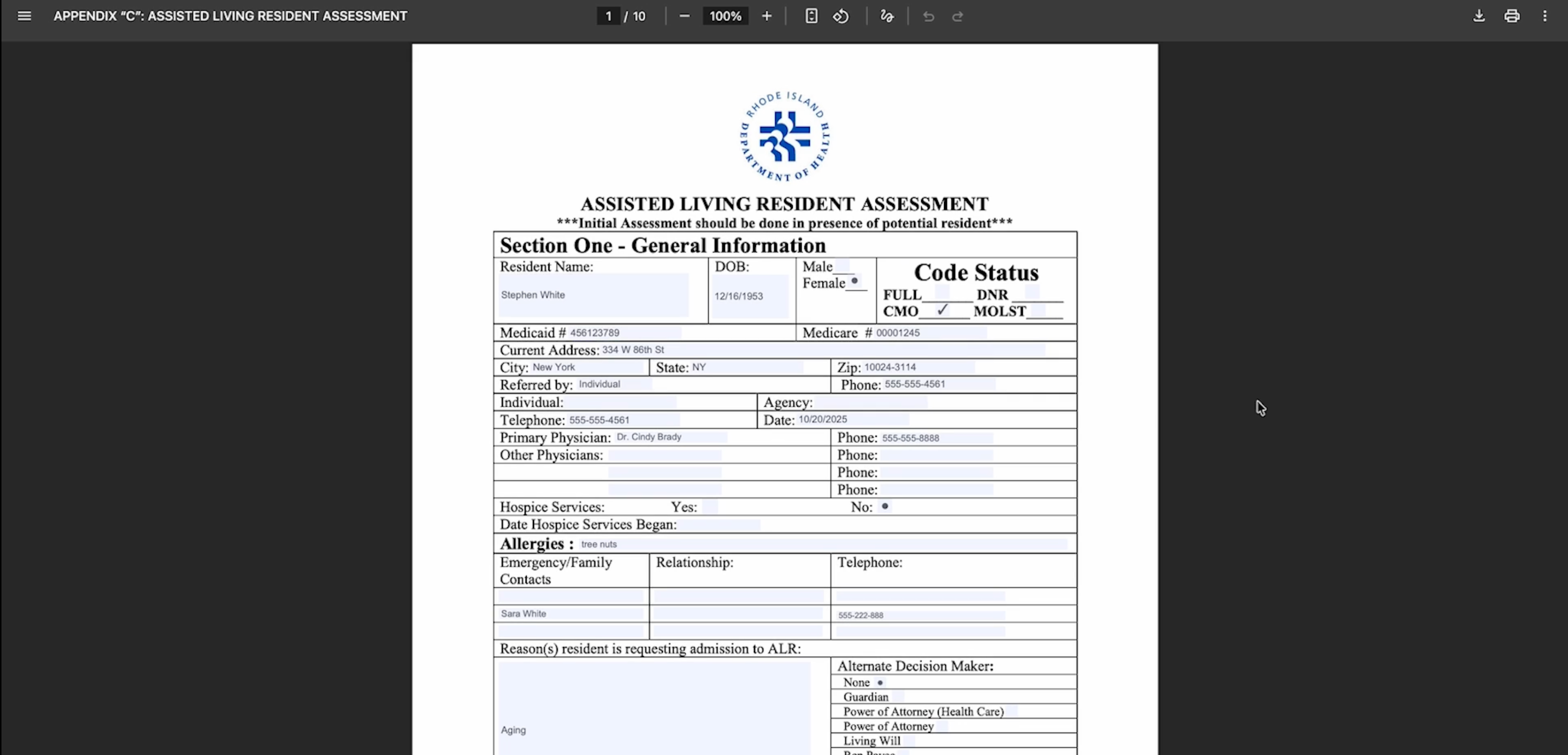
Step 5: Once you are sure all pre-populated information is accurate and any additional details have been incorporated, the state form can be printed or downloaded to your local device.
Sending State Forms Tool
Similar to completing state forms after submitting a completed assessment, state forms can also be generated outside of the assessment processes using the Send State Forms tool. The Send State Forms tool does not require a new assessment to be completed; therefor, the pre-populated state form data will be pulled from the resident's most recently completed assessment.
Follow to steps below to generate a state form with a previously completed assessment:
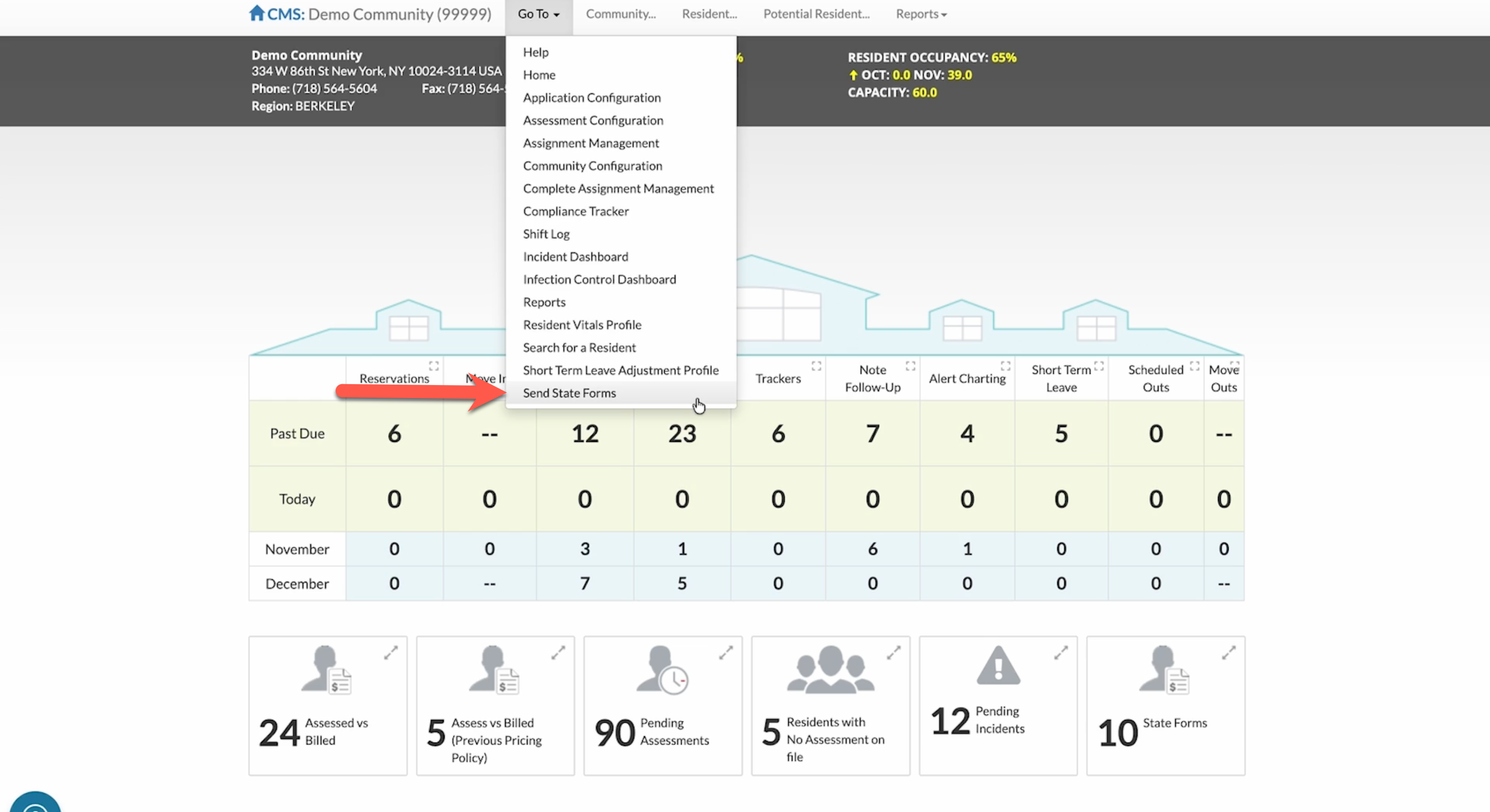
Step 1: From the Aline Care Dashboard, select the Go To Menu and then select Send State Form.
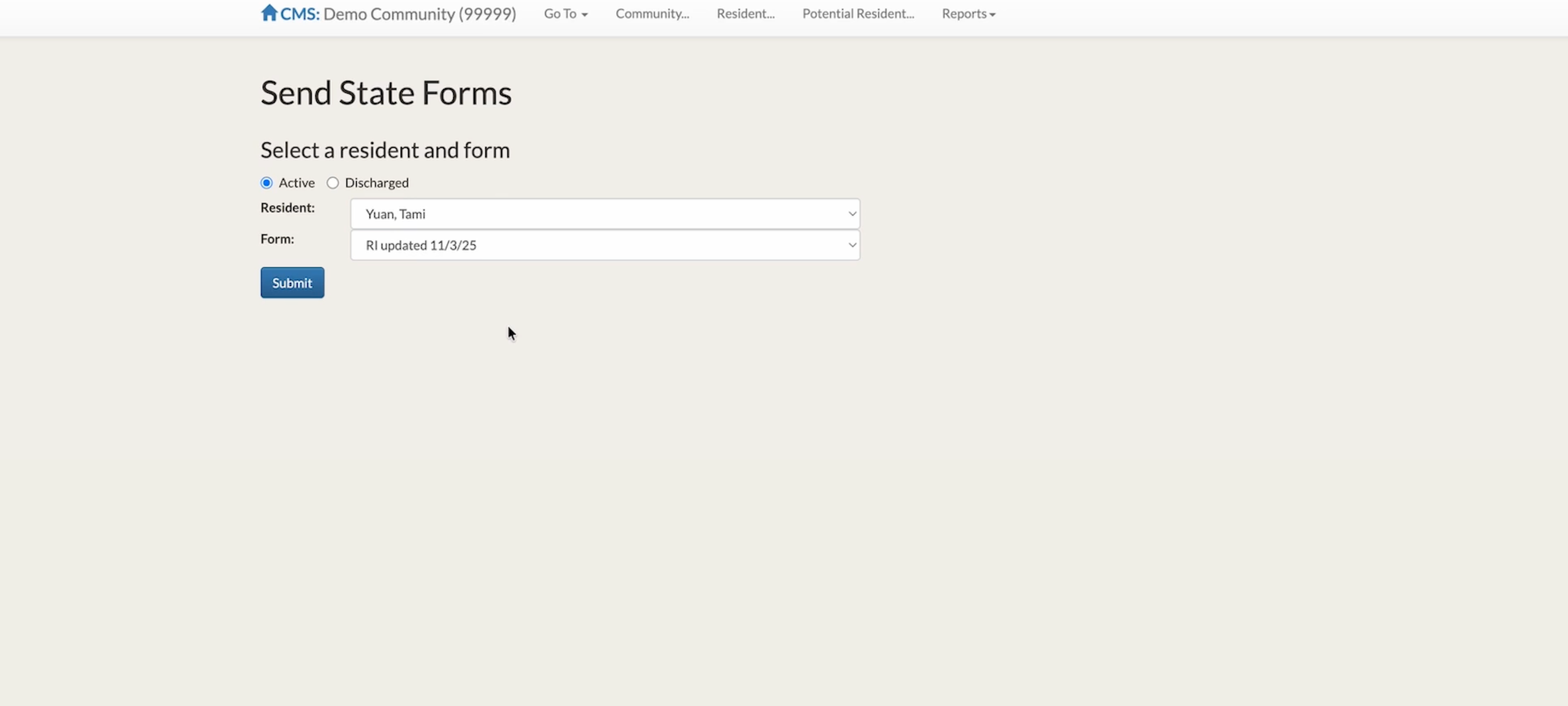
Step 2: On the Send State Forms page, you will need to fine tune a few details before generating the form:
- Should the form be generated for an Active or Discharged resident?
- Which resident should be included on the form?
- Which specific state form should be generated?
Once all three pieces of information are included, select Submit to begin processing the new state form.
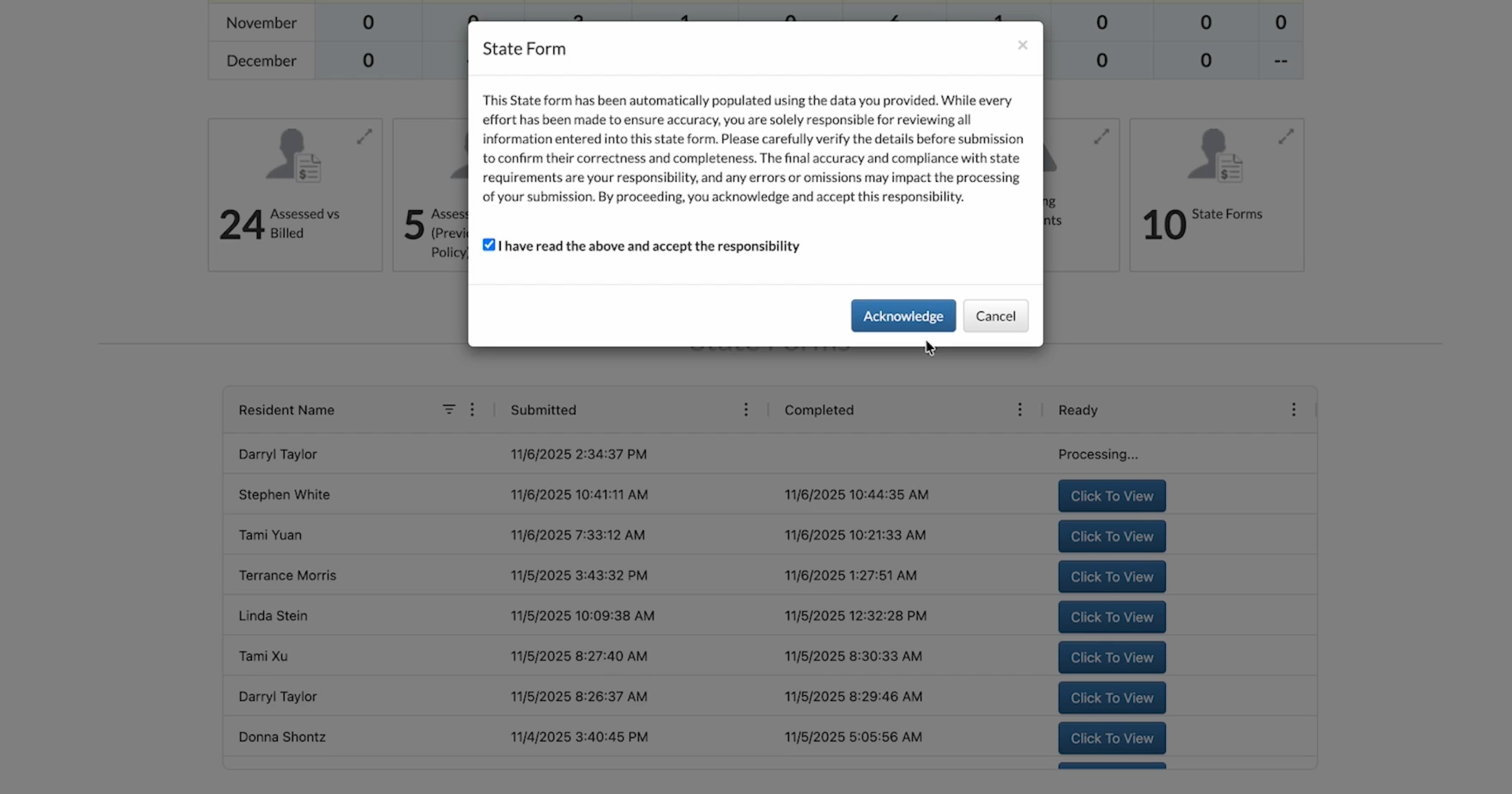
Step 3: Just like the post-assessment state form process, new state forms may take a few minutes to generate, and they can be found on the Aline Care Dashboard in the State Forms panel.
Step 4: Also just like the post-assessment state form process, users will be presented with an acknowledgement wherein the user acknowledges that the form they are about to view has been pre-populated with data provided from the assessment, and that they understand that they are responsible for ensuring all data included in the form is accurate and up to date before submitting the form to any state agency. Select Acknowledge to move forward.
Step 5: The pre-populated state form will then display in the browser window in an editable state. Users must ensure all pre-populated data is accurate in addition to providing any extra data that is required on the form. Inaccurate pre-populated data can be edited, and missing data can be added.
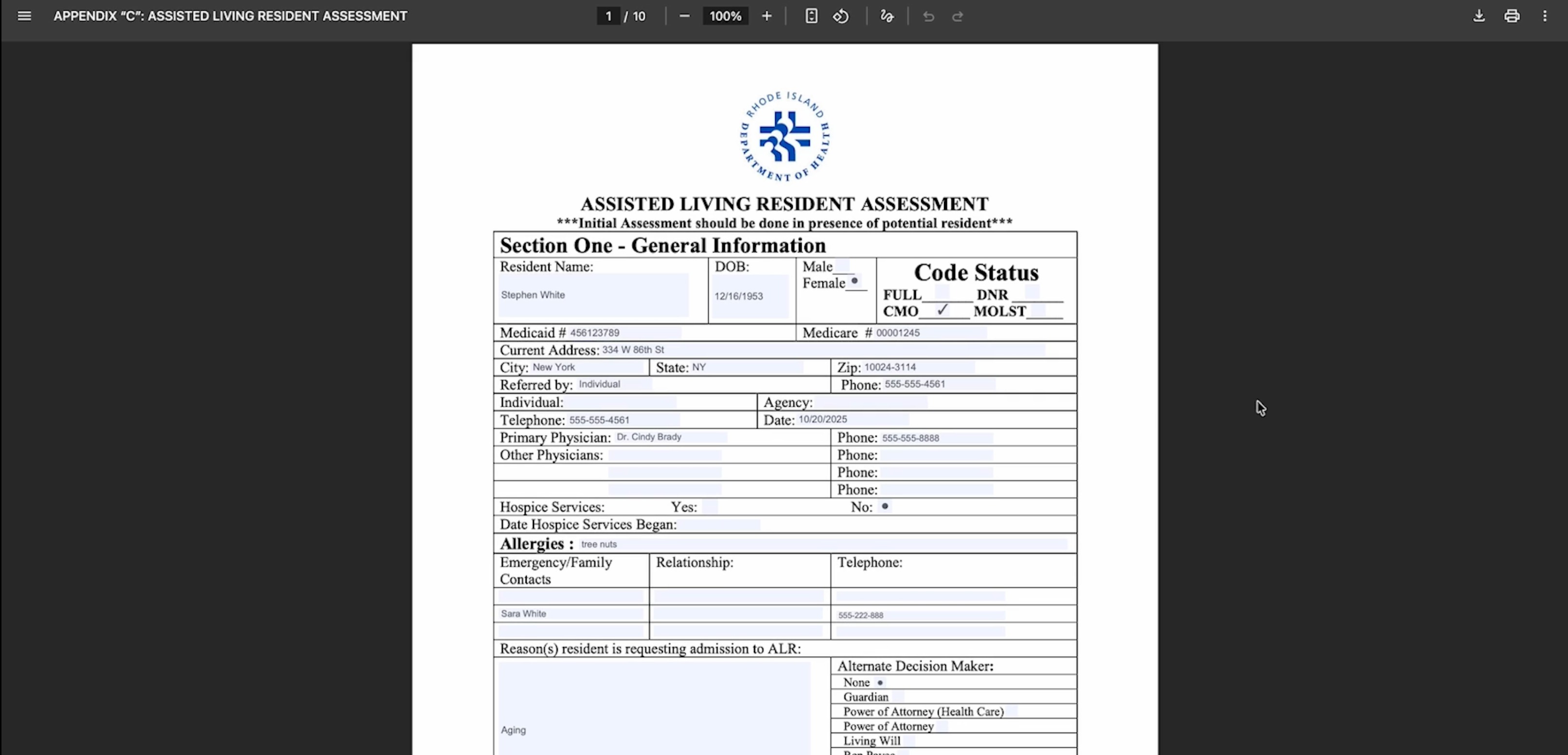
Step 5: Once you are sure all pre-populated information is accurate and any additional details have been incorporated, the state form can be printed or downloaded to your local device.
Was this article helpful?
That’s Great!
Thank you for your feedback
Sorry! We couldn't be helpful
Thank you for your feedback
Feedback sent
We appreciate your effort and will try to fix the article