Overview
In this article, we will review how to change the residents assessment special instructions.
Video
Steps on Changing Assessment Instructions
Step 1: Choose a resident from the Resident… option located in the menu bar at the top of the Care Management home page. This will redirect you to the resident’s profile page.

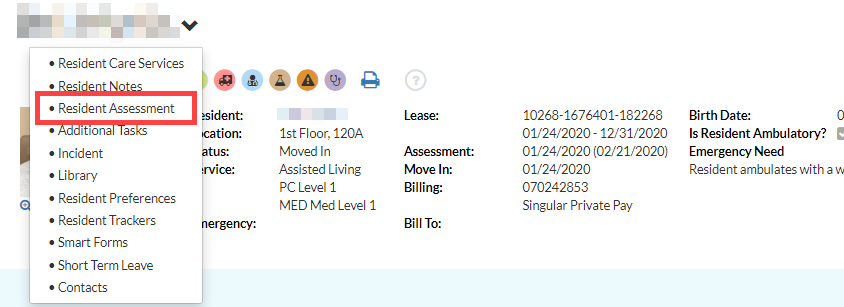
Step 2: From the desired resident profile page, select the dropdown arrow next to their name and select Resident Assessment.
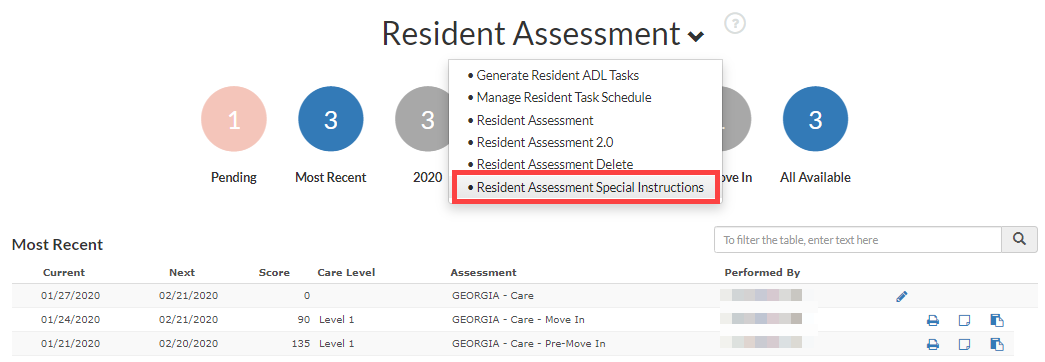
Step 3: From the Resident Assessment portion of the resident’s profile page, select the dropdown arrow and click Resident Assessment Special Instructions.
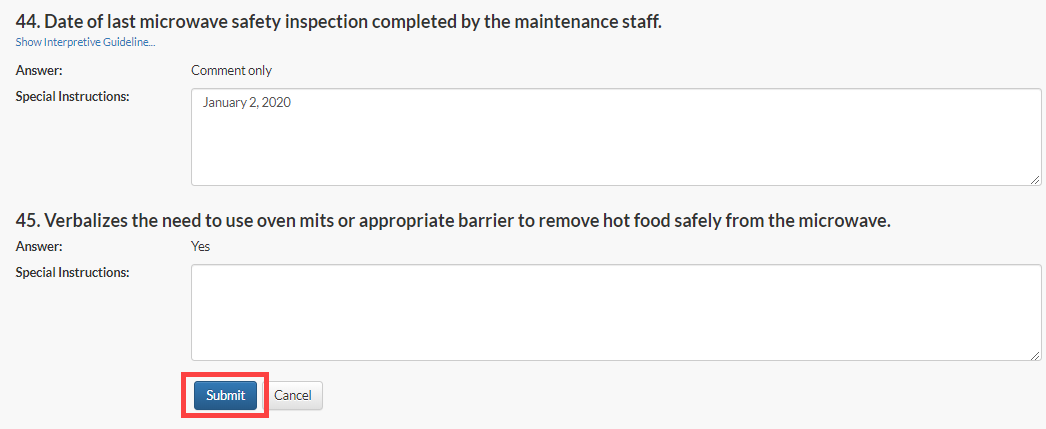
Step 4: From this page, you can enter any additional information into each assessment question’s Special Instructions textbox.
Step 5: Once the desired instructions have been entered, click Submit at the very bottom of the page.
Was this article helpful?
That’s Great!
Thank you for your feedback
Sorry! We couldn't be helpful
Thank you for your feedback
Feedback sent
We appreciate your effort and will try to fix the article