TABLE OF CONTENTS
Overview
In this article, we will review the assessment model.
Configure an Assessment Model
The following information can be referenced to configure an Assessment Model and make it available to provisioned community users to complete for residents.
Create a New Model
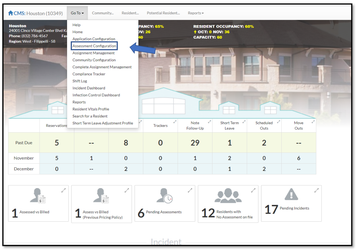
Step 1: On the Community Home Page, select the Go To drop down in the heading and select Assessment Configuration.
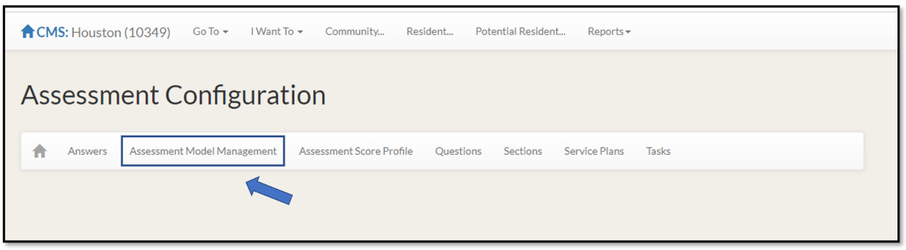
Step 2: Select Assessment Model Management from the Sub Menu.
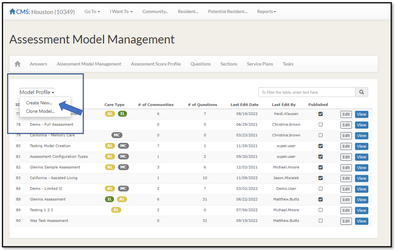
Step 3: Click on the down arrow next to ‘Model Profile’ and select Create New. This will open the to the Add Model screen.
Note: On the Add Model Page there are 6 fields. All fields must be filled out for a community to use the assessment model.
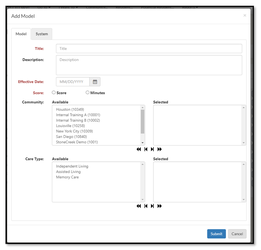
Title
Title of Assessment being created
Description
Brief description of the Assessment
Effective Date
Effective Date of Assessment
Note: Users cannot see the assessment model unless it’s on or after the effective date
Score
Select either Score Based or Minute Based
Community
Configure the communities that can use this model by moving them to the Selected column.
Care Type
Configure the Care Type(s) for billing purposes that will be configured for this model by moving them to the Selected column.
Step 4: Click on the Submit button after all fields have been entered
Section Configuration
Step 1: From the Assessment Model Management page, select View from the Model to configure.
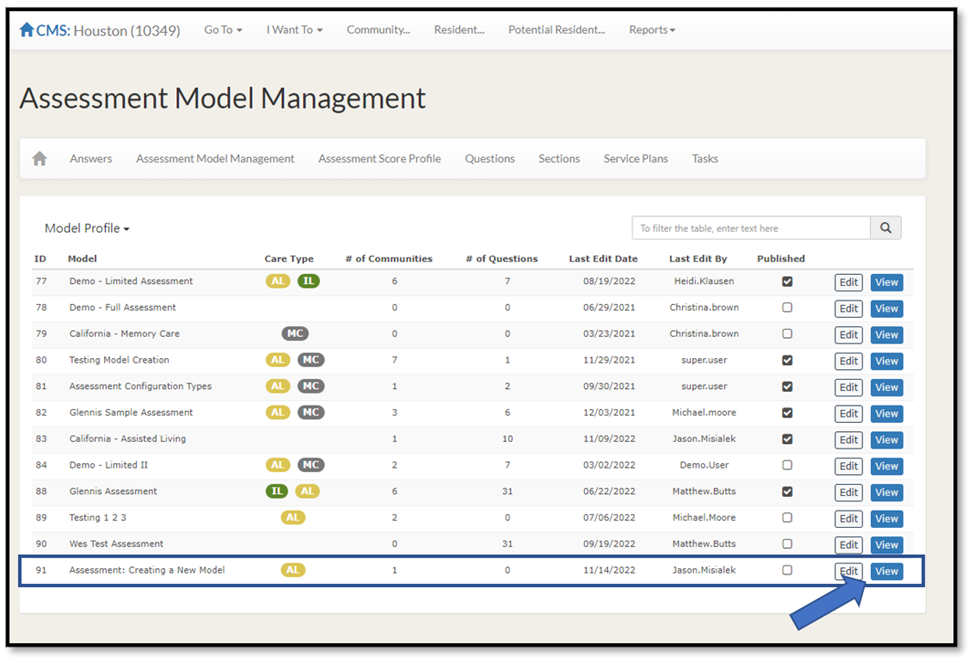
Note: To see what sections are available in the Section Library prior to configuring, click on Sections in the sub header.

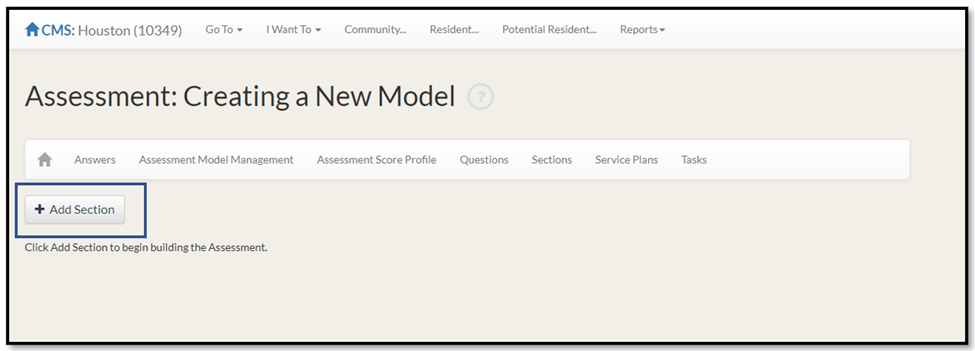
Step 2: To Add a Section to your Model, click the Add Section button.
Step 3: From the Add Section pop up, begin typing the title of the section to add from the section library.
Note: The application will auto fill the section based on what is being typed.
Step 4: Sort is the only field that can be modified in the assessment model.
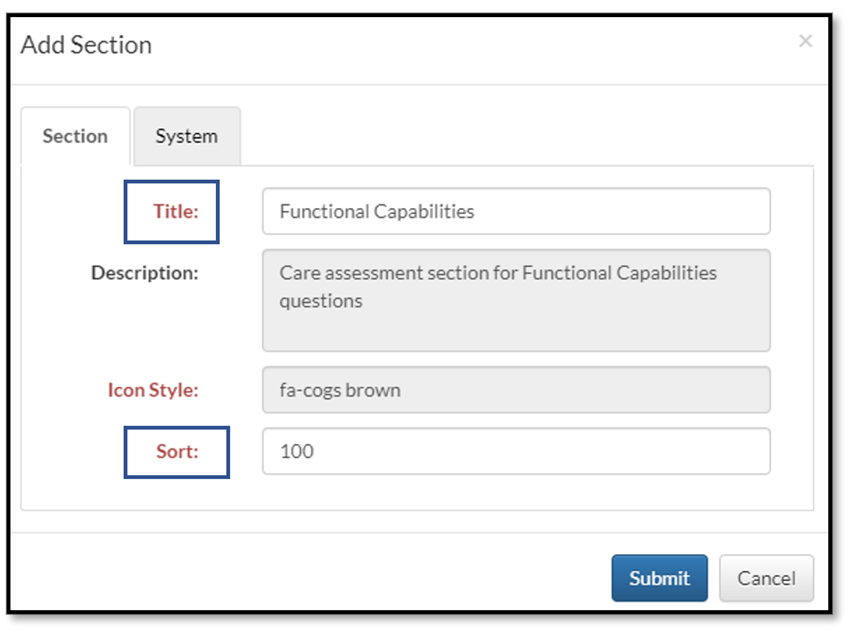
Step 5: Click on the Submit Button.
Question Configuration
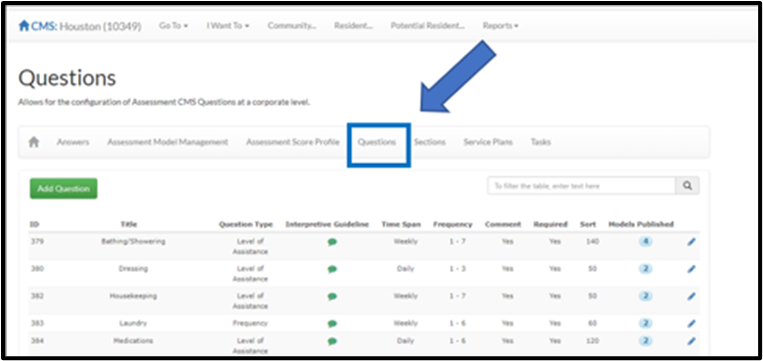
Note: Before starting, to see what questions are currently available, select Questions from the sub header within Assessment configuration.
Step 1: While in the selected assessment model, select the Dropdown from the section you wish to add questions to and select Add Question.
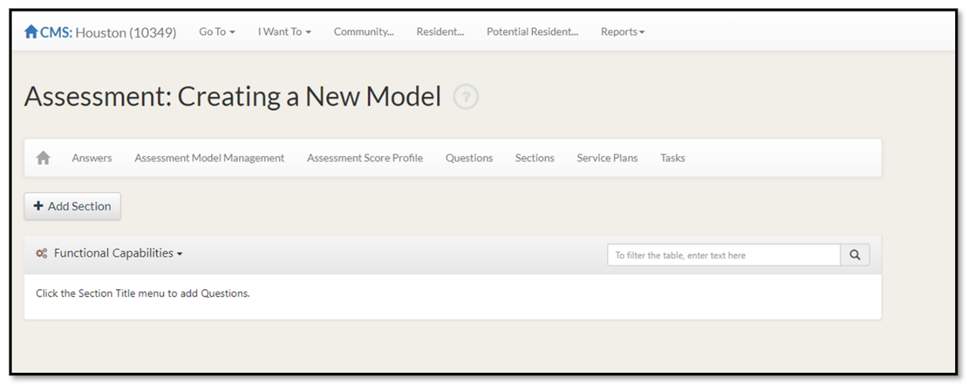
Step 2: Once the Add Question pop up appears, begin typing the title of the question to add from the library.
Note: The application will auto fill the section based on what is being typed.
The following fields can be modified from the library for this assessment model only
- Section
- Question Type
- Options are Single Choice, Frequency, Level of Assistance, and Comment.
- Interpretive Guidelines
- Frequency - Only if Frequency or Level of Assistance Question Type
- Min/Max – Only if Frequency or Level of Assistance Question Type
- Question Number
- Question Code
- Display Comment Box
- Required Question
- Sort
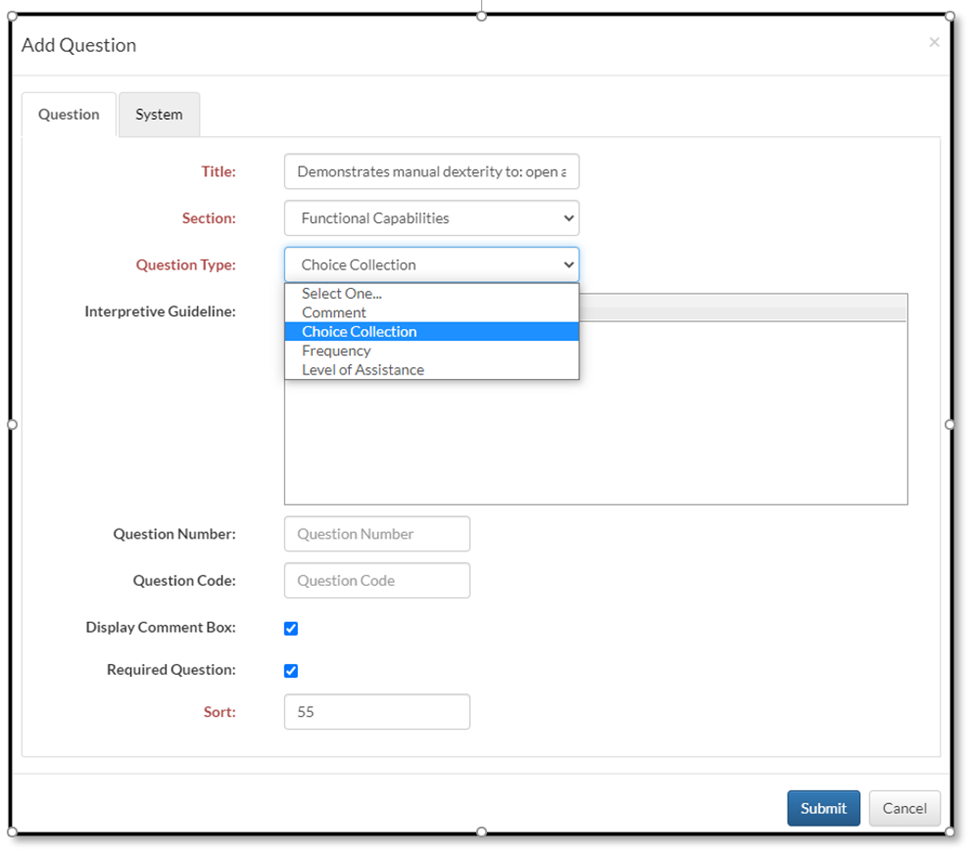
Step 3: Once you have selected the question and everything looks good in the Add Question Model click the Submit button.
Answer Configuration
Note: Before starting, to see what Answers are currently available select Answers from the sub header within Assessment configuration.
Step 1: In the assessment model, click on the Green Icon in the Answers Column to add an Answer.
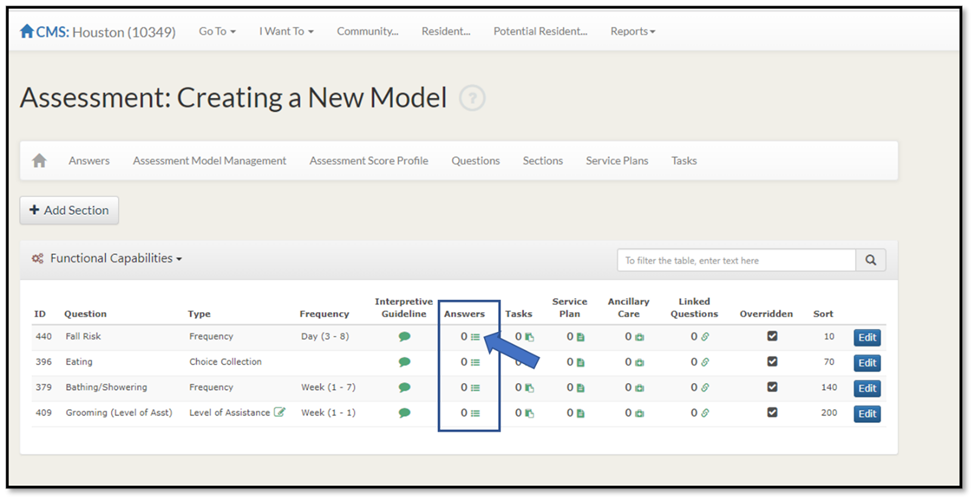
Step 2: When the Answers pop up opens, click on the dropdown next to the questions and select Add Answer.
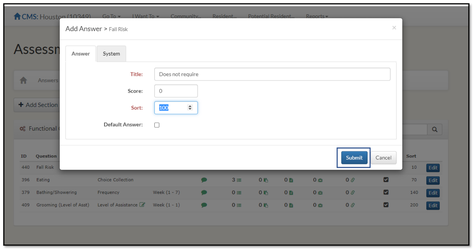
Step 3: Once the Add Answer pop up appears, begin typing the title of the Answer to add from the library.
Note: If the assessment model is minutes based, leave the score field blank. If the assessment model is score based, enter the question score based on the following equations to get to the final score.
- Question Type = Choice
- Final score = Answer score
- Question Type = Frequency (Daily)
- Final Score =Answer score X 7 (days) X # of times per day
- Question Type = Frequency (Weekly)
- Final Score = Answer Score X # of days
- Question Type = Frequency (Monthly)
- Final Score = Answer Score X 1 (time per month)
- Question Type = Level of Assistance – Score is configured in Level of Assistance section
- Note: If the model is score based, the question type is frequency, and there is no associated task, the Final score = Answer score.
Step 4: After all the information is entered click on the submit button.
Level of Assistance
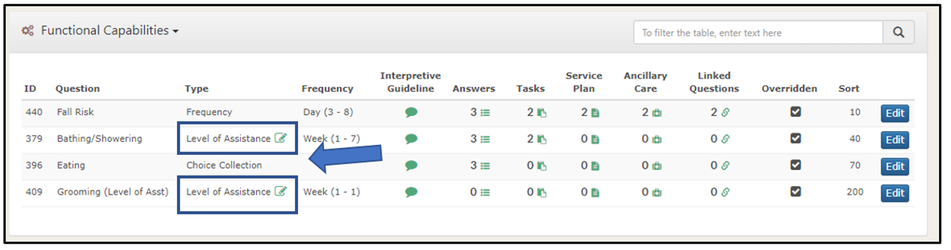
Step 1: If a question type is Level of Assistance, select the pencil icon next to the question type to configure the Level of Assistance.
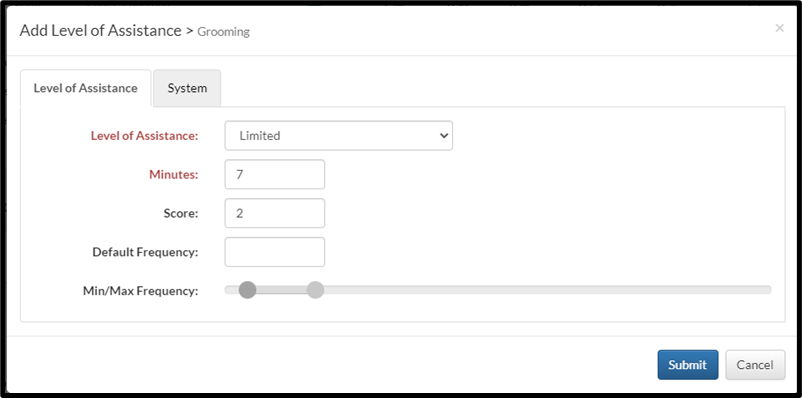
Step 2: When the Level of Assistance pop up opens, click on the dropdown next to the questions and select Add Level of Assistance.
Once the Add Level of Assistance pop up appears, enter the required fields.
- Level of Assistance, Minutes, and Min/Max Frequency are required.
- If the assessment model is score based, enter the score based on the following equations to get to the final score.
- Daily Frequency
- Final Score =Answer score X 7 (days) X # of times per day
- Weekly Frequency
- Final Score = Answer Score X # of days
- Monthly Frequency
- Final Score = Answer Score X 1 (time per month)
- Daily Frequency
Step 3: After all the information is entered click on the submit button.
Tasks
Note: Before starting, to see what Tasks are currently available select Tasks from the sub header within Assessment configuration.
Step 1: In the assessment model, click on the Green Icon in the Tasks Column to add a Task.
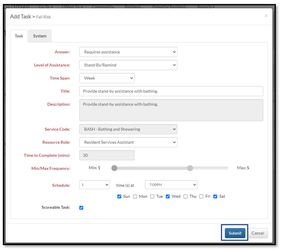
Step 2: From the Task Model that opens select the dropdown and select Add Task.
Step 3: Once the Add Task pop up appears, begin typing the title of the Task to add from the library
Step 4: Fill out all the required Fields in the Add Task Model.
Step 5: Once you have tied the task to your answer, click on the submit button.
Service Plan
Note: Before starting, to see what Service Plans are currently available select Service Plans from the sub header within Assessment configuration.
Step 1: To add a Service Plan related to your question select the Green Icon in the Service Plan column on the question that you want to add the plan to.
Step 2: From the Service Plan model that opens select the dropdown and select Add Service Plan
Step 3: Once the Add Service Plan pop up appears, begin typing the title of the Need to add from the library.
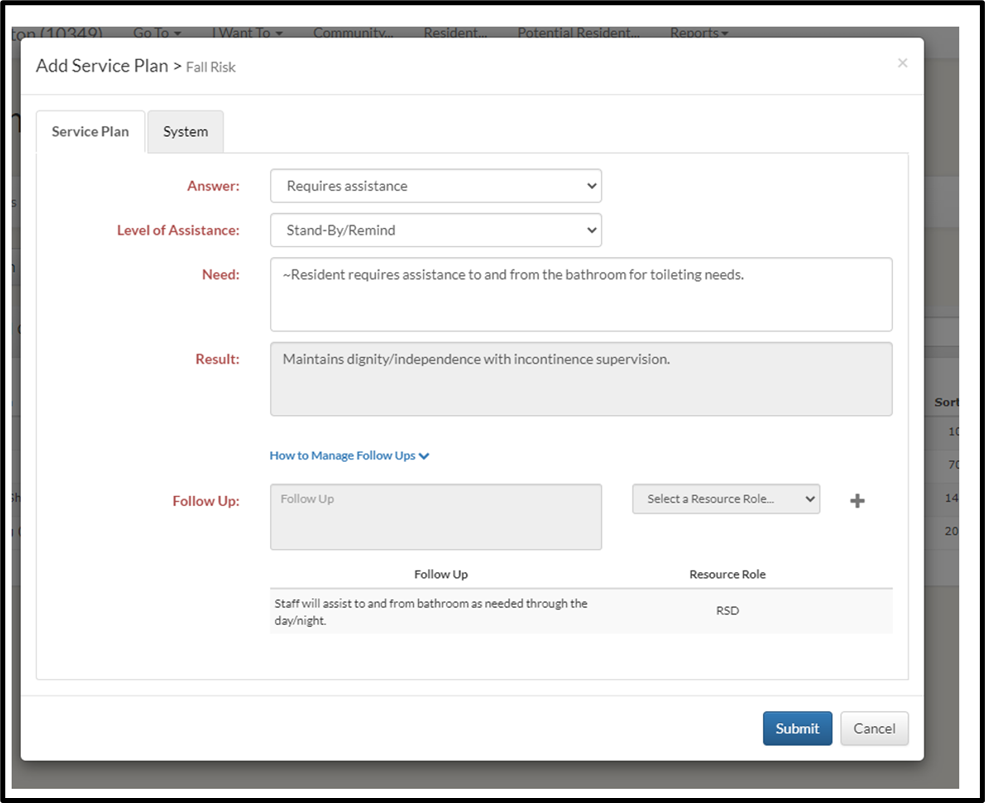
Step 4: Once you have filled in all the information and tied a Service Plan to the related question click on the Submit button.
Ancillary Care
Step 1: To add Ancillary Care related to your question select the Green Icon in the Ancillary Care column on the question that you want to add the care to.
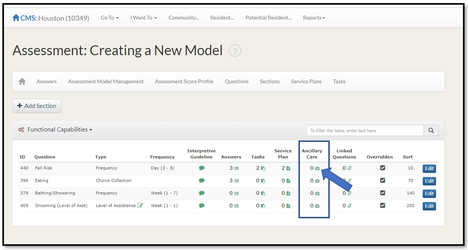
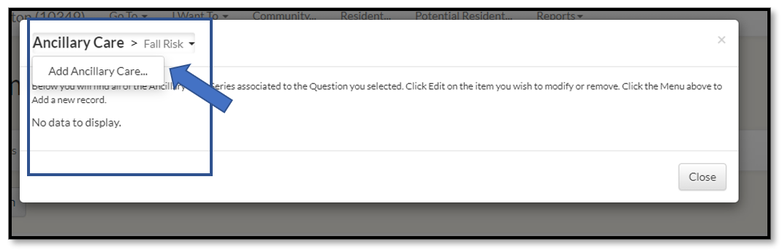
Step 2: From the Ancillary Care model that opens select the dropdown and select Add Ancillary Care
Fill out all the required fields in the Add Ancillary Care Model.
- Answer: Select the answer you want to tie the Ancillary Care to.
- Level of Assistance: Select the Level from the dropdown
- Series: Select appropriate series
- Score: Input the desired score
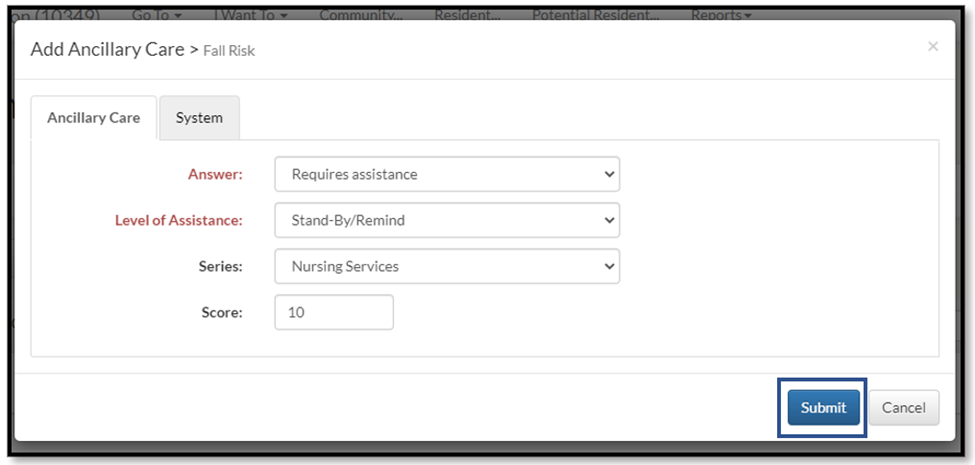
Step 3: Once you have filled in all the information click on the Submit button.
Linked Questions
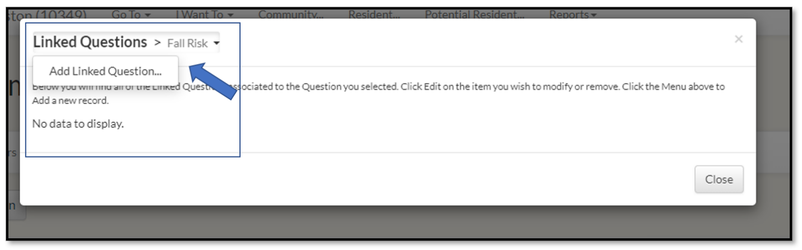
Step 1: To link questions to display depending on how the current question is answered, select the Green Icon in the Linked Questions column on the main question.
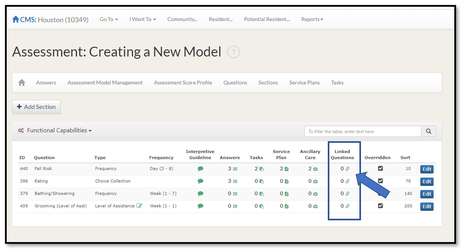
Step 2: From the Linked Questions model that opens select the dropdown and select Add Linked question
Fill out all the required fields in the Add Linked Question Model.
- Answer: Select the answer you want to tie the Linked Question to.
- Question: Select the Question you want it linked to.
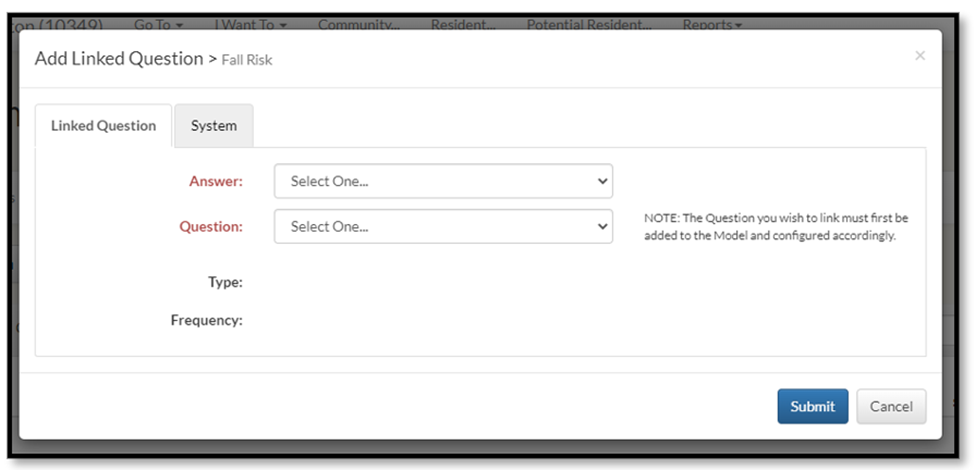
Step 3: Once you have filled in all the information click on the Submit button.
Model Publishing
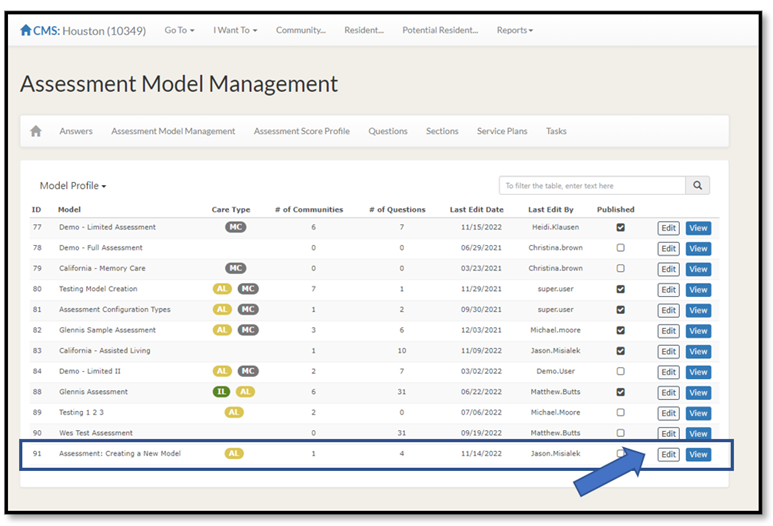
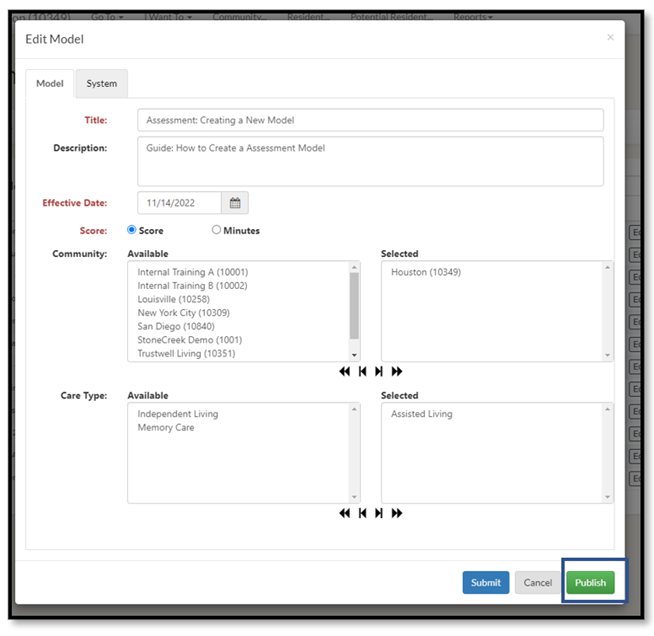
Note: To allow users access to the assessment, the model must be published.
Step 1: From the Assessment Model Management page select the Edit button next to the assessment to publish.
Step 2: From the Edit Model click on the Publish button.
Was this article helpful?
That’s Great!
Thank you for your feedback
Sorry! We couldn't be helpful
Thank you for your feedback
Feedback sent
We appreciate your effort and will try to fix the article