Overview
In this article, we will review how to change a residents assessment within 24-hours of creation.
Steps on Changing a Residents Assessment Within 24-Hours
Note: Complete the assessment as usual. You can make revisions within 24 hours following the creation of this assessment.
Step 1: On the resident’s dashboard under the Resident Information you will find a pencil button.
Step 2: Click on this pencil button to adjust the Assessment Type.

Step 3: Once you choose the Assessment Type, you may now change any of the answers that you chose on the assessment by scrolling down to the Assessment section of the page
Step 4: Using the bubbles, select the section you want to revise.
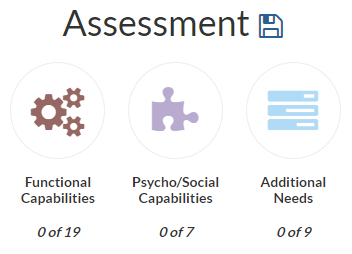
Note: The answers from the last assessment completed will be highlighted on the assessment form and the bubbles will remain for the answers you picked for this assessment within the last 24 hours.
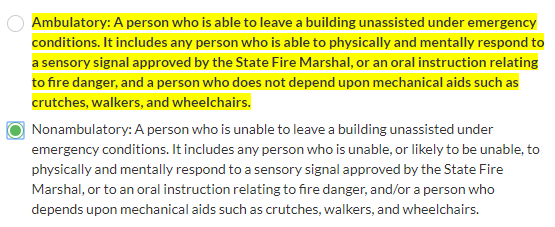
Step 5: Once you change the answers you want to change, you may exit clicking on the “X” button at the top right-hand corner of the page. You may also proceed to the next page without making changes to the answers.
Note: If you want to cancel the assessment revision, just leave the page.
Things to Remember
- Once the 24 hours has passed, you will no longer be able to edit the assessment, and the “Revise” button will disappear from the Care Assessment History section.
- You can revise the assessment as many times as you want within the 24 hours following the creation of the assessment, but your 24-hour period will not start all over, you still only have 24 hours from the original creation to make revisions.
Was this article helpful?
That’s Great!
Thank you for your feedback
Sorry! We couldn't be helpful
Thank you for your feedback
Feedback sent
We appreciate your effort and will try to fix the article