Overview
In this article, we will review how to report an incident using the web application.
Steps to Report an Incident using Web Application
Incidents created in CMS Desktop/Web application do not have to be reviewed by a community leader before they are saved as an Incident.
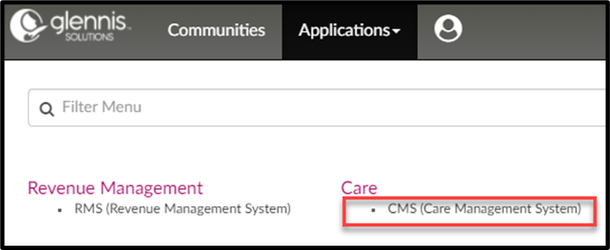
Step 1: Go to Applications > CMS
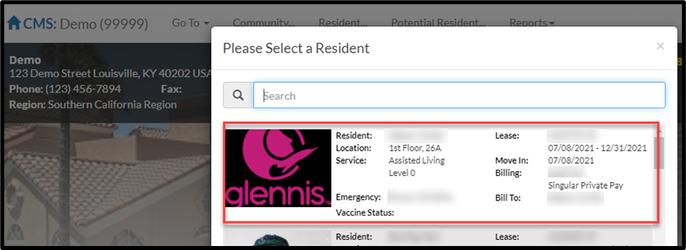
Step 2: Select a Resident.
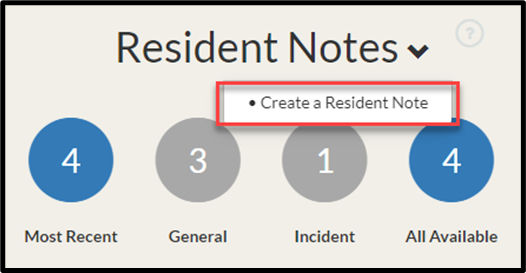
Step 3: In Resident Notes section, select the drop-down arrow, and then select Create a Resident Note.
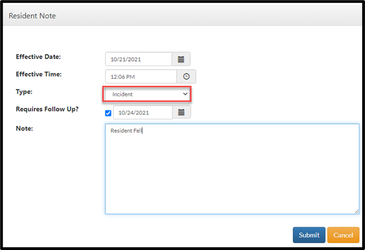
Step 4: Select the Date & Time the Incident occurred.
Step 5: Choose a Note Type of Incident.
Step 6: Input the Observer Statement.
Step 7: Select Submit.
Step 8: Select the pencil icon next to Indicators to add information about the Incident.
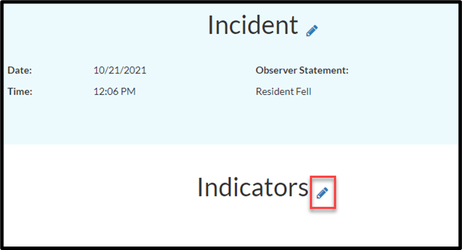
Step 8: Answer the questions to the corresponding Indicators.

Step 9: Complete the Outcome and Follow Up questions.
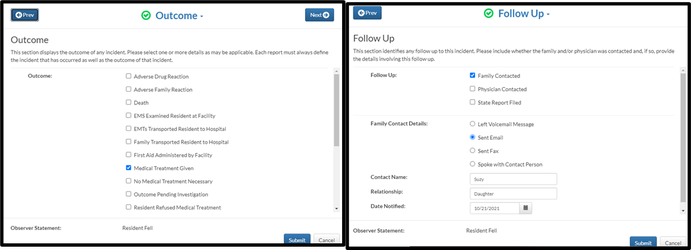
Step 10: Click on the Submit button.

Step 11: Review indicator and dimension selections.

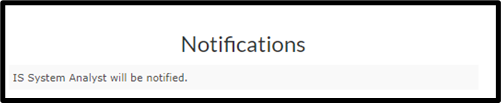
Step 12: Specific Incidents may trigger automatic email notifications. View the list at the bottom left of the screen.
Step 13: State Report templates can be found at the bottom right of the screen. Click on the document title to launch the State Report template.
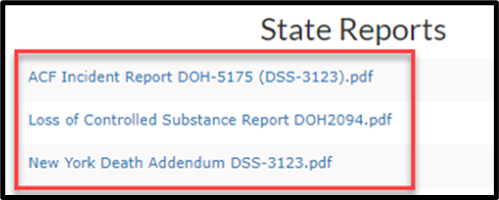
Note: Specific Incidents are State Reportable. If the answers selected meet the criteria for state reportable for that community, the Is this state reportable flag will be checked.
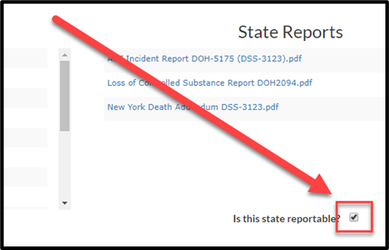
Note: If the State Reportable flag is not marked but should be state reportable, a user can select the check box.
Step 14: If the Incident is State Reportable, upload the state report.
Step 15: Download the state report template.
Step 16: Complete the state report.
Step 17: Click Browse to locate the state report file.
Step 18: Click the Upload icon.
Step 19: Select Submit.

Step 20: Once all Incident documentation is complete, click Submit Incident.

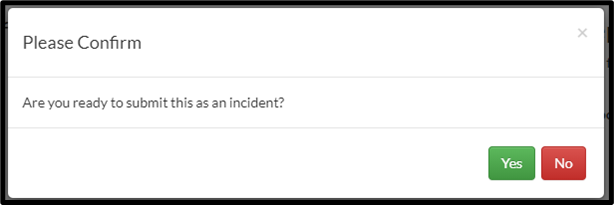
Step 21: Confirm the creation of the Incident by clicking Yes.
Was this article helpful?
That’s Great!
Thank you for your feedback
Sorry! We couldn't be helpful
Thank you for your feedback
Feedback sent
We appreciate your effort and will try to fix the article