Overview
In this article, we will review the user assessment.
Steps on Completing the Assessment
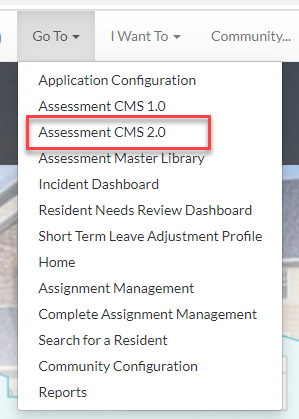
Step 1: Navigate to the assessment area in CMS by clicking on the Go To in the dropdown menu.
Create an Assessment
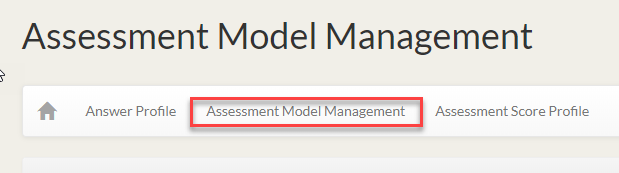
Step 1: Once in the Assessment CMS 2.0 area click on Assessment Model Management.
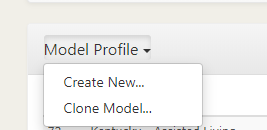
Step 2: Select to create an entirely new assessment or clone an existing one.
Note: Cloning an existing will copy everything from an existing assessment but allow it to be renamed and questions/sections can be edited.
Publishing to a community
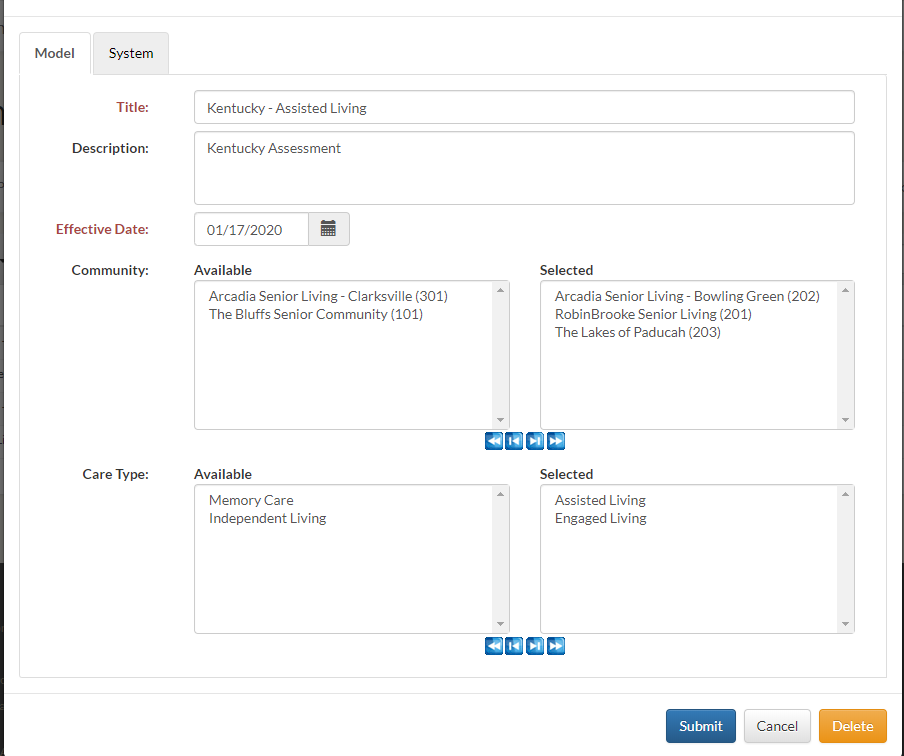
When the assessment is completed you have the ability to choose which communities that you publish it to. You will see all available communities and choose the appropriate assessment for the appropriate communities.
Existing Assessments
To add sections/questions you will click the view button which will bring you into the actual assessment. Once in the assessment you can update the sections and the questions.

Create/Edit Sections
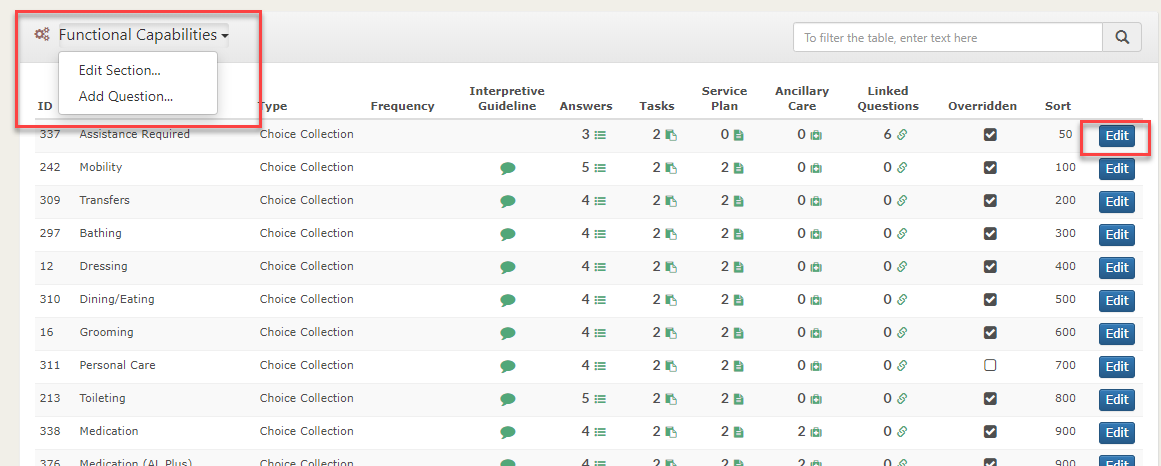
To edit a section, click the section dropdown to add a question or edit the section.
Create/Edit Questions
To edit the question, click the edit button at the end of each question. It will open the window where you choose the title, section, and question type. 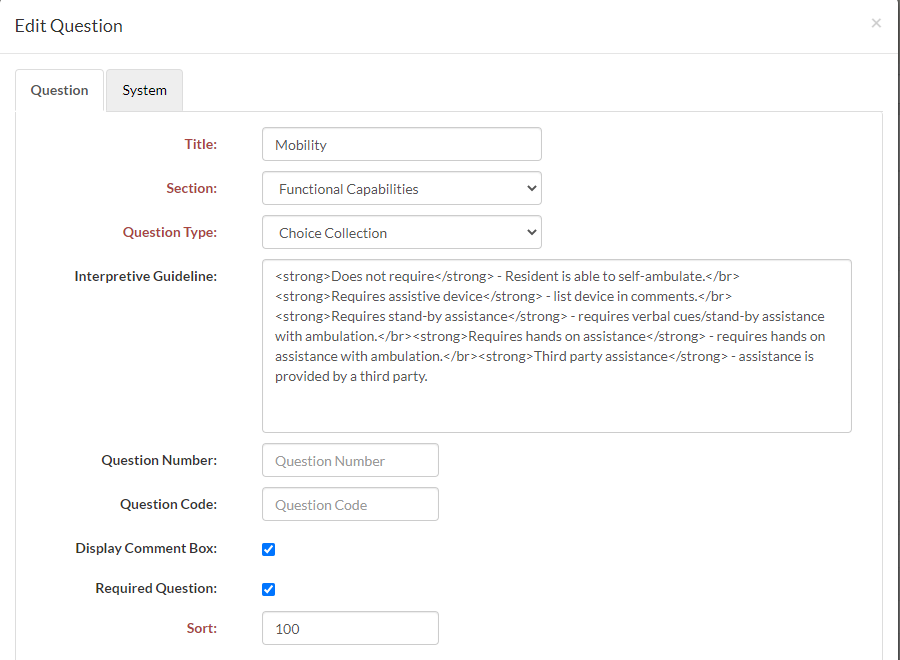
Create/Edit Answers
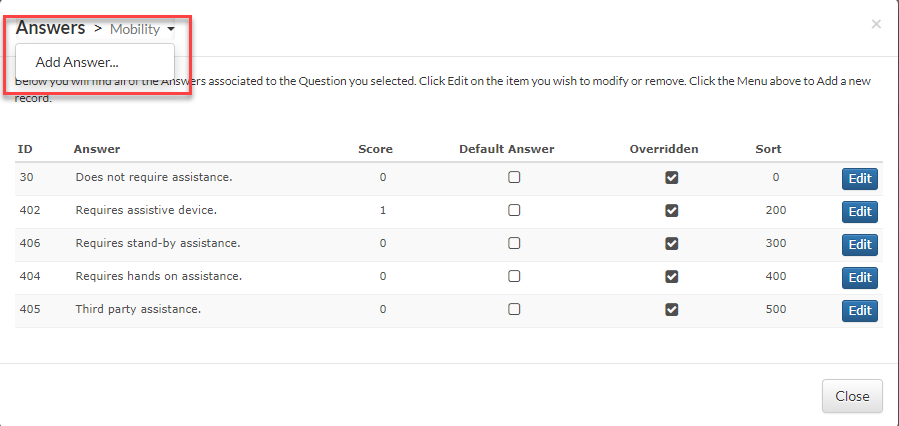
To add/edit answers click on the answer menu. Once clicked it will open a separate window where you click “add an answer” you will be able to add answers

Create/Edit Tasks
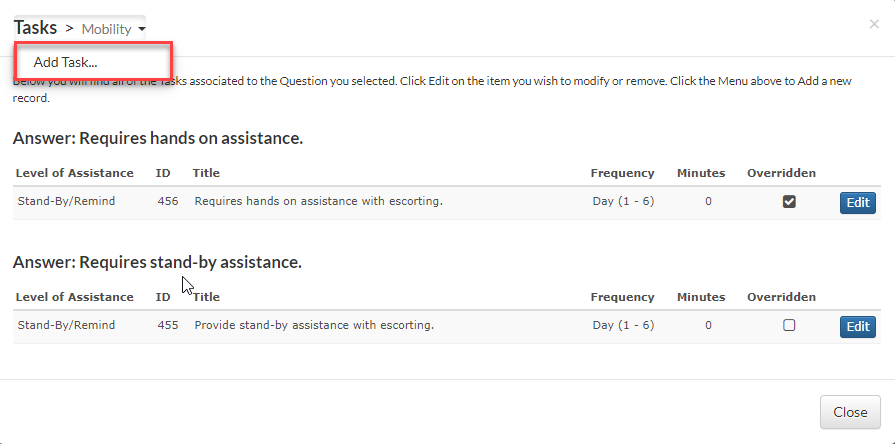
Below you will find all of the Tasks associated to the Question you selected. Click Edit on the item you wish to modify or remove. Click the Menu above to Add a new record.

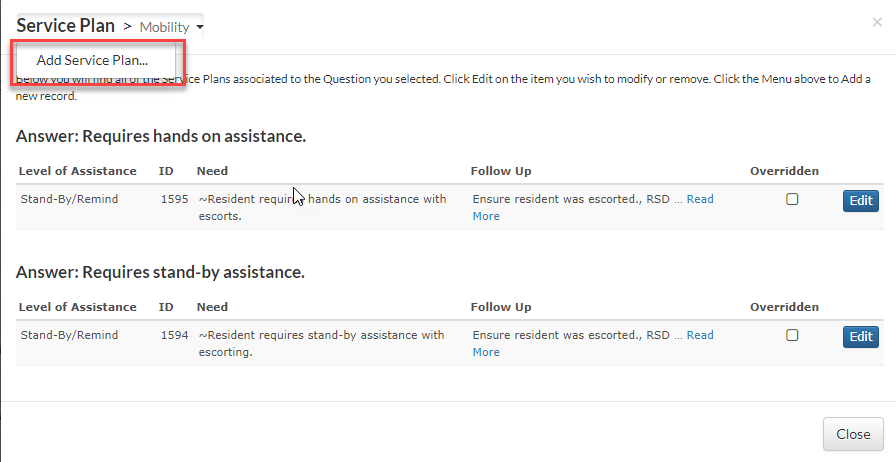
Create/Edit Service Plans
Below you will find all of the Service Plans associated to the Question you selected. Click Edit on the item you wish to modify or remove. Click the Menu above to Add a new record

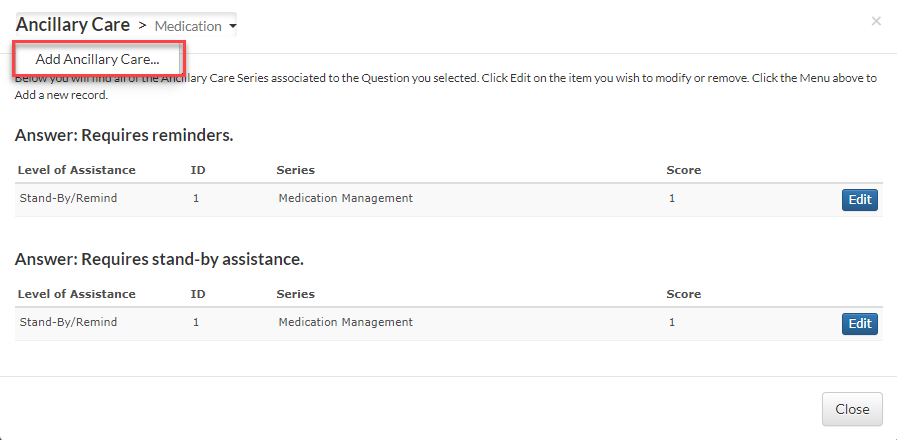
Create/Edit Ancillary Care
Below you will find all of the Ancillary Care Series associated to the Question you selected. Click Edit on the item you wish to modify or remove. Click the Menu above to Add a new record.
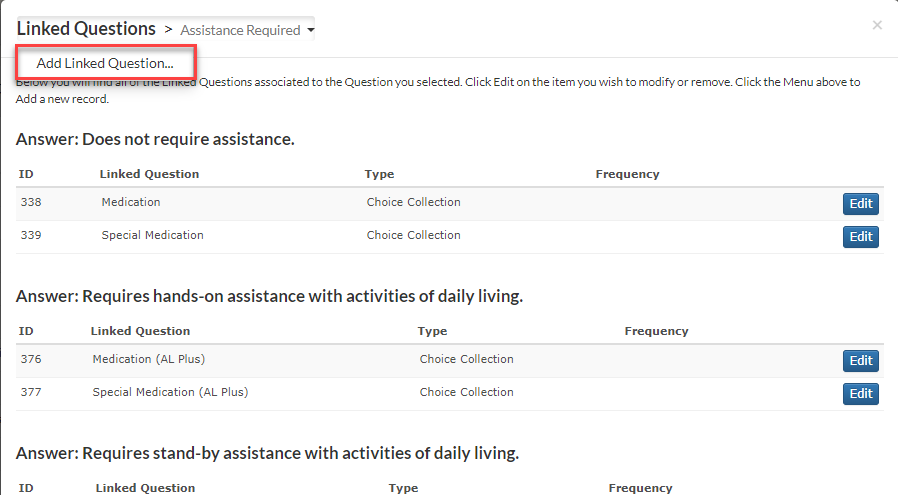
Create/Edit Linked Questions
Below you will find all of the Linked Questions associated to the Question you selected. Click Edit on the item you wish to modify or remove. Click the Menu above to Add a new record.
Was this article helpful?
That’s Great!
Thank you for your feedback
Sorry! We couldn't be helpful
Thank you for your feedback
Feedback sent
We appreciate your effort and will try to fix the article