Overview
When enabled, Assessments and Secondary Assessments can be configured to allow for eSignatures.
After completing an assessment, assessment documentation is delivered electronically to all relevant parties for digital signatures - generally, this includes at least one community reviewer, a resident representative, and the resident themselves. Once all required signees have completed their portion, the fully executed document will then be automatically dispersed to all relevant parties. The specific signees required, both the type of signees and number of signees, can be customized to the organization's specific requirements.
In this article, we'll detail the Assessment eSignature process - what the process does and how to do it!
Steps to eSign a Resident Assessment
Assuming assessment eSign is enabled and a user is using an assessment that has been configured to include eSignatures, the following are the steps to eSign a resident assessment.
Step 1: Complete the normal portion of the resident assessment including all assessment questions, task scheduling, and care acuity review.
Step 2: Below the Care Acuity section, users will find the eSignature section. Generally, the following roles will be required for all eSigned Assessments: at least one community reviewer, a resident representative, and the resident. Depending on community-specific requirements, additional community reviewers or resident representatives may be required.
By default, the user who completed the assessment will automatically display in the Community Reviewer role.
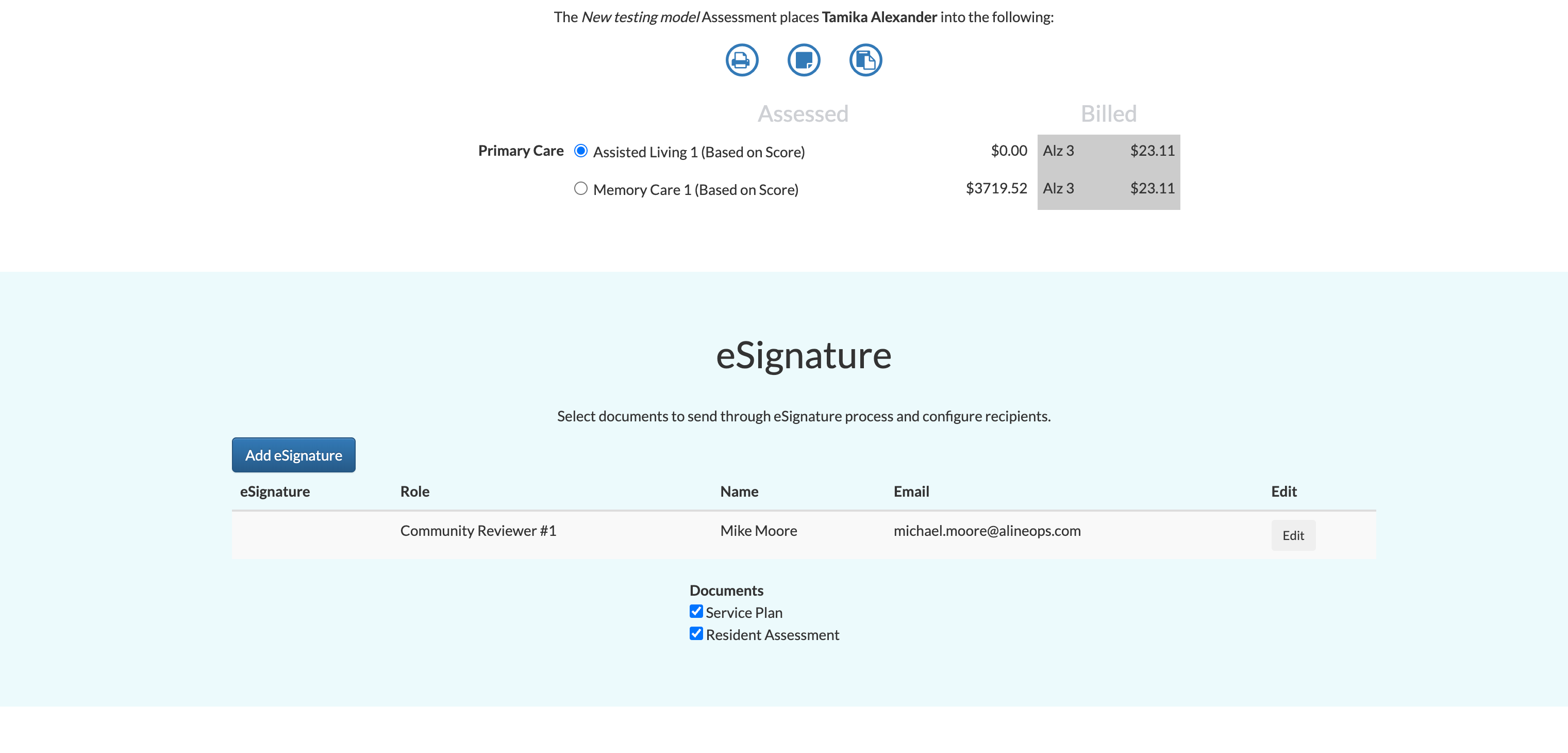
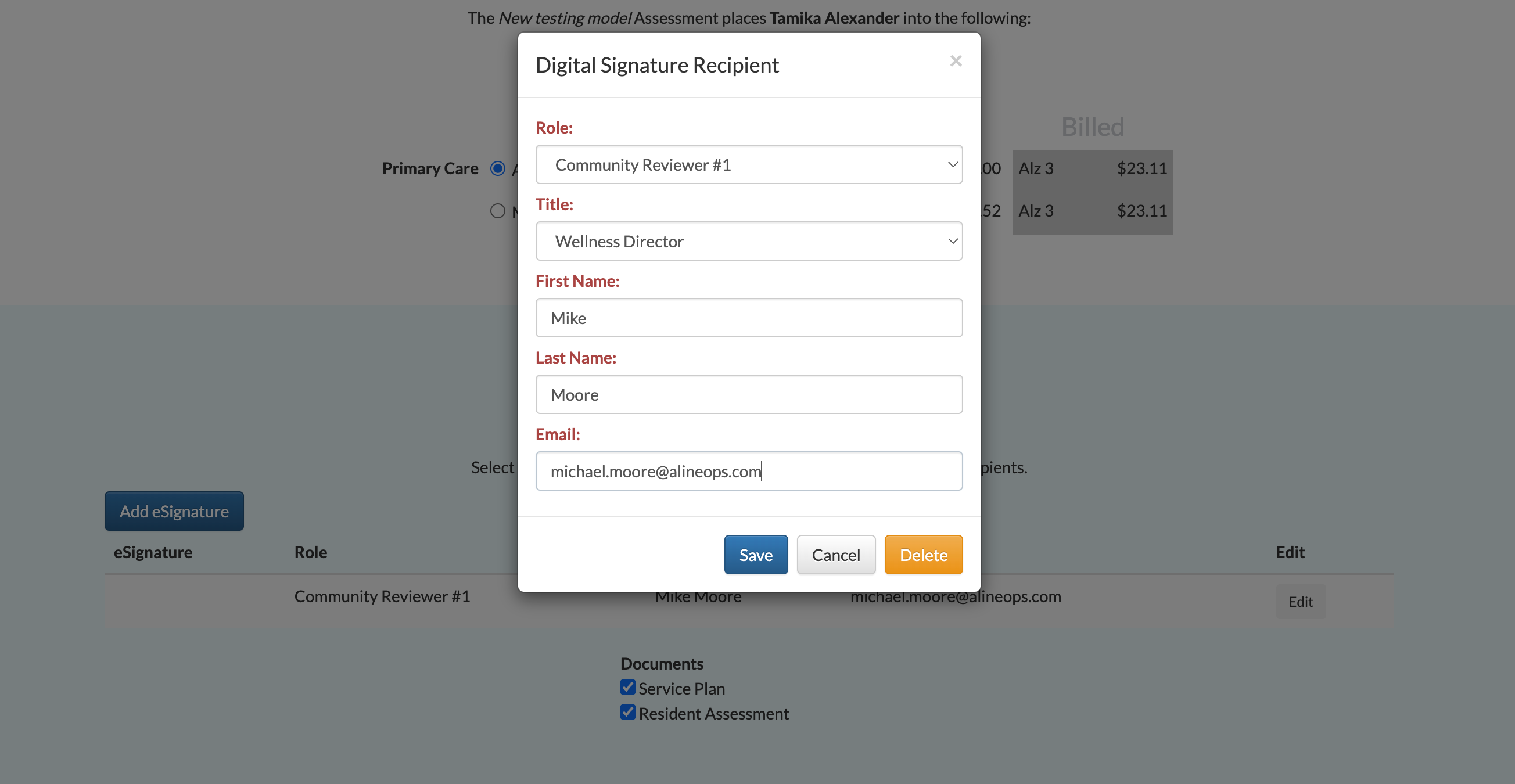
To ensure the information is correct, select Edit to review the Community Reviewer info and make changes to the Role, Title, First Name, Last Name, or Email Address if necessary. Select Save.
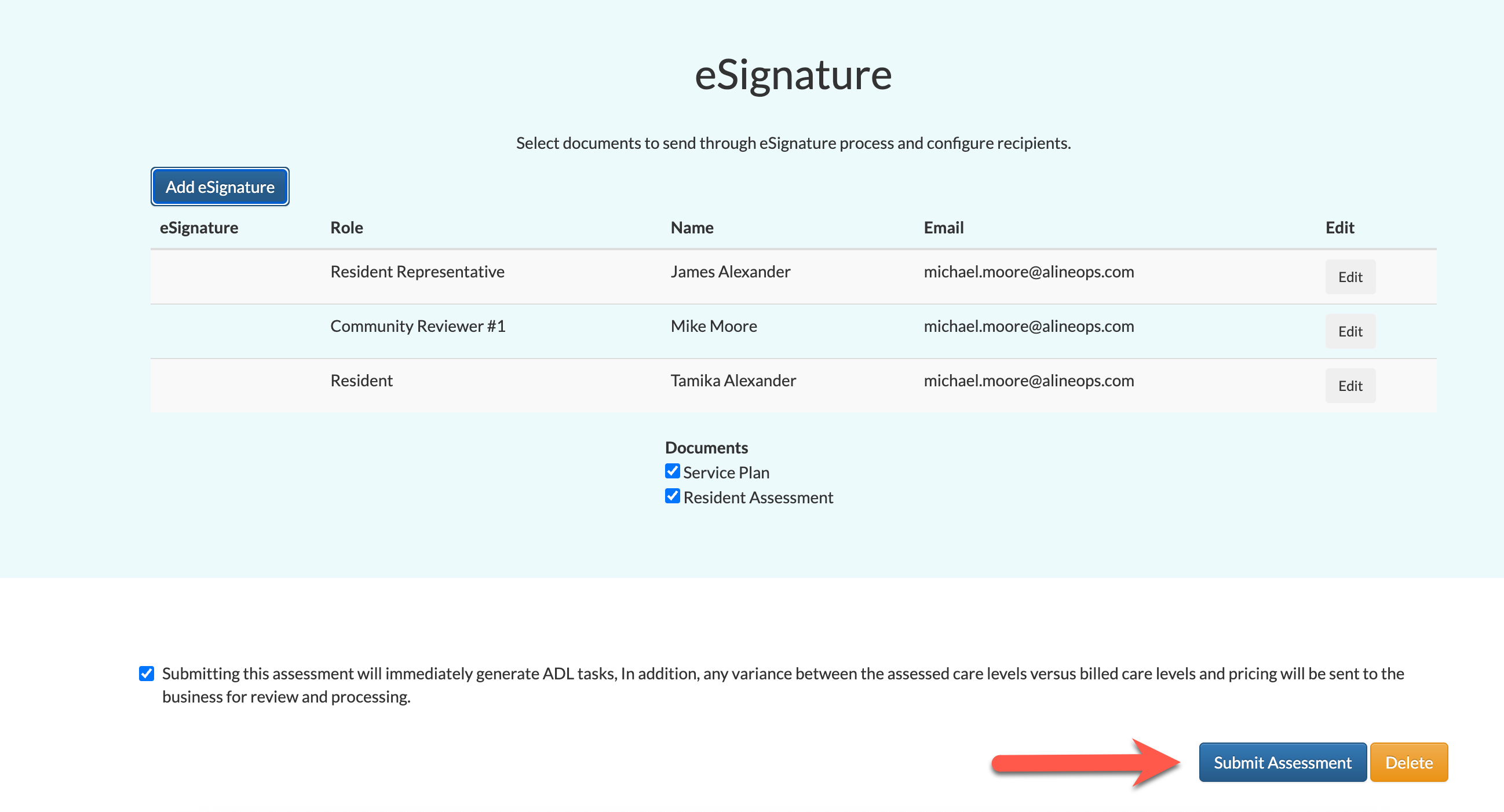
Step 3: Add the Resident Representative, the Resident, and, when configured, the second Community Reviewer to the eSignature package. To add a new role, select the blue Add eSignature button.
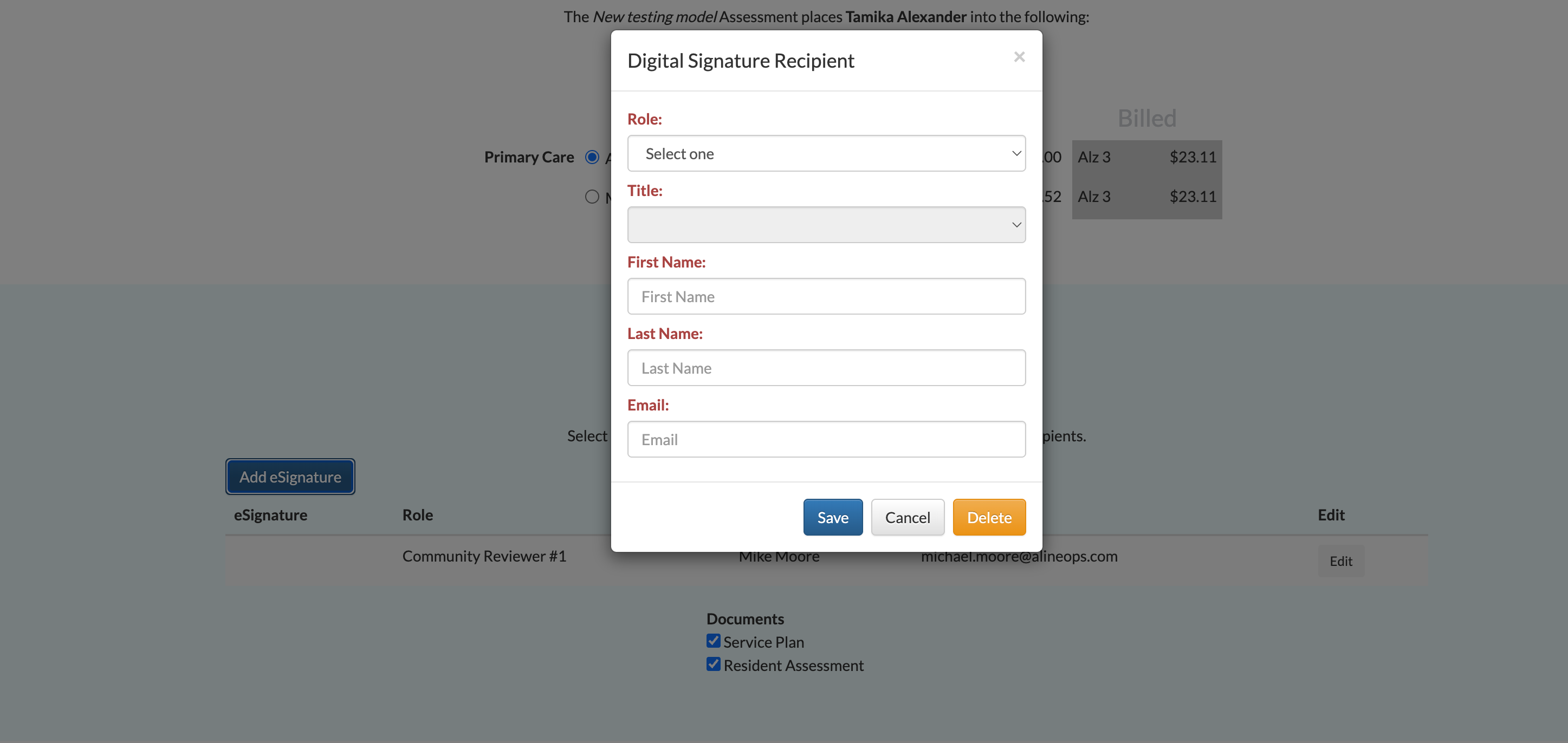
Fill in all required details for all required roles, including Role, Title (when applicable), First Name, Last Name, and Email Address.
Please Note: Email addresses can be repeated for multiple roles / signees. For instance, if the resident has no email address, the resident representative's email address can be used for the resident as well. If neither the resident representative nor the resident have a valid email address, the community reviewer's email address can be used for all three roles.
Step 4: After all required roles have been added to the eSignature package, the assessment should now be submitted. The eSign process will automatically kick off upon assessment submission.
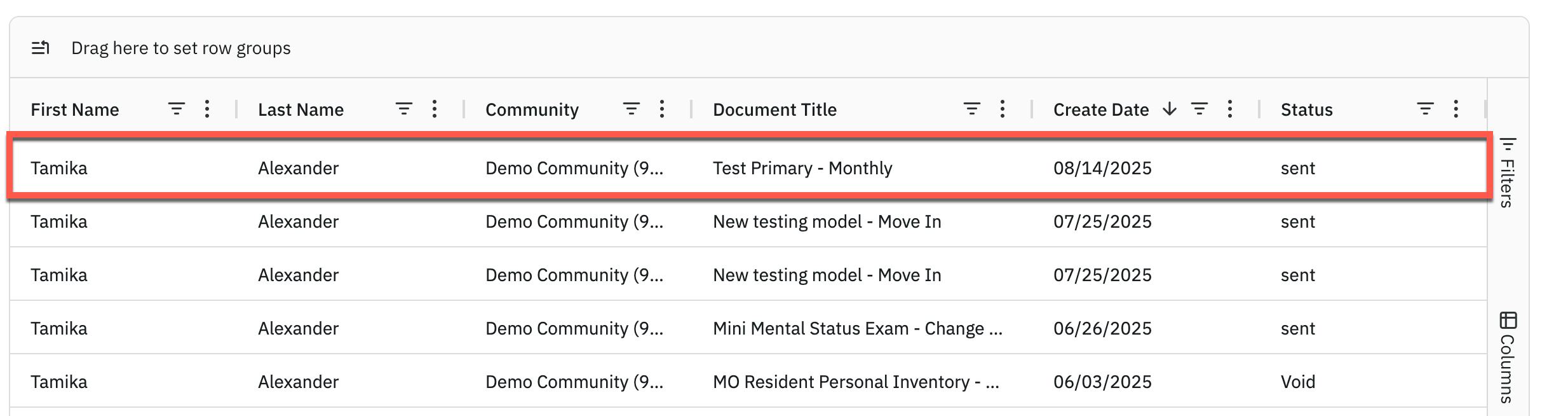
Step 5: The parties will now receive, via email, an electronic copy of the completed assessment for their signature. In addition, the completed assessment can now be found in on the resident profile in the Digital Library with its corresponding status. Prior to all signatures being collected, the assessment will start in a status of "sent".

In addition, users can run the eSign Documents Report to review any assessments sent out digitally for eSignatures.
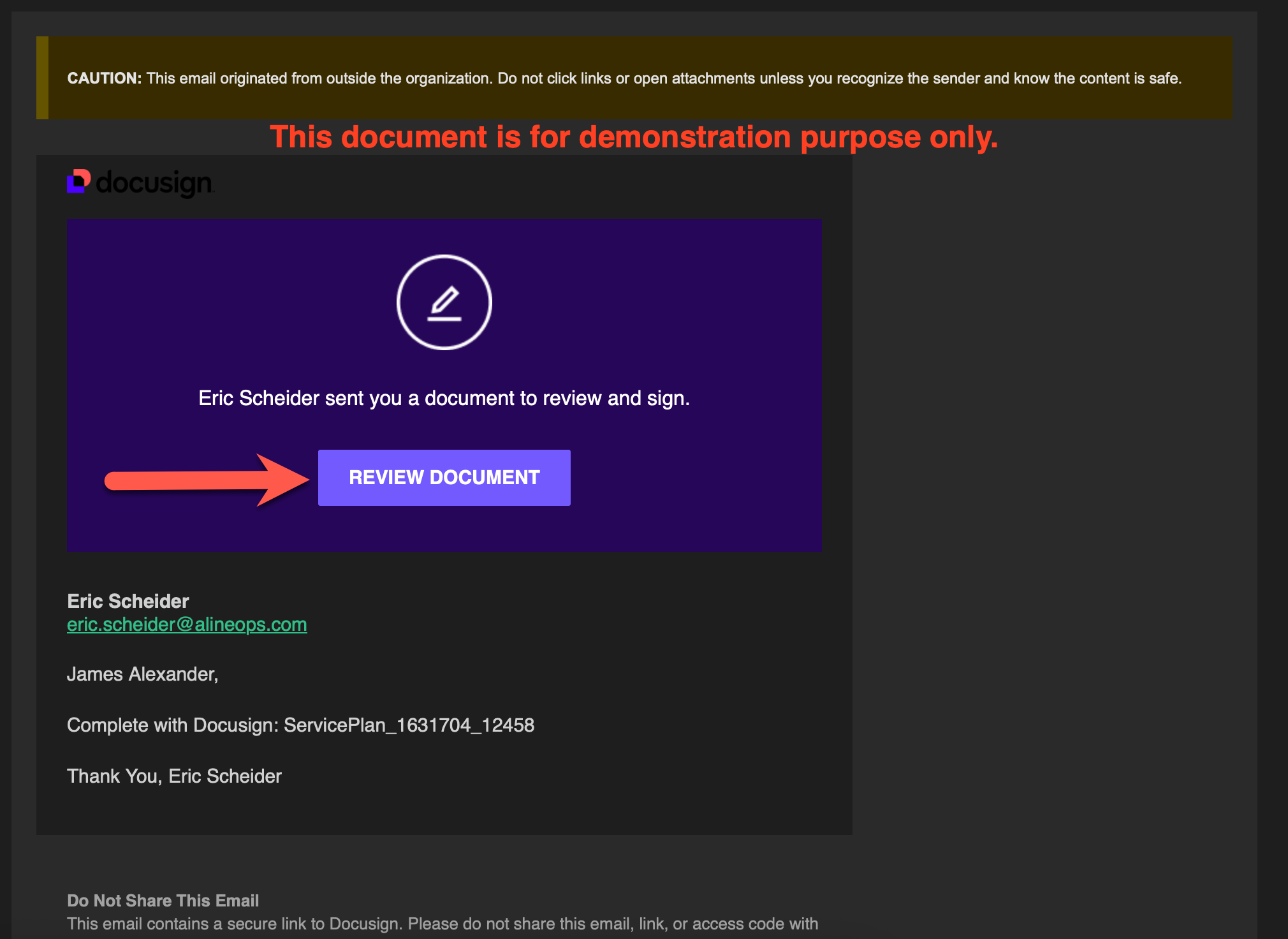
To sign the assessment electronically, users need to log into their email, open the email received, and then select Review Document.
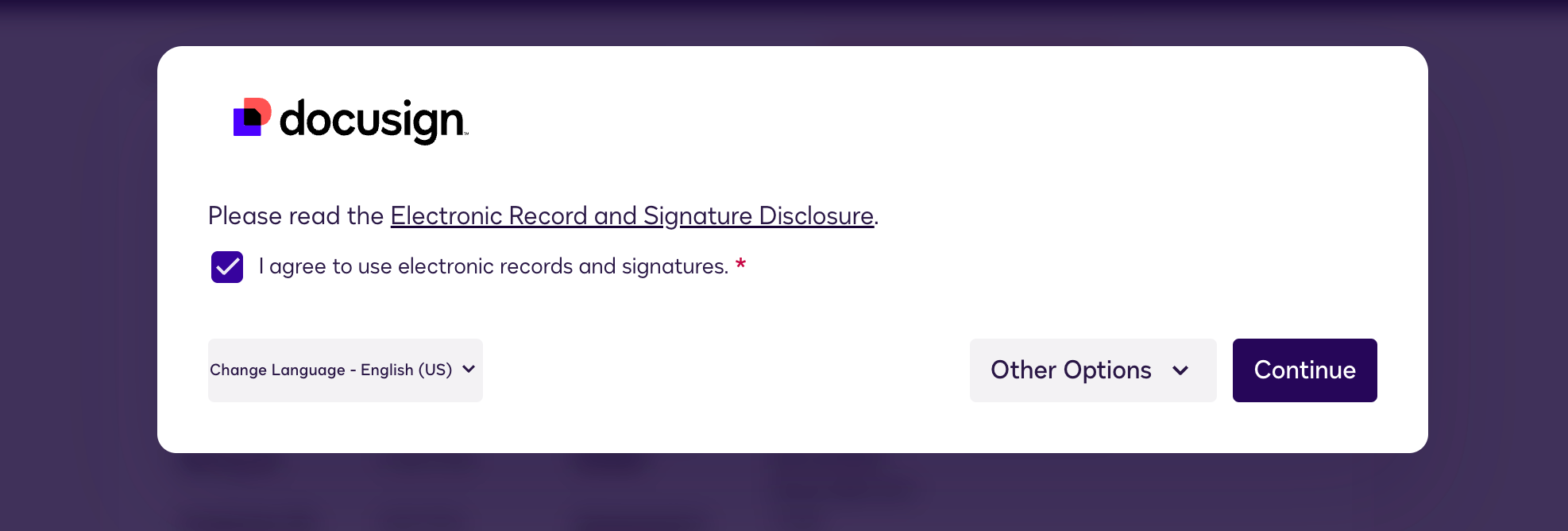
Step 6: Next, users will acknowledge the Electronic Record and Signature Disclosure and must agree to use electronic records and signatures. Select Continue.
Step 7: Select Start to begin the signature process.
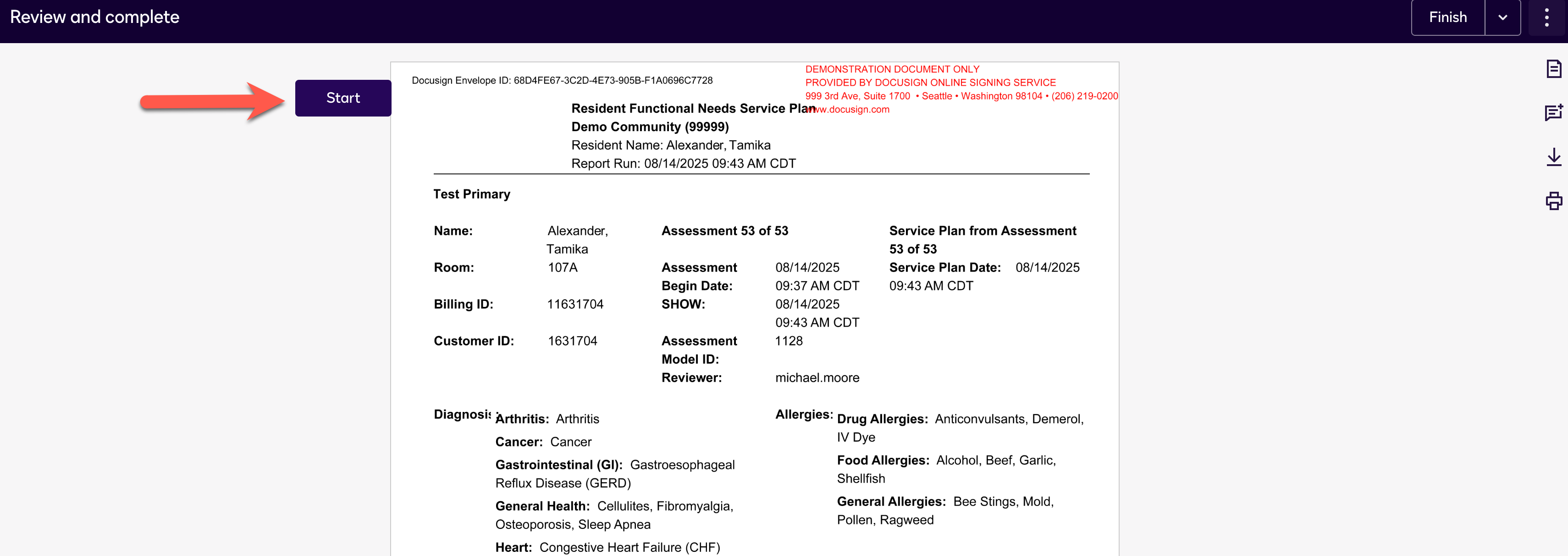
This will direct the user to the first place in the document that requires their signature.
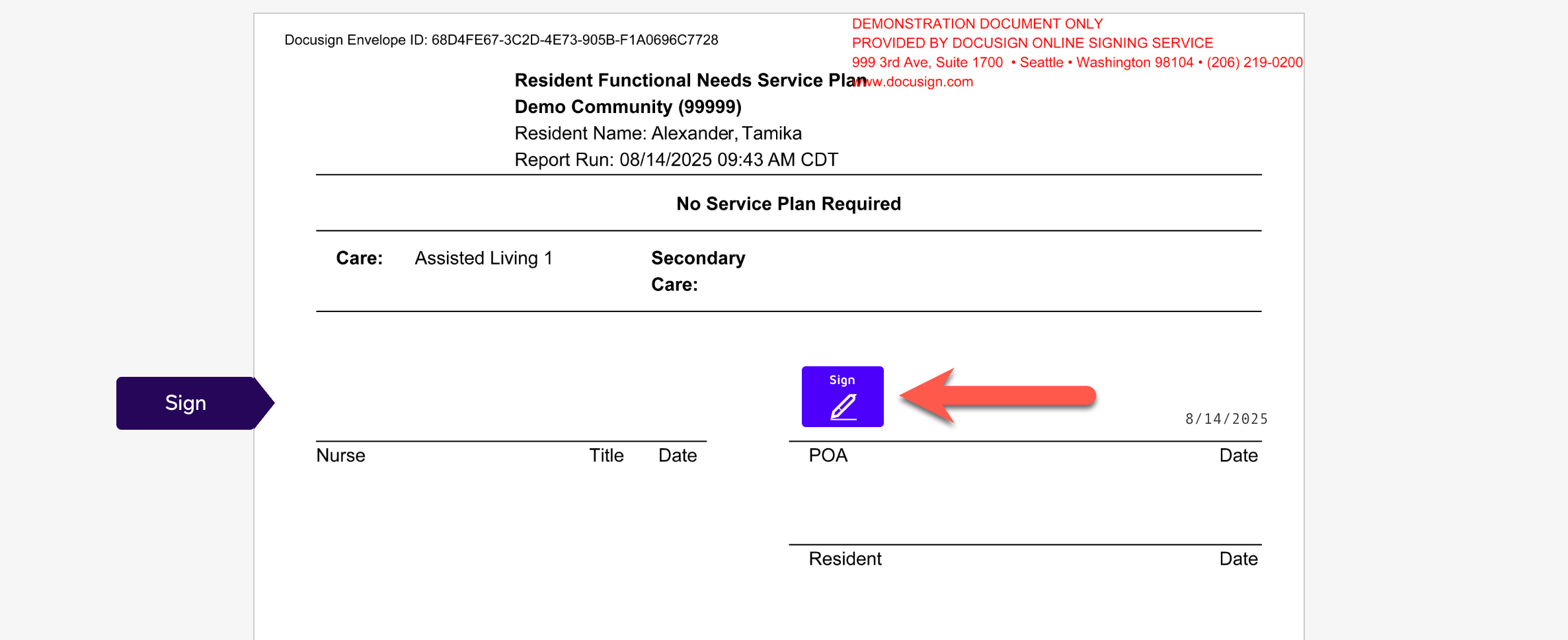
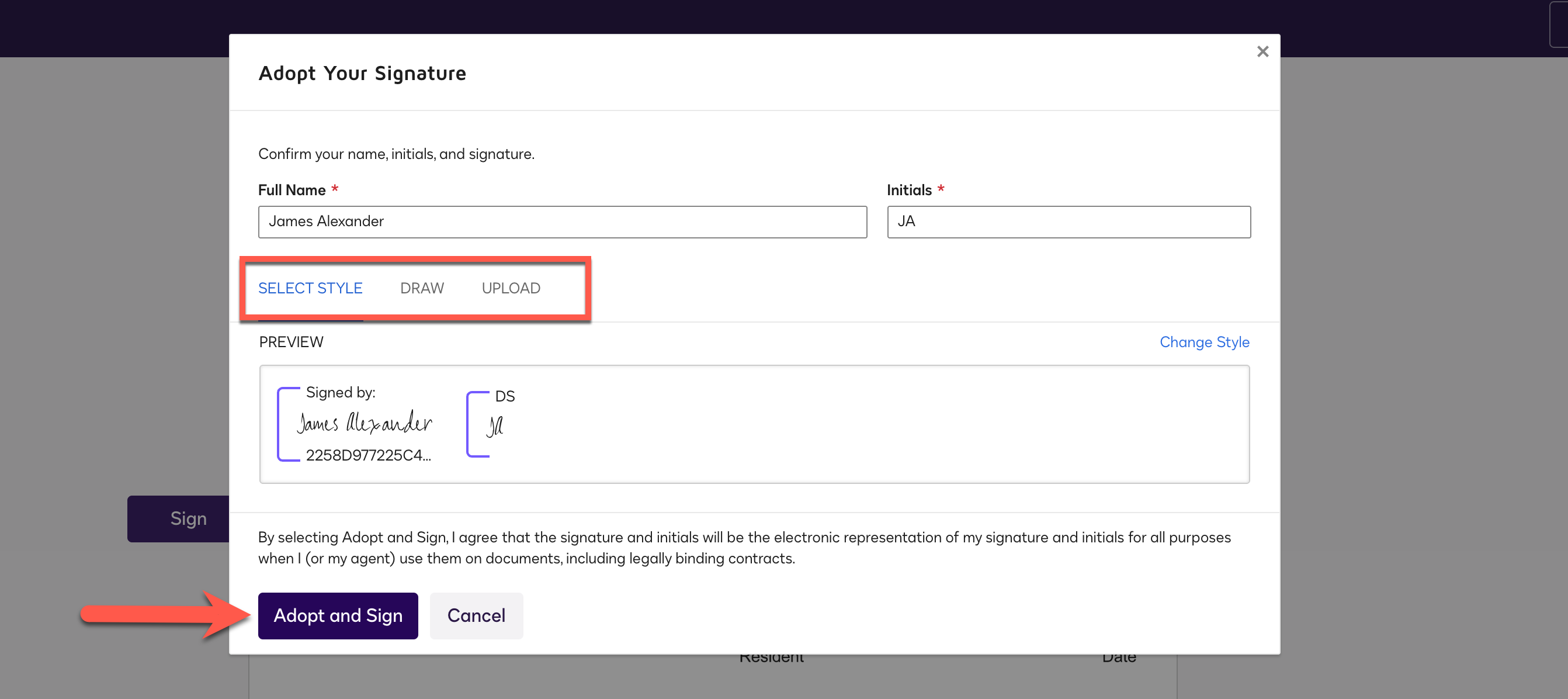
Selecting the Sign button will then walk users through creating their own unique eSignature, allowing for the choice of adopting a suggested signature, importing an existing signature, or drawing a new signature.
Select Adopt and Sign to adopt the new signature and sign the document.
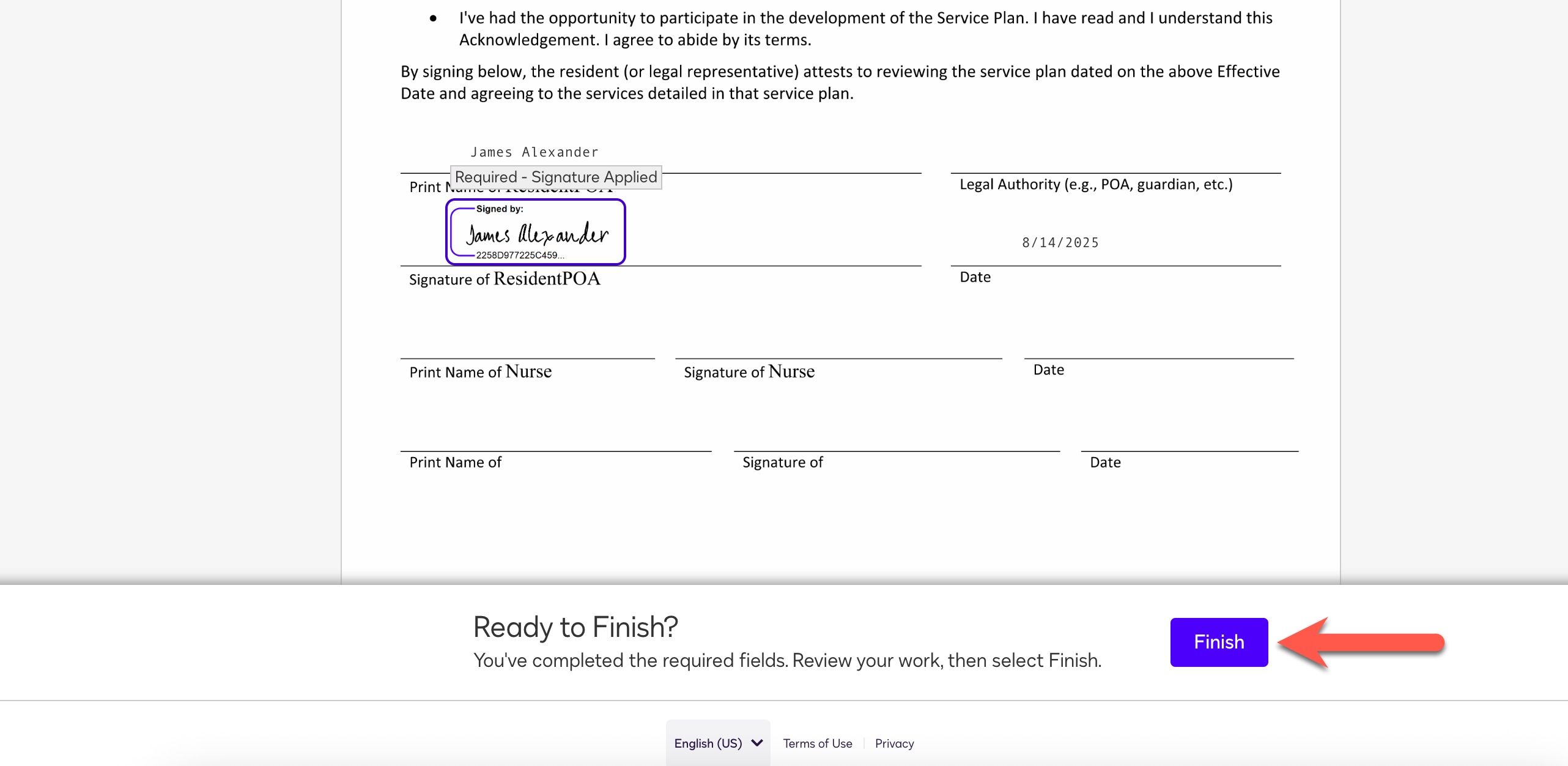
Users will automatically be directed to any additional portions of the document that requires their signature. Newly adopted eSignatures will be applied when the Sign buttons are selected.
After all required signatures have been placed on the document, select Finish to complete the process.
Step 8: All users associated with the assessment document package must complete the same steps until all required signatures have been collected. After all signatures have been added, the eSign process is complete!
Each associated signee will be emailed a completed copy of the assessment and the signed assessment will also display in the resident's Digital File Library - the status of the completed assessment will now display as Complete.


Was this article helpful?
That’s Great!
Thank you for your feedback
Sorry! We couldn't be helpful
Thank you for your feedback
Feedback sent
We appreciate your effort and will try to fix the article