Overview
In this article, we will review how to mark tasks completed by a specific employee.
Steps to Mark Tasks Completed by a Specific Employee
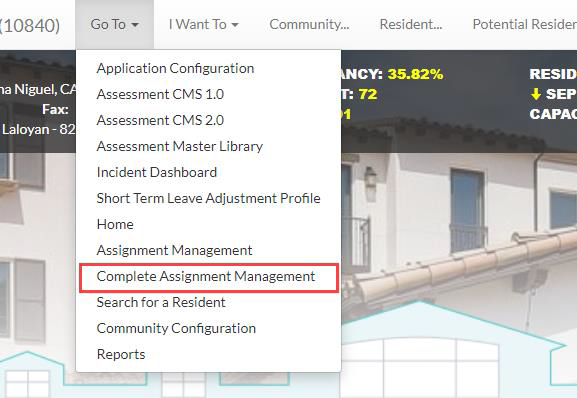
Step 1: On the Care Management Home page, click on the Go To dropdown in the top left and select the Complete Assignment Management option to navigate to the new task completion page.
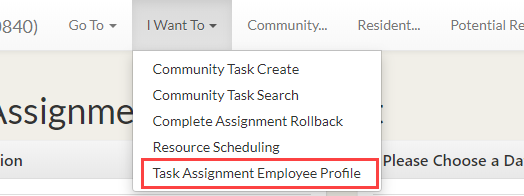
Step 2: From the I Want To dropdown choose Task Assignment Employee Profile.
Step 3: Click on the employee you want to add to your list, hit the single arrow at the bottom of the list and you will see the name move to the empty box titled Selected.
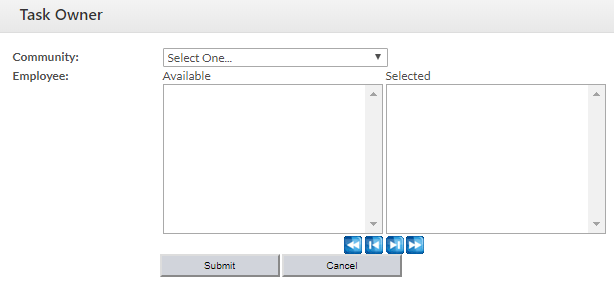
Step 4: Click on the Submit button at the top of the page, and now that employee will be displayed in your community employee drop down list when you want to complete assignments completed by the employee.
Was this article helpful?
That’s Great!
Thank you for your feedback
Sorry! We couldn't be helpful
Thank you for your feedback
Feedback sent
We appreciate your effort and will try to fix the article