Overview
In this article, we will review how to rollback a completed task.
Steps to Rollback a Completed Task
Step 1: Start by choosing “Assignment Management from the Go To… drop down. The ED, RSD, LGD, and RALD’s have access to complete this function.

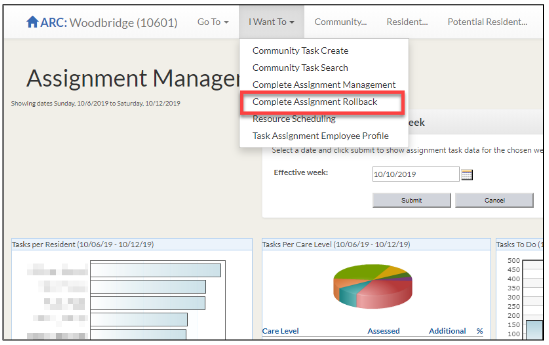
Step 2: Choose Complete Assignment Rollback from the “I Want To” drop down.
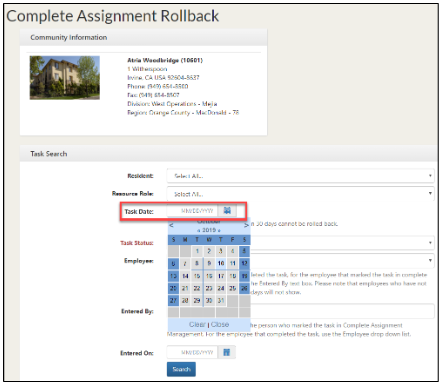
Step 3: Set up the Task Search to find tasks to reactivate for the assignment sheet. Click on the task date calendar and choose the date the tasks were scheduled to be completed.
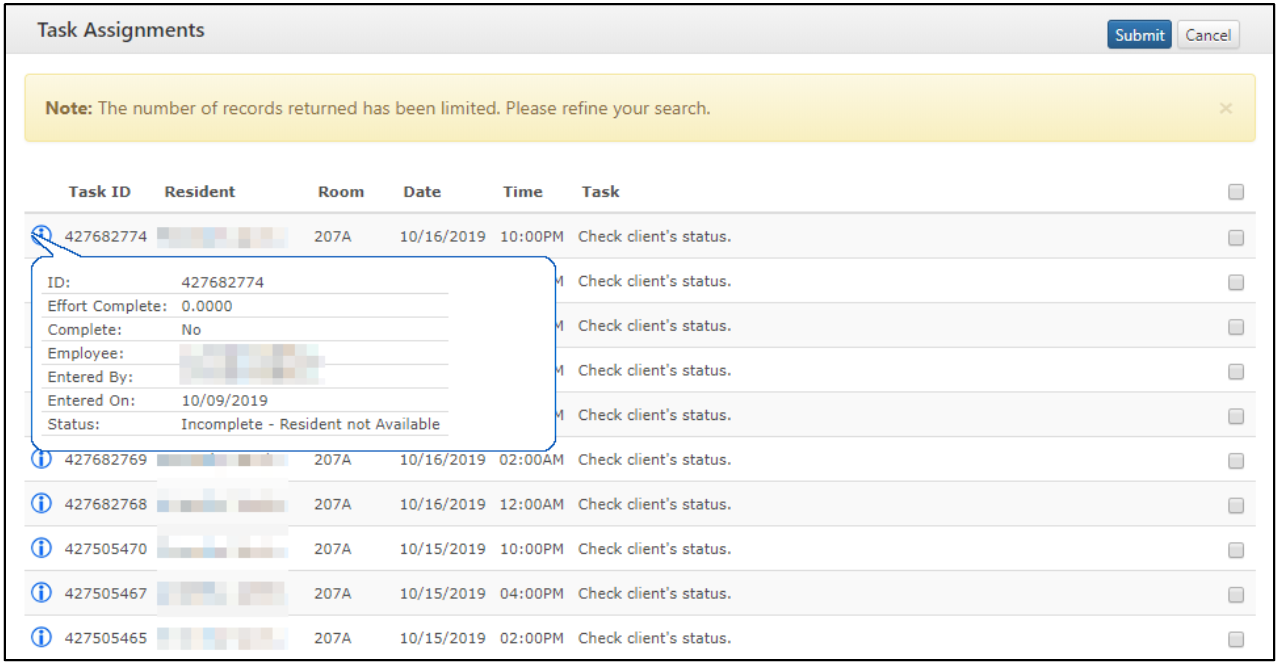
Step 4: You search results will list any tasks that were completed on that date. To review when the tasks were completed and who entered them into Complete Assignment Management, hold your cursor over the blue information button on the left-hand side of the list of tasks.
Step 5: To reactivate the completed tasks for the assignment sheets, click on the checkbox i the blue header on the right-hand side to activate the checkbox for all tasks.
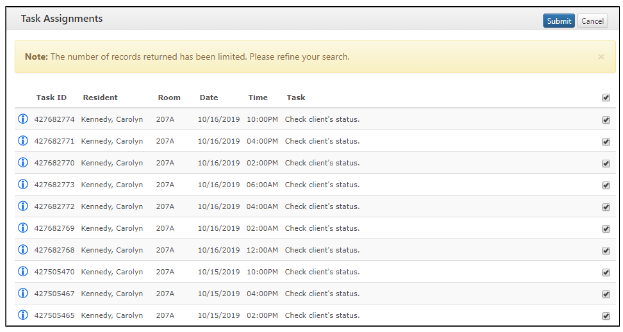
Step 6: Click on Submit and the tasks will now be reactivated and available on the assignment sheets.
Note: Be very careful about the tasks that you rollback. If the wrong tasks are reactivated, the only way to close them again is to re-enter them as completed in Complete Assignment Management.
Was this article helpful?
That’s Great!
Thank you for your feedback
Sorry! We couldn't be helpful
Thank you for your feedback
Feedback sent
We appreciate your effort and will try to fix the article