TABLE OF CONTENTS
Acuity
Resident Summary
Get a quick overview of your resident population.
- The Key Performance Indicators (KPIs) at the top of the page give an at-a-glance overview of the number of active residents, upcoming move outs, move ins, and birthdays. Reference the following table for details, enabling anticipation and efficient planning of transitions and celebrations.
- Look at the Residents by Care Level bar chart on the left to understand the distribution of care levels and types in your community.
- The Residents by Gender and Mobility Device Used pie charts give you a clear picture of resident characteristics and what kind of mobility aids are being used.
- The Residents by Med Level and Residents by Age Group bar charts on the right side are there for you to better understand resident needs.

Layout Tips
- Select column headers in the Upcoming Items table to adjust the sort order.
- In the Residents by Age chart, select an age group to drill down into age.
Questions to Get Started
How can I effectively plan for the upcoming week's resident activities?
- Begin by checking the KPIs on top of the Upcoming Items table. Here, you'll find the number of upcoming move ins, move outs, and resident birthdays. You can reference the table for more details about these events, such as the resident and the date of the event.
What gender and age do most of my Memory Care residents tend to be?
- Select and filter to the Memory Care care level in the Residents by Care Level leaderboard. Reference the Residents by Gender pie chart and the Residents by Age Group bar chart. Select the age group with the most residents to drill down into age.
Diagnosis Report
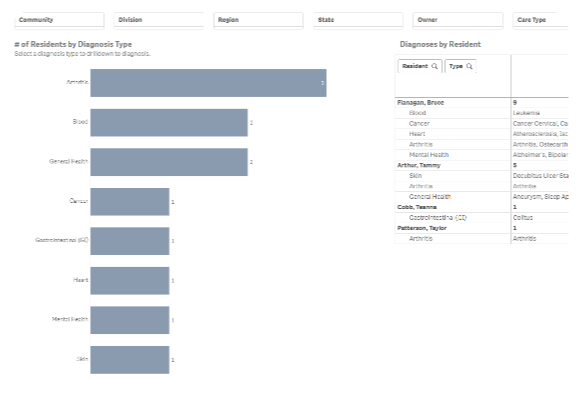
Uncover diagnosis distributions and resident diagnostic details.
- Use the Residents by Diagnosis Type leaderboard on the left side of the page to get a feel for the different diagnoses among your residents. This can help you get a clear view of the overall health needs in your community.
- Use the Diagnoses by Resident pivot table to dive deeper into the resident-level details— it shows how many diagnoses each resident has per type, and the details of each.
Layout Tips
- Diagnosis Type drills down to specific diagnoses.
Questions to Get Started
What kinds of diagnoses are the most common among my resident population?
- Reference the 'Residents by Diagnosis Type' leaderboard on the left. It shows you the most common health conditions your residents are dealing with. This gives you an idea of the main health challenges in your community.
How can I find out which of my residents struggle with mental health issues?
- Using the leaderboard, select the Mental Health diagnosis type. If desired, select a specific diagnosis once drilled down. Then, reference the pivot table for a list of residents with the diagnosis.
Resident Details
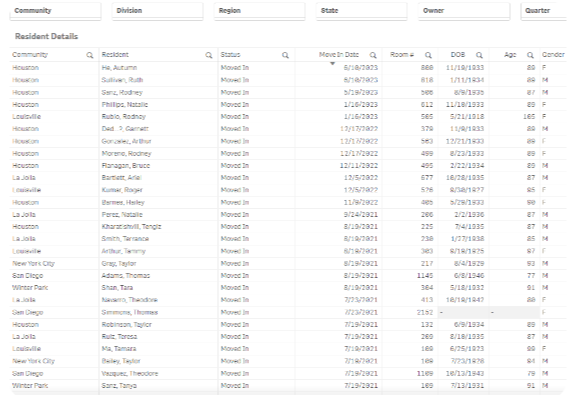
Comprehensive resident details to streamline information access.
- Use the Resident Details table to access information about each resident. The table includes community, resident name, status, move in date, room number, date of birth, age, gender, assessed care type and level, and medication level.
Layout Tips
- Select column headers to adjust the sort order.
Questions to Get Started
How can I generate a detailed report about a specific subset of my residents?
- Filter the page as needed using the banner across the top, or searching and selecting values from the table. If desired, export to Excel by righting click the table and selecting Download as..., then Data.
Which resident has been here the longest? Which resident is the oldest?
- Select column headers to sort in ascending order, or select again for descending. Sorting by the Move In Date column will show residents with the longest tenures, and sorting by the Age or DOB will show the oldest residents.
Assessment
Assessment Overview
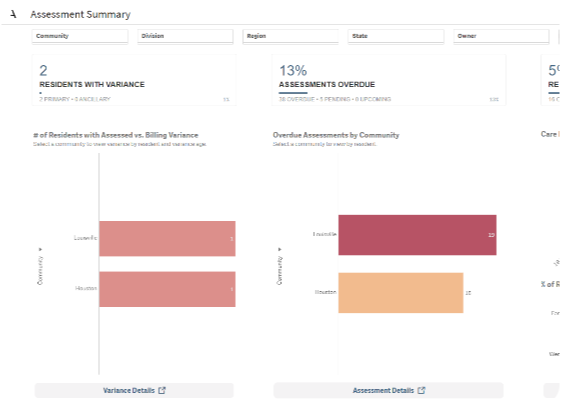
Identify care level discrepancies, track overdue assessments, and analyze changes in care level using leaderboards.
- Identify communities with a high volume of variances, as well as residents with persisting variance.
- Monitor the number of assessments that are overdue by community and drill down to the resident level, ensuring timely completion for proper care planning and regulatory compliance.
- Assess the percentage of residents who have experienced changes in their care level over time. The bar chart shows the amount of changes compared to the amount of assessments, which can be compared with industry benchmarks.
Layout Tips
- The bar charts drill down to the resident level for the variance and overdue assessment charts, to show variance age and overdue days, respectively.
- The buttons beneath each chart navigate to corresponding details.
Questions to Get Started
How can I find residents with longstanding differences between their assessed and billed care?
- Use the variance leaderboard chart to drill down from community to resident. Gain insight into variance age, and then use the button to navigate to details.
How can I identify and monitor overdue assessments in my community?
- Select your community to drill down to view days overdue by resident, then select the resident of interest. Navigate to the details page using the button.
Assessment Details
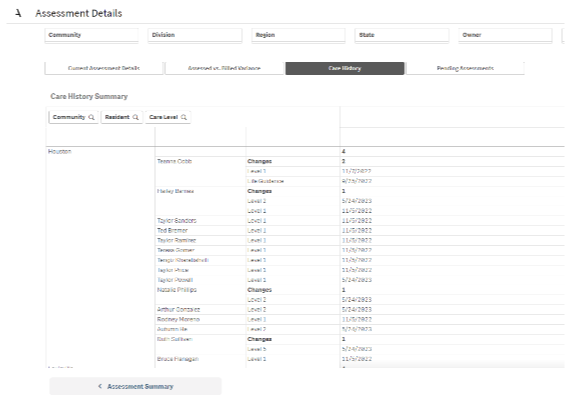
Analyze current assessment details, examine variance, and track care level changes.
- The Assessment Details view allows you to dive into the current assessment details. You can review the table to gain insights into assessment status and prioritize actions accordingly.
- Explore the Assessed vs Billed Variance view to gain a comprehensive understanding of the variances between the assessed care and billed care. This detailed information helps identify discrepancies and facilitates accurate billing adjustments.
- The Care History pivot table provides an overview of care level changes for communities and residents. You can analyze the number of care level changes and review the dates & new care levels to understand the care progression of a resident over time.
Layout Tips
- Toggle buttons: Utilize the toggle buttons to switch between different table views on the Assessment Details sheet, such as Current Assessment Details, Assessed vs Billed Variance, and Care History.
- The Current Assessment Details table is sorted by Days to Next Assessment to easily identify overdue assessments.
Questions to Get Started
Have we done any assessments that are yet to be submitted?
- Navigate to the Pending Assessments tab to view resident and pending date, as well as details about assessed care and med levels. This allows you to take action on the partially completed assessments and remain up-to-date.
How has the care level for a specific resident progressed?
- Refer to the Care History pivot table, and select a resident. Review the dates and new care levels at the resident level. These insights into the care progression over time help inform care planning and decision-making.
STL Report
Monitor and analyze resident departures.
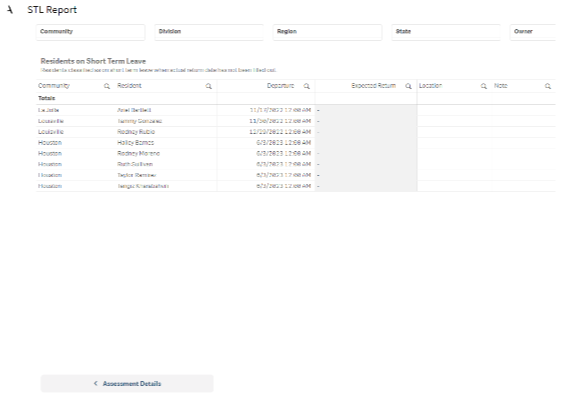
- The STL Report sheet provides essential information about residents, including departure dates, expected return dates, locations, and absence age.
Layout Tips
- Select the Absence Age column header to sort the table by duration of absence.
- View the total number of residents on STL in the top right-hand corner.
Questions to Get Started
Which residents are on STL right now?
- Review the table for the list of residents currently not present in the community.
How long has this resident been away?
- Refer to the Absence Age column for the number of days between today and their departure date.
Incident
Overview
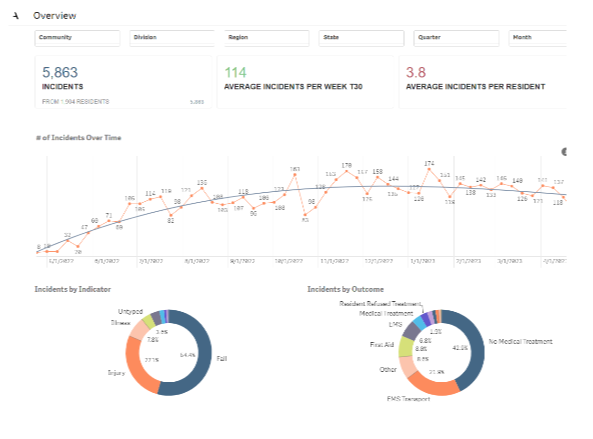
The Overview sheet offers a quick snapshot of incident management.
- Get a clear understanding of the current state of incident management with at-a-glance KPIs.
- Identify areas of focus or in need of improvement and drill down into detail using the leaderboard chart. In the pie charts, discover insights about common Incident types and outcomes.
- View a trend chart of Incidents over time and spot any trends or recent fluctuations.
Layout Tips
- Use the toggle buttons in the bottom right corner to switch the measure in the line and leaderboard charts from incident volume to average per resident.
- The leaderboard drills down from entity (region, division, community) to care type and resident.
- Use the filter pane to filter by care type, incident type, date, outcome, or state reportability (alongside standard filter options).
- Expand the filter pane to view all available filters by selecting the panel with […] on the right.
- Hover over dates of interest in the line chart then scroll to zoom in for more specific dates.
Questions to Get Started
Have residents been having more incidents recently? Where is this happening?
- Start by selecting the Average Incidents per Resident button in the bottom righthand corner to view the trend over time. Then, drill down to specific periods of interest to identify any noticeable spikes. Reference the leaderboard to identify areas with high incident volume, allowing you to pinpoint the specific communities or care types where incidents are happening more frequently.
Are we frequently having incidents that result in EMS transport or medical attention?
- Select the incident outcomes of interest from the donut chart on the left, and note if the Average Incidents per KPIs increase or decrease once filtered. Toggle to view charts by # of Incidents, then reference the line chart to view volume over time and identify any trends. Drill into the leaderboard to gain insights into areas requiring attention.
Analysis
Overview
The analysis sheet offers valuable insights into incidents and their operations at the community level.
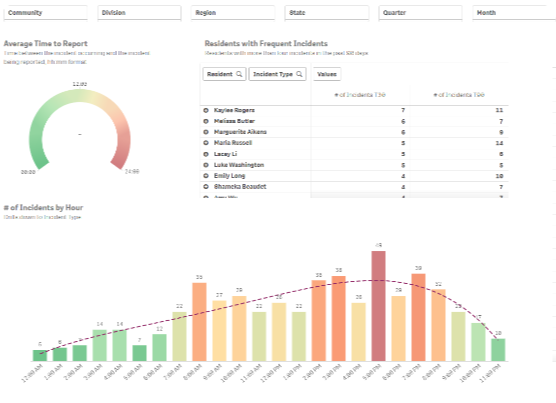
- Using the pivot table, identify residents with frequent incidents and monitor any evolving patterns, enabling focused attention and personalized care plans.
- Reference the gauge for an at-a-glance understanding of the Time to Report, in order to assess the efficiency of incident reporting processes.
- In the bar chart, analyze incident patterns by hour to identify high concentration periods and optimize staffing or interventions accordingly. Select an hour to drill down into incident type.
Layout Tips
- Expand rows in the Residents with Frequent Incidents table by selecting the + icon to view incident volume by type for that resident.
- The Incidents by Hour chart drills down to show incident type, once an hour is selected.
- The button in the bottom right navigates to the next page, which shows a detailed table of incidents.
Questions to Get Started
Are there specific times of the day when incidents are more prevalent? What kinds of incidents?
- Reference the # of Incidents by Hour chart to view the distribution of incidents throughout the day and identify potential trends. Select an hour to view by incident type, and browse the details table on the right to see details at a glance.
Which residents have been experiencing frequent incidents? Has this changed in recent weeks?
- Using the Residents with Frequent Incidents chart, identify residents with over 4 incidents within the past 90 days. Compare this with the T30 column to assess any recent changes. Expand a row to view resident incidents by type and refer to the rightmost table for a detailed breakdown.
Details
The Details sheet helps in conducting in-depth incident analysis and generating accurate reports as needed.
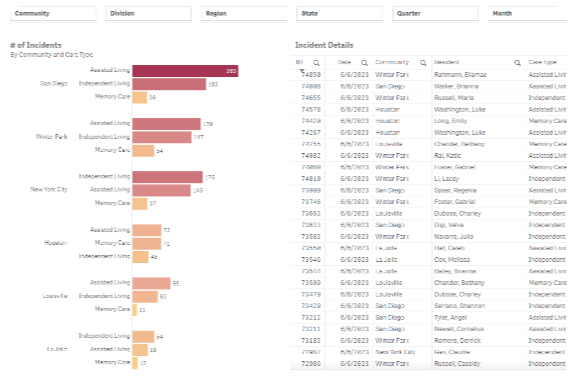
- The details table provides comprehensive information about each incident, including resident, care type, incident type and outcome, state reportable status, timestamp, and shift.
- The leaderboard assists in filtering to areas that require attention or focus.
Layout Tips
- Table columns can be selected in order to sort in ascending order, and selected again to sort in descending order.
- Columns with a magnifying glass are searchable.
- The bar chart has the standard drilldown from community to care type to resident.
Questions to Get Started
How can I generate a detailed report about recent AL Incidents?
- Utilize the bar chart with incident volume by community and drill down into Care Type. Use the filter pane to select a time frame, and if desired, export to Excel by righting click the table and selecting Download as..., then Data.
How can I get detailed information about Incidents for a specific resident?
- Using the bar chart, drill down to and select the resident of interest. To view an alphabetical list, right click the table, select the View Data option, and click the Resident column header to sort by the Resident column.
Tasks
ADL Overview
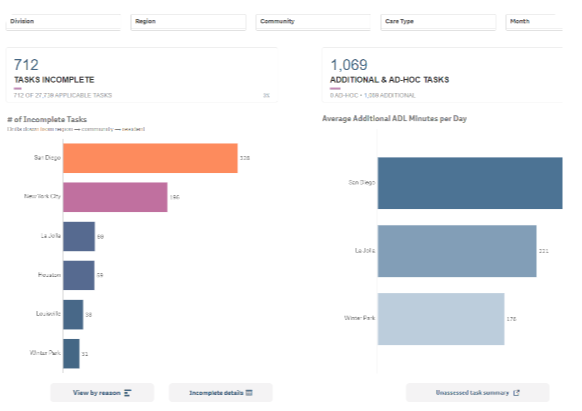
- Get at-a-glance insights on resident task load and completion using leaderboards. Identify areas that need attention with the Incomplete Tasks chart and spot areas where tasks are frequently left unfinished.
- Track the average number of additional tasks assigned to residents to identify individuals who may need additional support or intervention based on their task load.
- Monitor mobile completion to ensure that employees are following proper protocols.
Layout Tips
- Where you see bar charts with community or region, these drill down into more detail.
- Incomplete Tasks and Average Additional Minutes drill down to the resident level, while Mobile Completion drills down to Resource Role.
- Select the View by reason button beneath the Incomplete Tasks bar chart to view by incomplete reason, or the Incomplete details button to view details about incomplete tasks.
- The buttons beneath Additional ADL Minutes and Mobile Completion navigate to related, more detailed analysis pages.
Questions to Get Started
Which communities have high numbers of additional tasks? Is there an area of concern?
- Utilize the Average Additional ADL Minutes per Day leaderboard to drill down into additional task volume by community then resident. Select residents of interest, and use the button beneath the chart to navigate to additional, related analysis..
Which employees are struggling to complete their tasks?
- Review the # of Incomplete tasks leaderboard, which provides an overview of the communities, then employees, with the most incomplete tasks. Click the button on the right to view detailed information on the tasks left unfinished, or the button on the left to view by incomplete reason.
Additional and Ad-hoc Task Summary
Understand resident needs and improve service delivery.
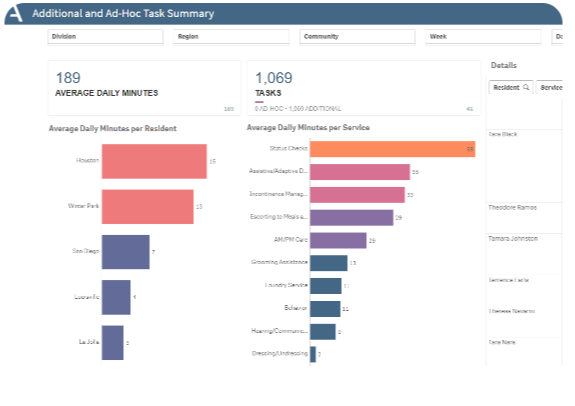
- Analyze the Average Daily Minutes per Resident leaderboard to identify residents who may require further assessment or intervention.
- Evaluate the efficiency and effectiveness of different services using the Average Daily Minutes per Service chart.
- Gain insight into additional tasks — how often does the task occur? What kinds of tasks? When did this start occurring?
Layout Tips
- Average Daily Minutes by Resident drills down from community to resident to date.
- Average Daily Minutes per Service drills down from community to service.
- The pivot table gives an idea of how frequently the additional activity is occurring, as well as the duration it has been occurring.
Questions to Get Started
Which residents consistently spend significantly more time on additional tasks?
- Review the leaderboard for average daily minutes by resident. Look for residents who consistently spend significantly more time on additional tasks. Once identified, select the resident to drill into more detail. When did this start occurring? Is it still? Should the resident be reassessed?
Are there any services where residents spend an excessive amount of time on additional tasks?
- Examine the Average Daily minutes per Service leaderboard. Filter to any services of concern, and review the Resident leaderboard to identify those with more additional task time. The pivot table on the right provides detail on service frequency, time taken, and first & last occurrence.
Assignment Management
Assists with balancing workloads, Identifying task concentration, and tracking overall task performance.
- The Average Daily minutes per Resource Role leaderboard allows you to identify any imbalances in workload distribution among your team.
- The Average ADL Minutes per Hour chart helps you to pinpoint times where tasks may be too concentrated, helping you make informed decisions about redistributing tasks and avoiding excessive workload for certain employees or team members.
- The line chart helps you identify trends, patterns, or fluctuations in task completion, allowing you to make data-driven decisions to improve processes and plan resources effectively.
Layout Tips
- Average Daily Minutes by Resource Role drills down to Employee Name once a Resource Role is selected.
- Average Daily Minutes per Resident drills down to Resident once a Community is selected.
Questions to Get Started
Are there any imbalances in workload distribution among your team?
- Review the leaderboard for Average Daily minutes per Resource Role, and drill down from role to employee, allowing you to identify any discrepancies in workload distribution and address assignments and tasks accordingly.
Are there any areas where tasks may be too concentrated among certain shifts?
- Utilize the bar chart for Average ADL Minutes per Hour to identify times of day where tasks may be too concentrated among specific employees or team members. This insight helps you redistribute tasks to avoid excessive workload.
Task Details
Enables task understanding and resident-centric decision-making.
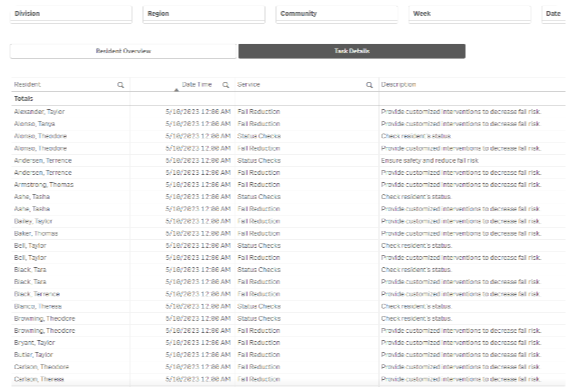
- The Task Details table provides a comprehensive overview of completed tasks, including important details such as resident, service, task type, and timestamps. This allows you to better understand the nature of each task and make informed decisions regarding allocation or assessment.
- The Resident Overview tab allows you to analyze key metrics such as average daily minutes, tasks completed, incomplete tasks, and additional tasks for each resident
Layout Tips
- Use the toggle buttons to switch between the summary and detail views.
- Selecting a column will sort the table in ascending order, selecting again will sort descending.
- Search columns by selecting the magnifying glass. For example, search for a resident.
Questions to Get Started
What are all the tasks that have been completed for a resident?
- To gain comprehensive task insights, utilize the Task Details tab. Here, you can view specific details such as the resident, timestamp, service, description, task type, task status, status detail, and time taken for each task.
How can I get a holistic view of resident tasks and completion?
- Switch to the Resident Overview tab to access valuable insights about residents' tasks. Analyze metrics such as daily minutes, incomplete tasks, additional tasks, and the percentage of additional tasks.
Was this article helpful?
That’s Great!
Thank you for your feedback
Sorry! We couldn't be helpful
Thank you for your feedback
Feedback sent
We appreciate your effort and will try to fix the article