Overview
In this article, we will review how to schedule an additional resident task.
Add an Additional Resident Task
Step 1: Choose a resident from the “Resident…” option located in the menu bar at the top of every page. This will redirect you to the resident’s profile page.

Step 2: Click on the resident Profile dropdown arrow.
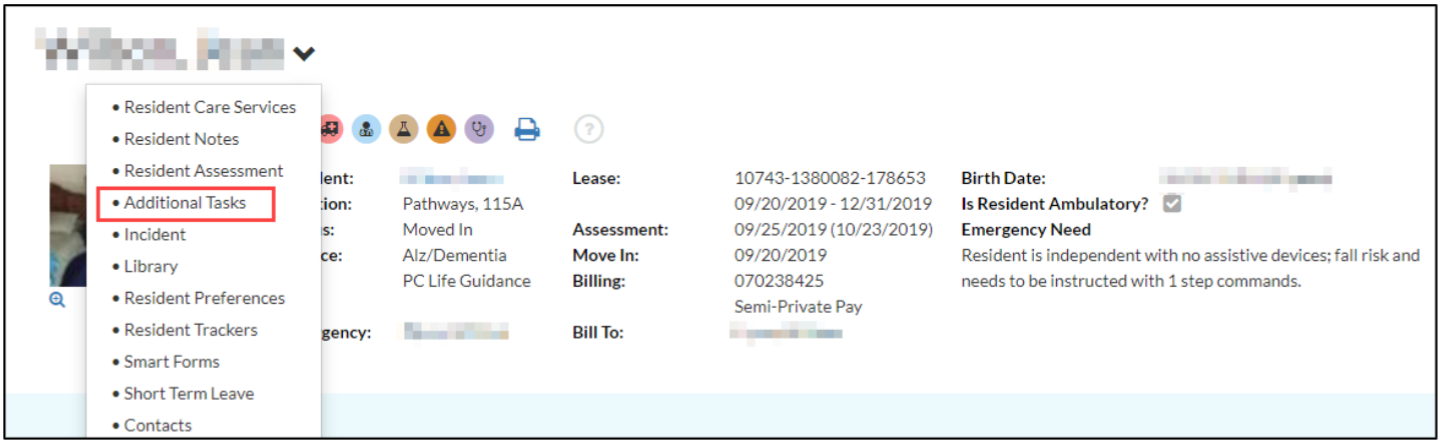
Step 3: Choose Additional Tasks.

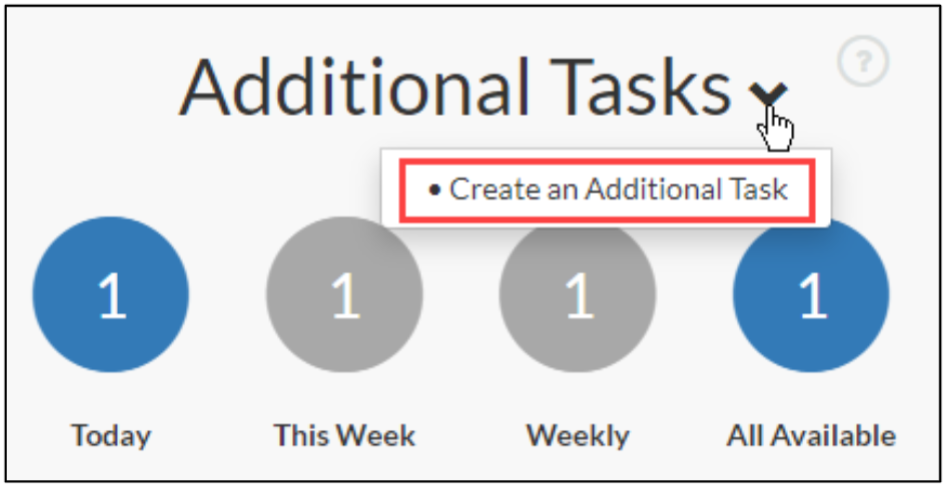
Step 4: When in the Additional Tasks section, click on the dropdown arrow. Choose Create an Additional Tasks.
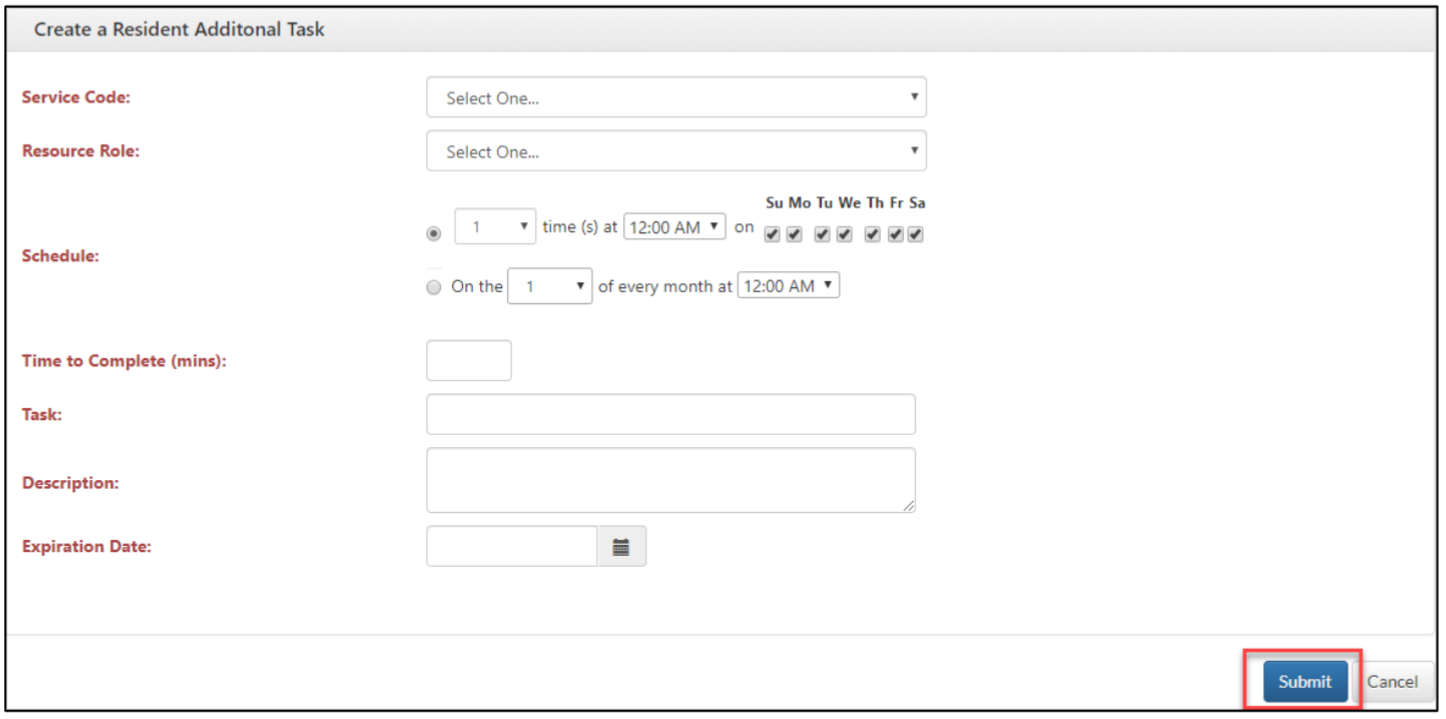
Step 5: Complete all sections of the form.
Step 6: Add an expiration date for all temporary tasks created.
Step 7: The expiration date will be the date that the tasks will no longer show on the assignment sheets for the task.
Step 8: Once the task is expired, delete it from Care Management.
Step 9: Click on the “Submit” button on the bottom of the form once all fields are filled out.
Delete an Additional Resident Task
Step 1: Choose a resident from the “Resident…” option located in the menu bar at the top of every page. This will redirect you to the resident’s profile page.
Step 2: Click on the resident Profile dropdown arrow.
Step 3: Choose Additional Tasks.
Step 4: Click on the blue pencil button next to the task.

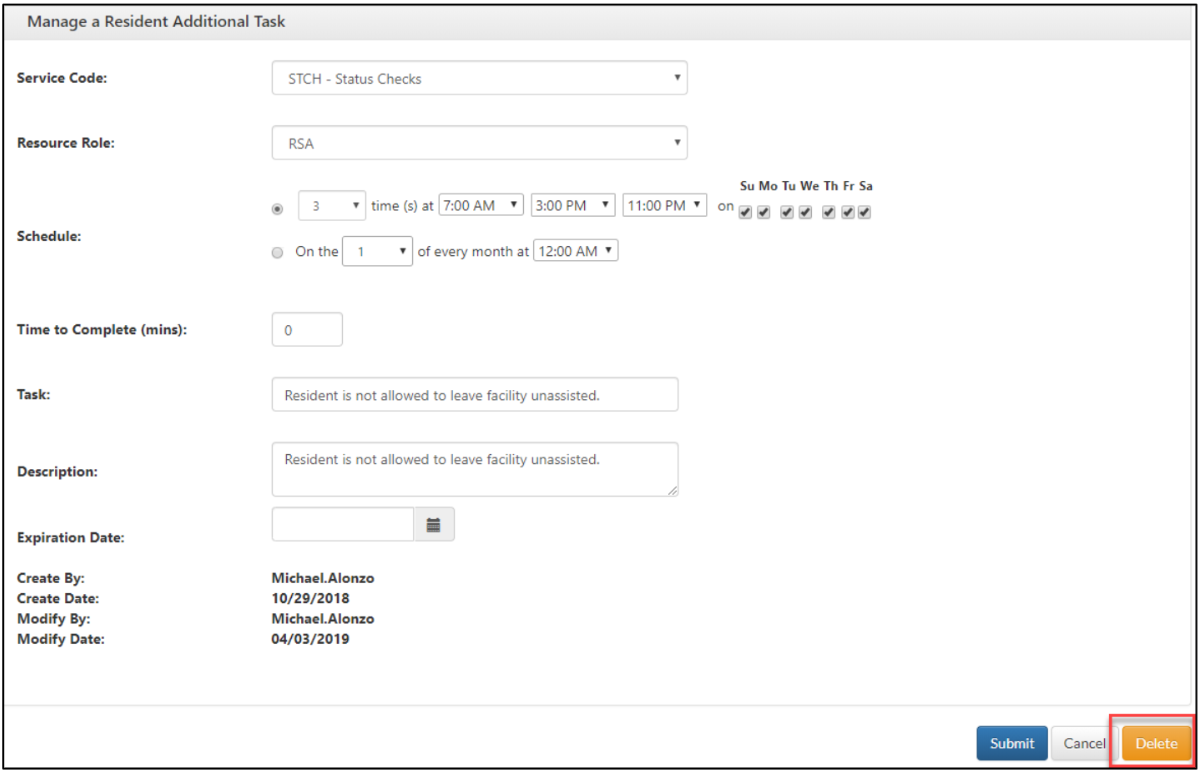
Step 5: Click on the “Delete” button at the bottom of the form to delete the tsk from the system.
Was this article helpful?
That’s Great!
Thank you for your feedback
Sorry! We couldn't be helpful
Thank you for your feedback
Feedback sent
We appreciate your effort and will try to fix the article