Overview
In this article, we will review accessing and editing short term leave information.
Short Term Leave Information
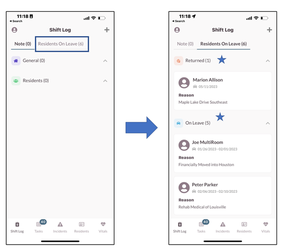
To view short term leave information, select the Residents on Leave tab.
- Residents with a current short-term leave that do not have an actual return date will show in the On Leave section.
- Residents who have returned from short term leave today or the previous 2 days will display in the Returned Section.
Managing Short Term Leave
To remove a short term leave that was added by mistake, you will need to return the lead back to the system.
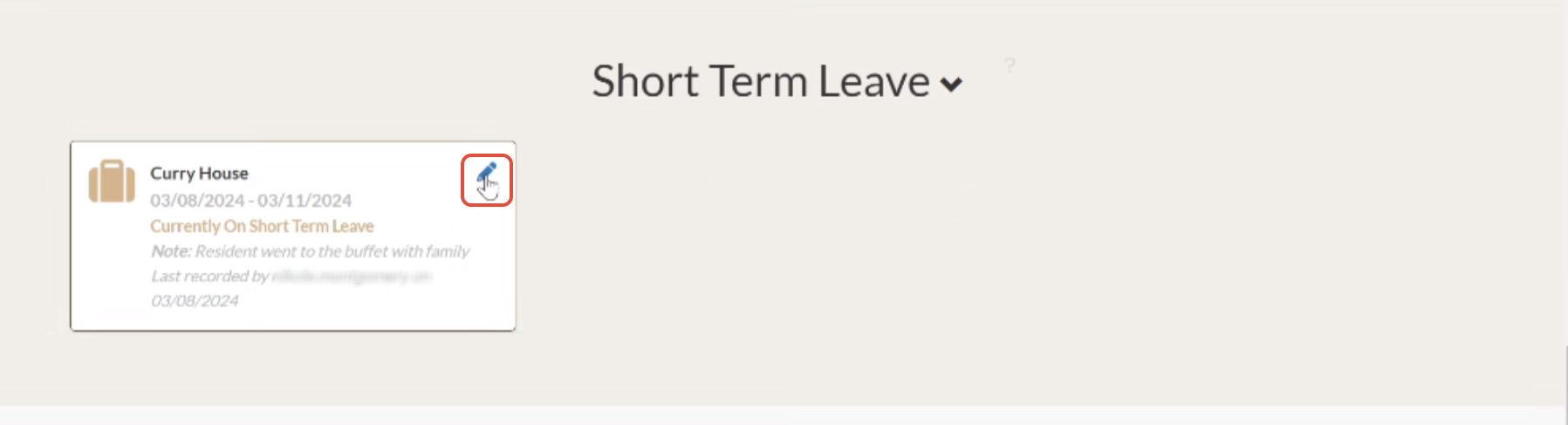
Step 1: Navigate to the leads profile and find the 'Short Term Leave' Section and click on the pencil icon to edit the short term leave.
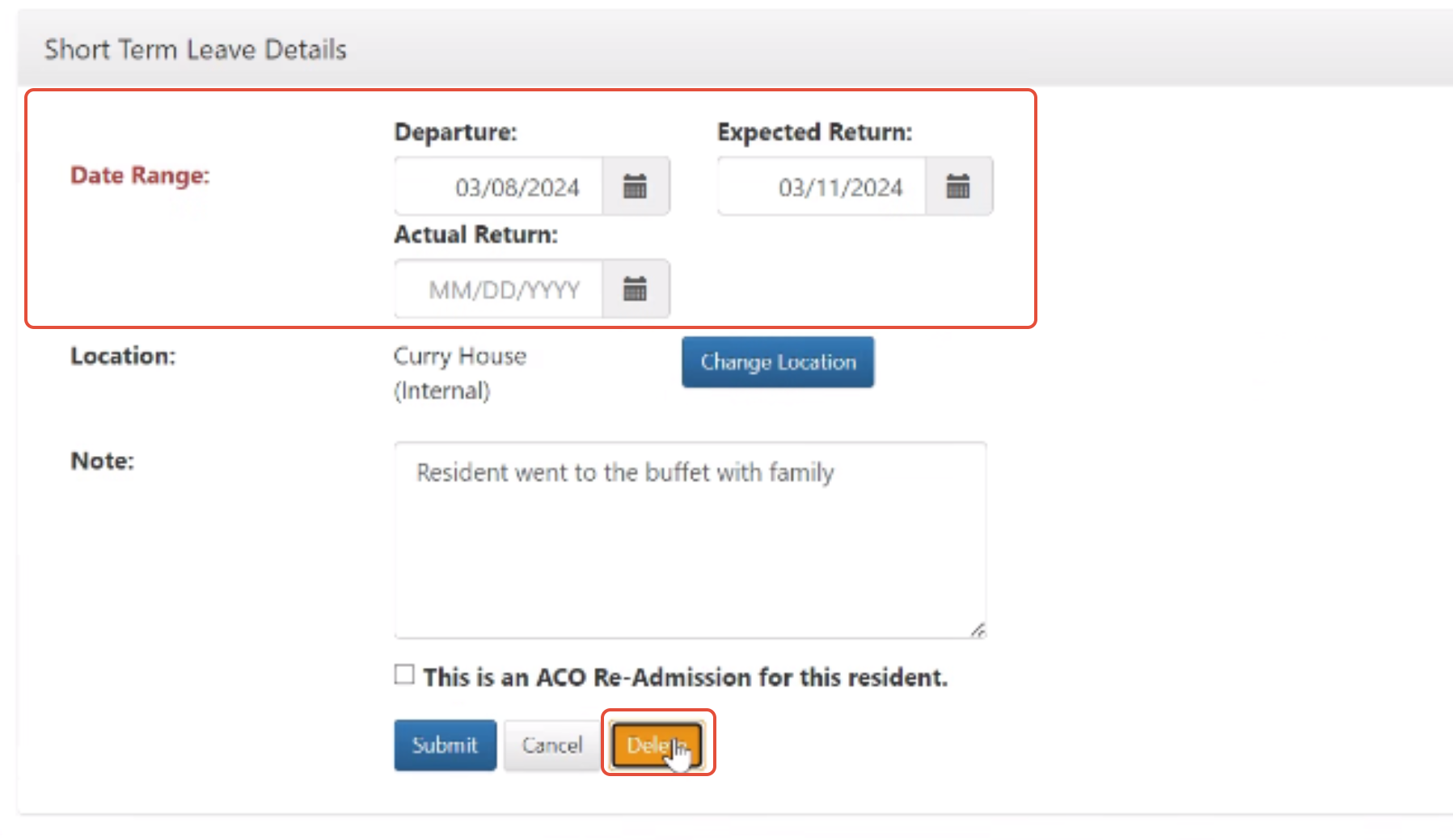
Step 2: On the next screen, you will be able to edit the short term leave details. If you added the short term leave by mistake, you can delete the short term leave on this screen if it has not been submitted.
Adjusting a Closed Short Term Leave
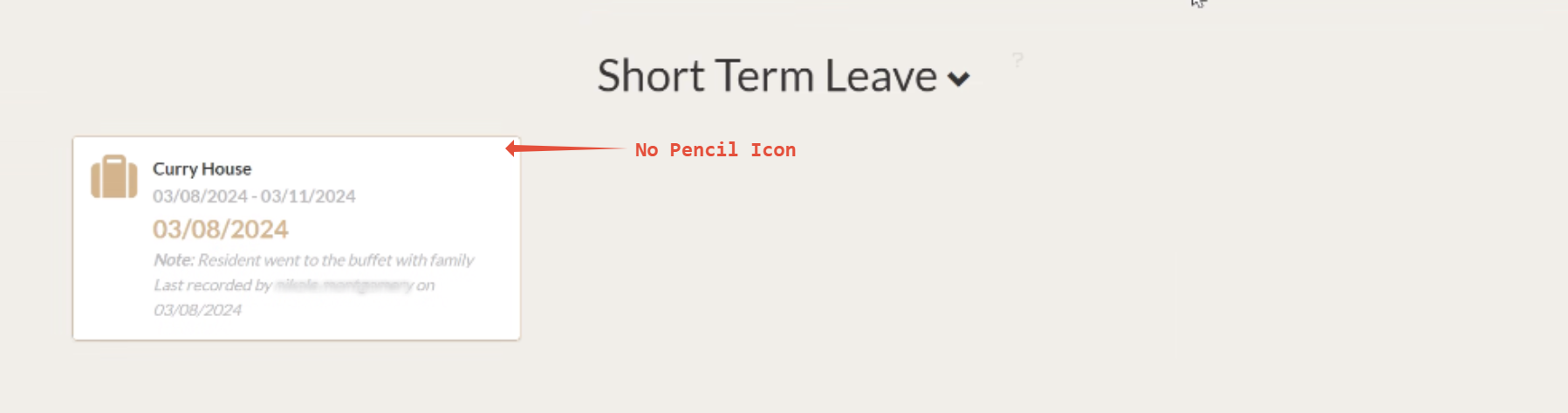
To edit a closed short term leave, all three dates would need to be submitted short term leave before adjusting. This is a way to adjust the short term leave if you do not see a pencil icon located by the 'Short Term Leave' box.
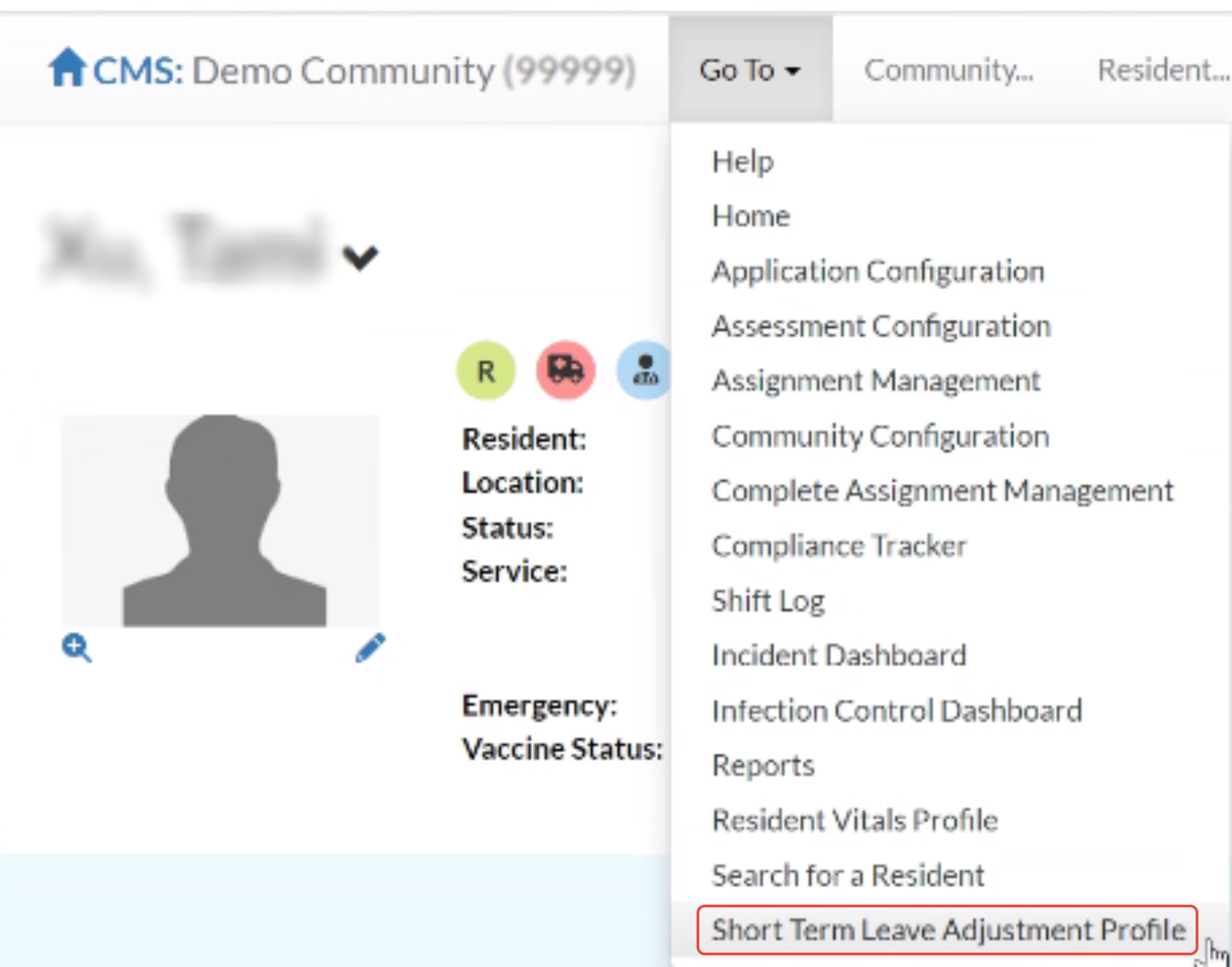
Step 1: Navigate to the leads profile and select the 'Go To' at the top of the page, and select 'Short Term Leave Adjustment Profile'.
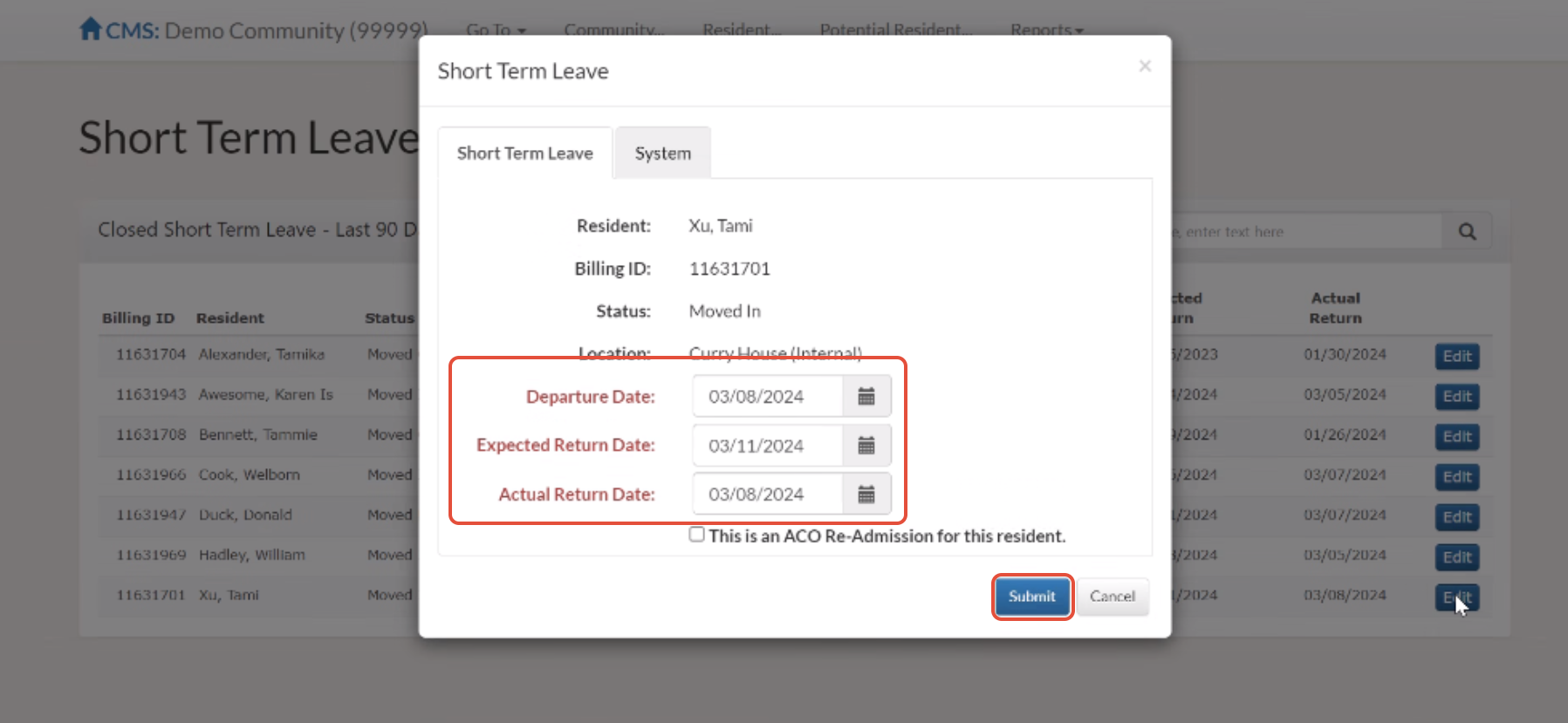
Step 2: Select edit, then adjust the dates needed and click the submit button.
Was this article helpful?
That’s Great!
Thank you for your feedback
Sorry! We couldn't be helpful
Thank you for your feedback
Feedback sent
We appreciate your effort and will try to fix the article