TABLE OF CONTENTS
- Overview
- Logging Into Aline Care
- Finding Data About Incidents in my Community
- Finding Analysis of my Care Tasks
- Aline Insights Data Updates
Overview
In this article, we will review logging into Aline Care, navigating through Aline Insights and data updates, finding data about incidents, and finding analysis of Care Tasks.
Logging Into Aline Care
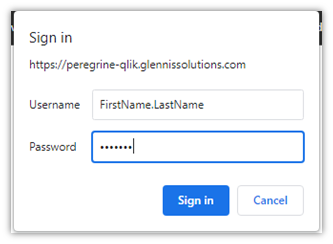
Accessing the Aline Insights application requires an additional login. The Aline Insights username, as seen below in the photo, is generally setup as firstname.lastname accompanied by your Aline Suite password.
Navigating Through Aline Insights
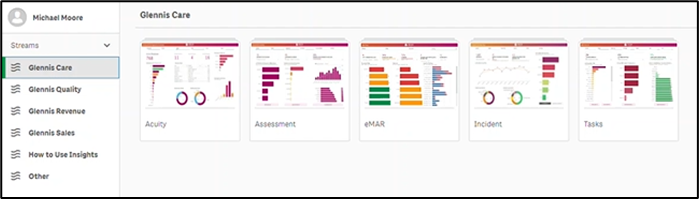
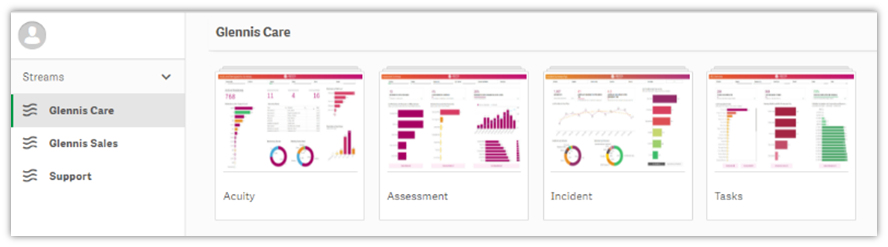
To access the Aline Care Stream, select Aline Care from the left panel. Each Aline Insights Stream will contain multiple Apps. As seen below, users have access to the five Care apps: Acuity, Assessment, eMAR, Incident, and Tasks.
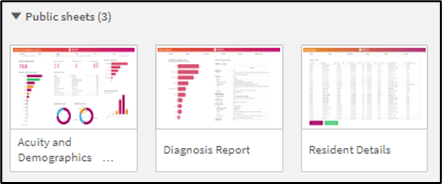
Each App will contain multiple sheets. For example, the Acuity App contains three sheets: Acuity and Demographics, Diagnosis Report, and Resident Details.
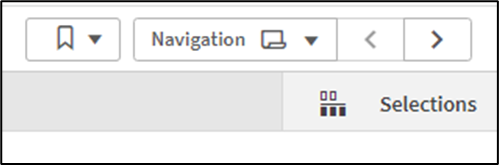
To move from sheet to sheet, users can select the Navigation drop down from the top right of the screen and select the desired sheet. Navigational arrows also allow users to move forward or backwards through the available sheets.
To drill down more specifically into a data set, users can filter data by making selections on the filter pane at the top of the page or by making selections in the data sets themselves.
By selecting data directly in the table, chart, or graph, users can isolate the value they wish to see. Confirm selections by clicking the green check mark. Data set selections made in one sheet will carry over from sheet to sheet.
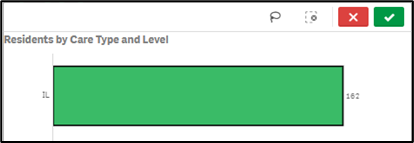

Data set selections can be cleared individually in the Filter Pane by selecting the X button on each selection. All selections can be cleared at once by selecting
To export a data set, view the data set in full screen, or take a screenshot of the data set, users can select the menu with the three horizontal dots. Data sets can be exported as Excel data, PDFs, and images.
For more information about navigating through Aline Insights, users can refer to the How to Use Insights stream on the Aline Insights Hub.
Finding Data About Incidents in my Community
To view data relating to incidents, including common indicators and outcomes, users should navigate to the Incidents app. This app contains three sheets: Overview, Analysis, and Details.
The data available on these sheets will allow users to potentially answer questions relating to incidents such as:
- Are there any areas of concern that I should be alerted to?
- Is healthcare staff responding to incidents appropriately?
- What is the average amount of time it takes to respond to incidents?
- How many incidents qualified as State Reportable?
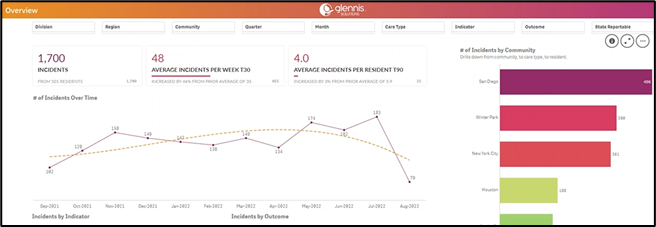
Users can navigate over to the Overview Sheet to see the total number of incidents along with the total number of resident incidents in the communities across the organization. Also displayed are the average incidents per week and the average incidents per resident. The graph will display the number of incidents by community whereas these two visualizations on the right will breakdown incidents by indicator and incidents by outcome. Users can further drill this data down to specific regions or communities by using the filter pane at the top.
After making selections, either in the filter pane or within the chart itself, users can leave those in place and then navigate to the Analysis and Details sheet for more information about types of incidents, times incidents occur, how many incidents occur in each care level, and which residents have the most frequent incidents.
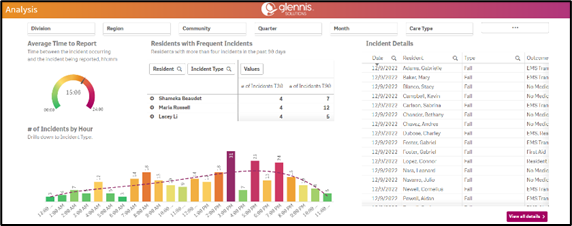
This is just one example of how users can drill into very specific data in order to spot trends and patterns that may allow caregivers to provide better care to residents and lessen the number of incidents
Where Can I Find Information about Assessments?
Questions that can be answered with the Assessments App sheets include:
- Which of our communities has the highest number of past due assessments?
- Which communities have the highest number of variances in assessed verses billed care?
- At what cadence are residents reassessed with a change in care level? How does this trend look month to month?
- What are the residents’ currently assessed care and med levels?
- When were the residents last assessed?
- Who is currently on short-term leave?
To see an overview of an organization’s assessed care levels, users can select the Care Stream and then the Assessments App.
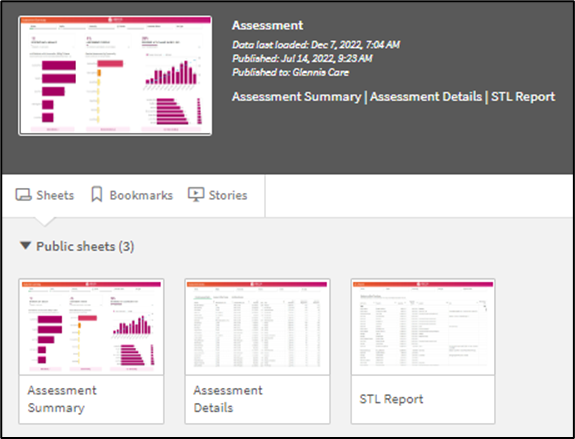
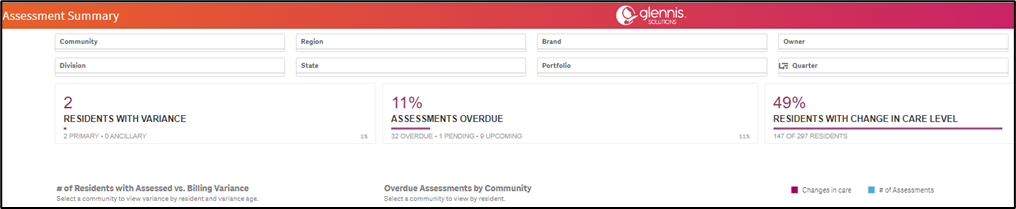
For example, if users want to determine if assessments are being carried out in a timely manner and if residents are billed appropriately for their level of care, the Assessment Summary sheet would be the place to start!
According to the data, 11% of assessments are overdue. Looks like, specifically, 32 are overdue, one is pending, and nine are upcoming. Below this chart, selecting Assessment Details navigates to the resident assessment Details Sheet. Lastly, checking the Short-Term Leave Report will show if any of the residents with overdue assessments are due to being on a leave.
Finding Analysis of my Care Tasks
The Tasks App offers users an overview of tasks in their community. This app contains four sheets: ADL Overview, Additional and Ad Hoc Tasks, Assignment Management, and Task Details. These sheets can be used to answer the following questions:
- Which residents’ tasks utilize the most resources?
- Which resource roles have the most or least number of tasks to complete?
- Which residents have the most Additional Tasks?
- Which tasks are incomplete and why?
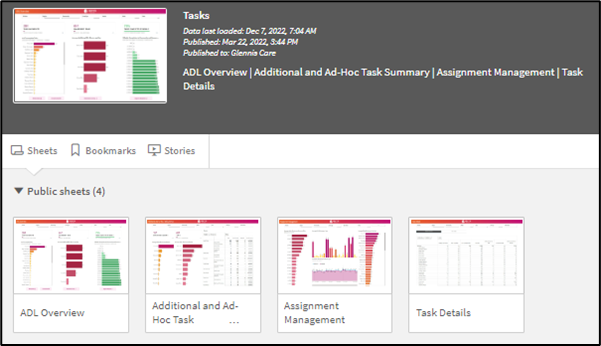
For example, if users wanted to ensure community compliance with task completion, navigating to the ADL Overview Sheet and then selecting a specific region or community would help answer this question. Data can be further sorted by resident, and reason why the tasks are incomplete. If a resident is on Short Term Leave, changing his/her status in the Care application will automatically close out any tasks for the duration of the leave.
Aline Insights Data Updates
Updates to Aline Insights data, password changes, and user changes (like newly added or deleted users) takes place once daily in the early morning hours.
Was this article helpful?
That’s Great!
Thank you for your feedback
Sorry! We couldn't be helpful
Thank you for your feedback
Feedback sent
We appreciate your effort and will try to fix the article