Overview
The following guide will provide you with information about submitting a shift log note through the Mobile Care Application.
Login & Navigation
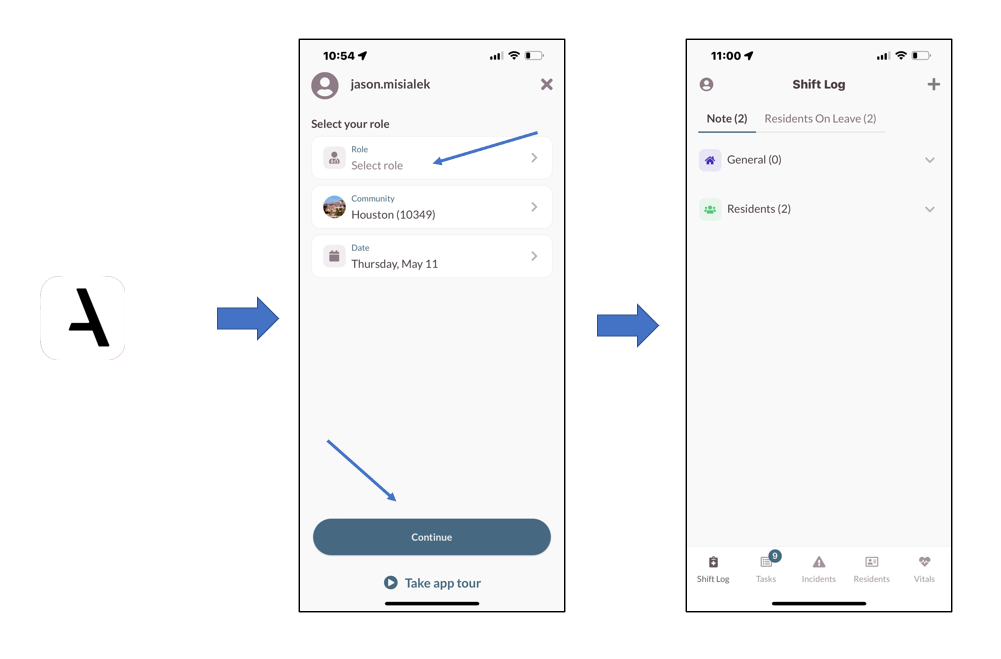
Step 1: Log into the Mobile Care application by selecting the Mobile Care app logo on your device.
Step 2: Select your Role.
Step 3: Select the Continue Button.
Short Term Leave Information
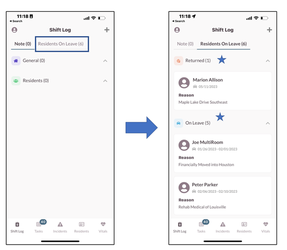
To view short term leave information, select the Residents on Leave tab.
- Residents with a current short-term leave that do not have an actual return date will show in the On Leave section.
- Residents who have returned from short term leave today or the previous 2 days will display in the Returned Section.
Shift Log Notes
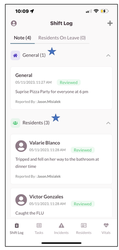
To view shift log notes, select the Notes tab. The Shift Log will display all notes for the current day and the two days prior.
Shift Log Notes are broken down into 2 categories
- General
- Resident
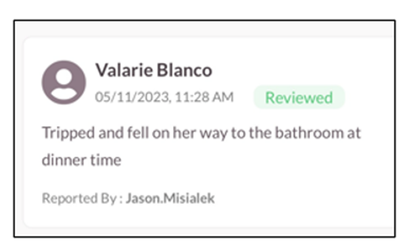
Each Note will display the following:
- Resident Name
- Date
- Status
- Detailed Note
- Person who reported/created the note
Adding a Shift Log Note
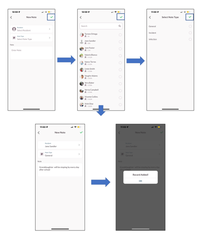
To add a Shift Log Note, perform the steps below.
Step 1: Select the (+) Symbol
Step 2: Select Resident
Step 3: Tap the Green Check ☑
Step 4: Select Note Type
Step 5: Tap the Green Check ☑
Step 6: Enter the Note
Step 7: Tap the Green Check ☑
Step 8: The ‘Record Added!’ pop-up is displayed on the screen.
Was this article helpful?
That’s Great!
Thank you for your feedback
Sorry! We couldn't be helpful
Thank you for your feedback
Feedback sent
We appreciate your effort and will try to fix the article