Overview
In this article, we will review scheduled task management.
Scheduled Task Management
Step 1: To view scheduled tasks, select the Tasks module on the bottom navigation bar.
Step 2: The number of open tasks for the selected role(s) will display on the Task module badge.
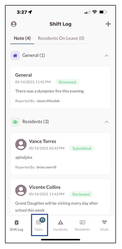
Step 3: Tasks will be grouped by the time they are scheduled to be performed.
Step 4: Tasks are listed in one hour increments.
Note: DNR (Do-Not-Resuscitate) is identified for residents with a Red DNR bubble on the right side of the task.
Each task will have the following:
- Task to be performed. (Pet Care, Dressing, Tray Service etc.)
- Residents Name.
- Description of what needs to be performed.
- To view the full description, select the down arrow in the description.
- Room Number.
Was this article helpful?
That’s Great!
Thank you for your feedback
Sorry! We couldn't be helpful
Thank you for your feedback
Feedback sent
We appreciate your effort and will try to fix the article