Overview
In this article, we will review how to modify a residents task schedule.
Video
Modifying a Resident Task Schedule
As you complete your assessments you will have the opportunity to adjust the scheduler during that process. Often you may have the need to adjust the scheduled tasks after the assessment has been completed and it is not yet time to reassess, you now have the ability to make changes to the task’s scheduler. Care Management has defined default times of the day and days of the week. We want to offer services to the resident at the time of day and the day of the week they prefer, you can change those default times to meet the residents’ needs. It is important to remember that the function of Managing the Tasks Scheduler does not ever take the place of the required assessments but only enhances the assessments to improve customer satisfaction. Below are some guidelines and instructions for managing that scheduler.
- As long as the change only needs to be made to the way the tasks are scheduled and not to the answers on the assessment, you can manage the scheduler in between required assessments.
- You have the ability to change the frequency of the tasks provided only if the answer chosen on the assessment allows a range of frequencies and is not specific to the number of times a service is to be provided. For example- You cannot change frequency per week or day on bathing/showering because the answers on the assessment are very specific as to the number of days per week we will assist with showers. If you need to change the frequency per week of showers, then you will need to reassess the resident.
- As appropriate, some tasks have a minimum and maximum range of daily frequencies that have been added that can be changed on the scheduler.
- You can always change the time of day that a service is to be provided and should always use this function to meet the resident’s desired time for services.
- You can always change specific days of the week for the service to be provided. The system will not allow you to choose more than the assessment indicates. If you want to change days of the week for a service, you will first need to uncheck the current days of the week on the scheduler before you
can make the change because Care Management perceives that you are trying to add additional days to the scheduler for that service. - You may also change the resource role title for the tasks as appropriate.
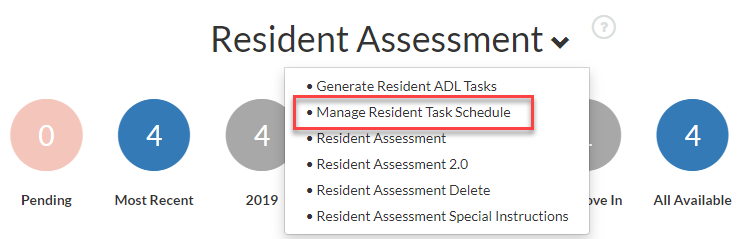
- Choose the resident you want to work with in Care Management and go to the Resident Assessment part of the page and choose the option of Manage Resident Task Schedule from the dropdown menu.
Make the desired changes
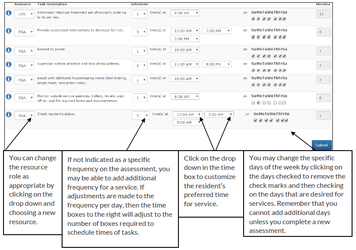
Once completed, click “Submit” for changes.
Note: Remember that these changes will not be seen immediately due to the need to regenerate the tasks. This happens at midnight and will be reflected on the assignment sheets on the following day.
Was this article helpful?
That’s Great!
Thank you for your feedback
Sorry! We couldn't be helpful
Thank you for your feedback
Feedback sent
We appreciate your effort and will try to fix the article