Overview
Steps on Resource Scheduling
Navigation
Step 1: Log into the Aline Suite.
Step 2: Select Go To >Community Configuration.
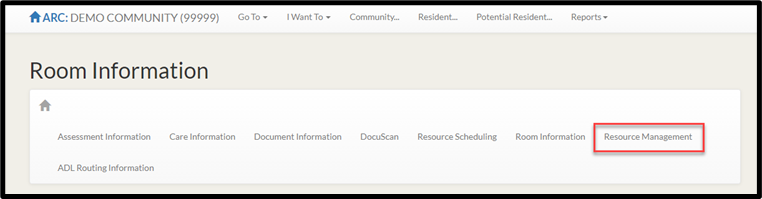
Step 3: Select Resource Management in the sub menu.
Adding Resource Role
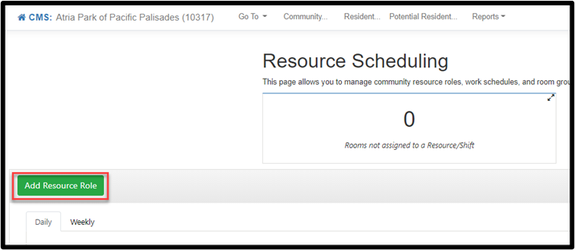
Step 1: Select Add Resource Role
Step 2: The Add/Edit Resource Role pop up will appear. Complete the required fields on the Assign Resource Role page.
Editing a Resource Role
Step 1: Select the pencil icon next to the Resource Role.

Step 2: Make any necessary changes to the Assign Resource Role page. Select next.
Step 3: Make any necessary changes to the Assign Room Group Details page. Select Submit.
Note: To Delete a Resource role, select the Delete button.
Heat Map
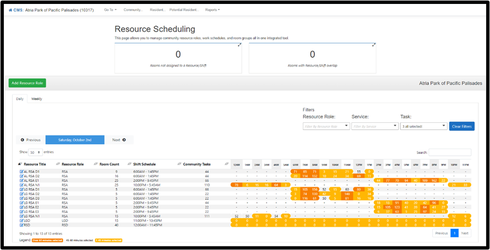
Step 1: Click on Weekly tab to view a summary of scheduled tasks by weeks and day for a resource role.
Step 2: Click on Daily to view a summary of scheduled tasks by day and hour for a resource role.

Step 3: On the daily tab, select an hour to display the tasks scheduled for a resource role.
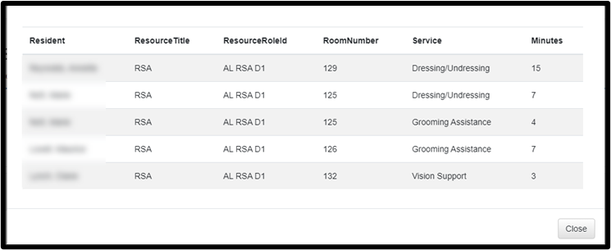
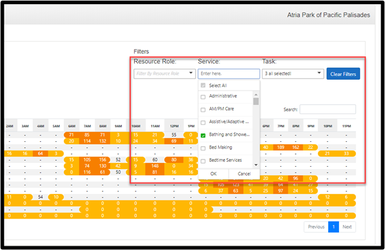
Step 4: Filters can be applied to narrow the resource role, service, and task.
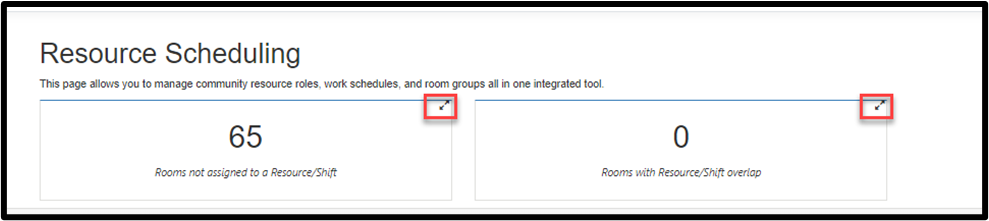
Step 5: Select the expanding arrows to view rooms not assigned to a resource role in a particular shift or rooms that are assigned to multiple resources during a particular shift.
Was this article helpful?
That’s Great!
Thank you for your feedback
Sorry! We couldn't be helpful
Thank you for your feedback
Feedback sent
We appreciate your effort and will try to fix the article