Overview
In this article, we will review Task Scheduling and Care Acuity.
Task Scheduling
Task Scheduling is where we will schedule the times for the tasks for the resident that are generated by the answers to the questions in the assessment. The number of tasks that will need to be schedule is varied by how the answers in the assessment were answered. From the Task Scheduling & Scoring Summary section of the resident’s profile:
Step 1: Select the Red Pencil icon on the task record you would like to schedule.
Step 2: In the Task Edit module that appears select and schedule the times for this task to be performed and select the Submit button.
Step 3: When you see a Blue Pencil icon, this means that that the task has been scheduled.
Step 4: Repeat process above until all task that were generated from the assessment have been scheduled
Care Acuity
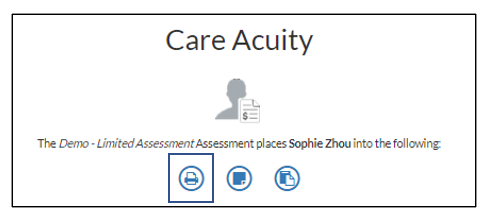
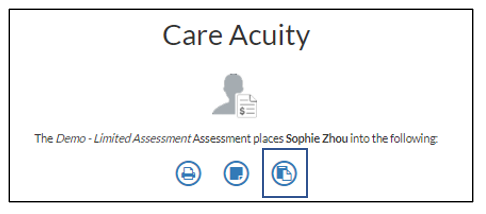
Care Acuity will display the level of care which the assessment placed the resident in. In this section, we will review how to print the below.
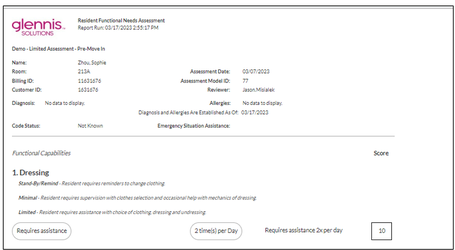
Resident Assessment
Step 1: To print, select the Printer icon button
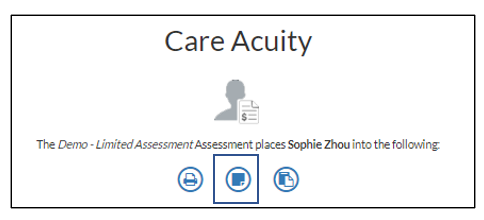
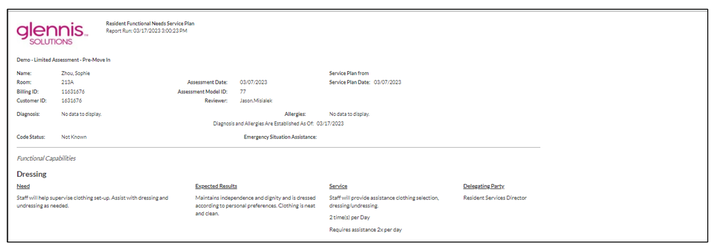
Service Plan
Step 1: To print, select the File icon button
Resident’s Care Profile
Step 1: To print, select the Files icon
Was this article helpful?
That’s Great!
Thank you for your feedback
Sorry! We couldn't be helpful
Thank you for your feedback
Feedback sent
We appreciate your effort and will try to fix the article