Overview
In this article, we will review useful reports for community Care administrators including basic report navigation along with several suggested reports to help those in leadership roles manage their community's care operation.
Navigating to Aline Care Reports
There are two places to locate the Aline Care reports - 1) on the Aline Care dashboard, or homepage, on the header under the "Reports" tab, and 2) also at the top of the dashboard page, in the "Go To" Menu under "Reports".
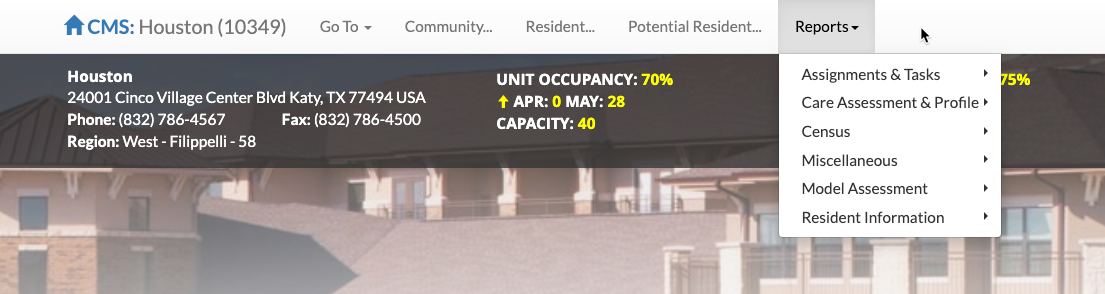
Selecting the "Reports" dropdown menu on the header will display various categories of reports for you to select from. The "Reports" selection from the "Go To" menu will display the same report sections, but many reports will also contain a brief description of the types of data the report will return. It may be useful to utilize the reports listing from the "Go To" menu until you know which reports are the most valuable for your care operation.

Suggested Daily Reports for Care Tasks
Your care operation may benefit from several daily reports - specifically, these reports are focused on Care Tasks assessed or assigned to residents. Below, you can see a description of each of these suggested reports.
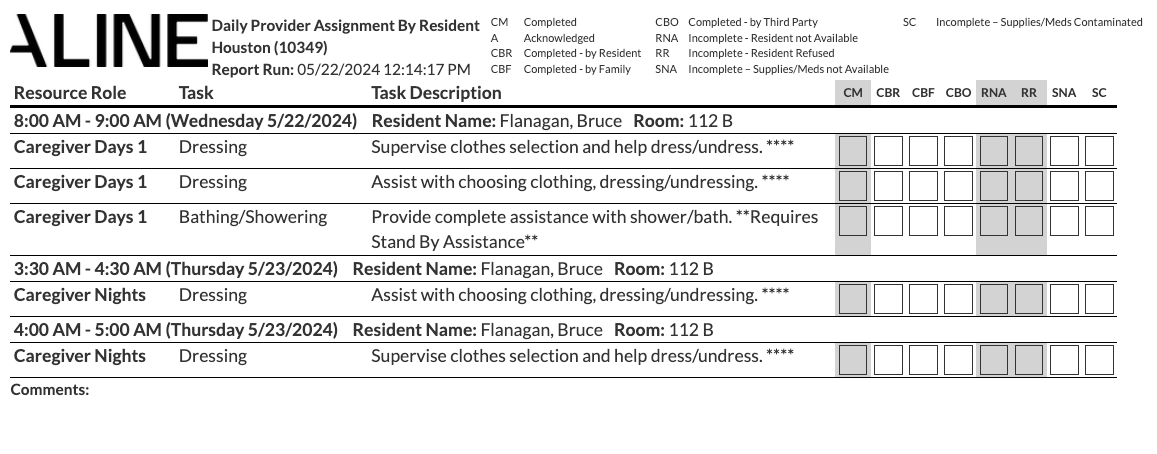
1) Daily Provider by Resident
This report can be a useful tool that allows community care leadership to view tasks for specific residents, specific resource roles, specific service codes, and specific date ranges. This report will generate a from that can be printed and filled in manually if situations arise where the Aline CareMobile application is not available for care provider digital charting.
This report can be specific to a single resident or a grouping of residents, and the report itself is sorted by resident.
 2) Daily Provider by Resource Role
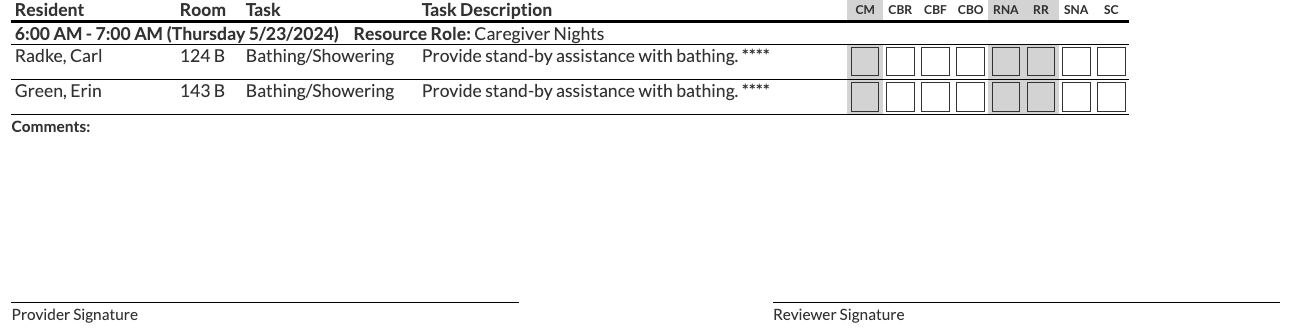
Similar to the Daily Provider by Resident report, this report will also display tasks due for specific service codes and time ranges - though, this report allows users to select specific resource roles in order to create a task list specifically for care providers. This report displays all resident tasks that meet the date, service code, and resource role qualifications.
This report can be utilized if paper charting is required, including signature lines at the bottom of the report is signatures are necessary.
3) Resident Scheduled Task
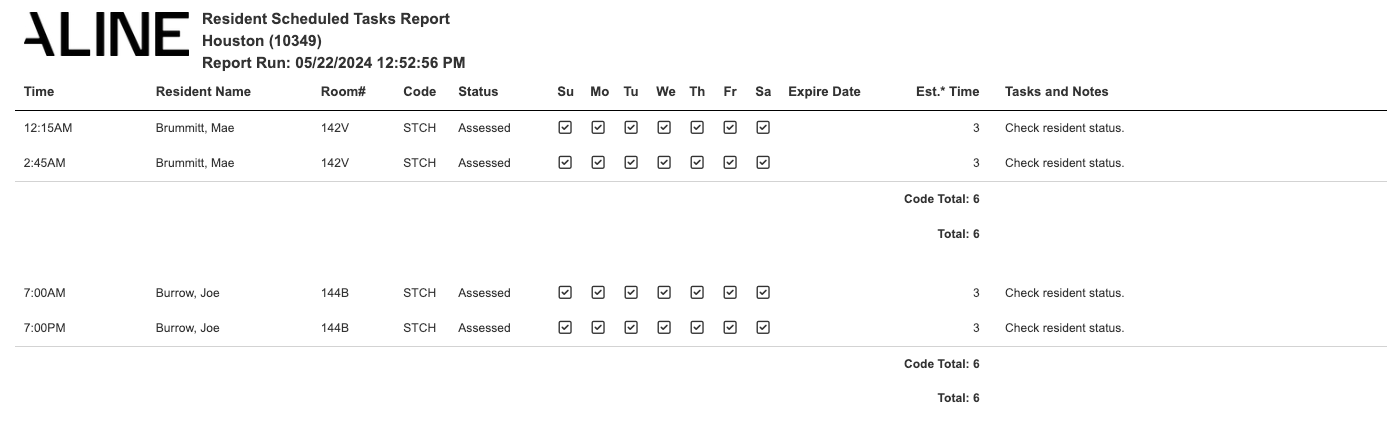
This report displays scheduled tasks for an individual resident or a group of residents in a variety of ways. View the scheduled tasks for a group of services, all services scheduled or additional and/or assessed tasks. This report includes the time of day the tasks are scheduled and the day of the week.
A common example of this report in use is "I want to see all baths and showers on today's schedule for my Assisted Living residents."
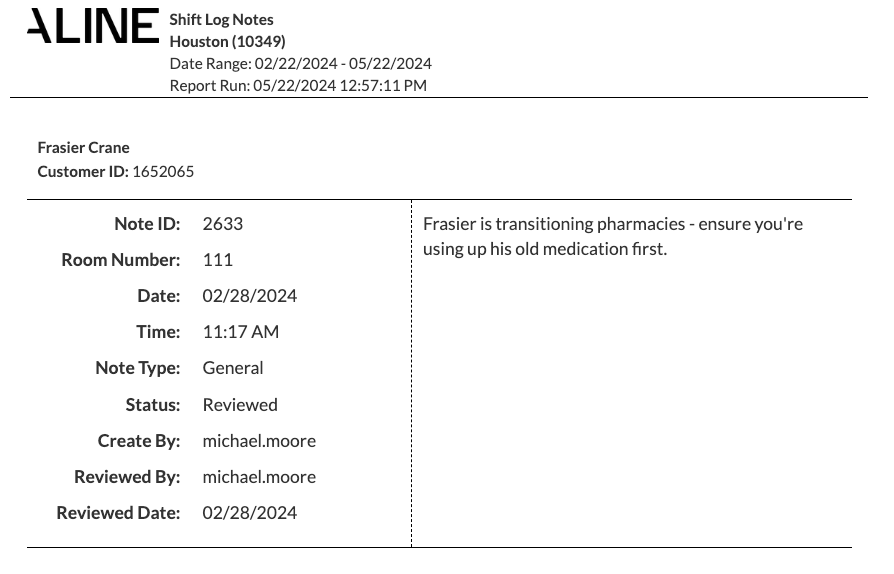
4) Shift Log Report
CareMobile users have the ability to leave Shift Logs for incoming shifts just as they have the ability to review previously left Shift Logs from the outgoing shift. These logs can be pulled by care leadership and filtered by specific resident, time range, and review status.
Suggested Weekly Reports
Your care operation may benefit from weekly reports - specifically, the following report is focused on the time spent providing care for the residents residing in your community.
1) Resident Minutes Hours Per Day
This report provides a brief breakdown of how much time your care operation is spending with each resident on a daily basis, and is sorted by most minutes to lease minutes by default.
Information reflected in the report includes: resident name, location in the community, assessed care level, last assessment date, number of assessed tasks, total minutes spent on the resident, and total hours spent on the resident.
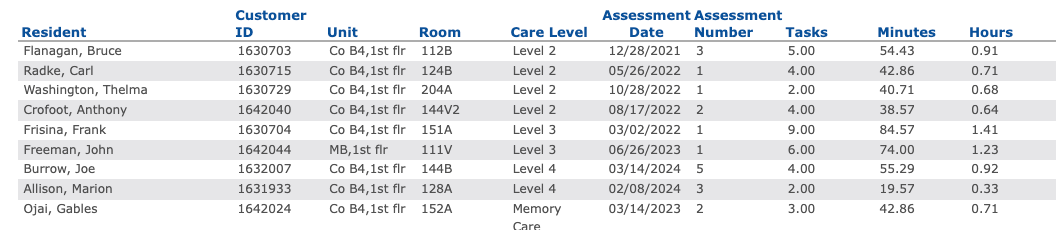
Note: in order to utilize reporting for minutes spent on residents' care, minutes must be configured for your organization's assessments.
Suggested Monthly Reports
Your care operation may benefit from monthly reports - specifically, the following reports are focused on care provider CareMobile utilization and adoption along with resident task completion.
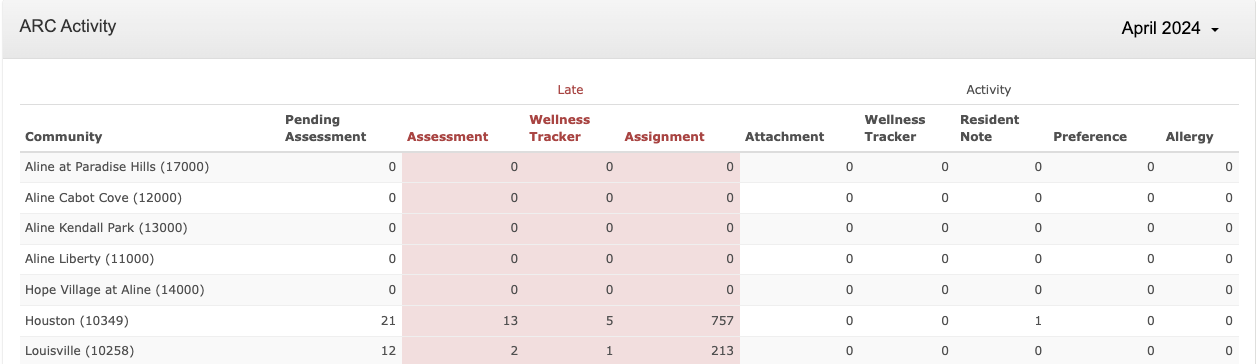
1) Utilization Statistics
This report allows care leadership to review pending and past due items, and various Aline Care activities by community. Item's tracked and displayed include Pending Assessments, Assessments completed, Wellness Trackers, Task Assignments, resident information updates, and more.
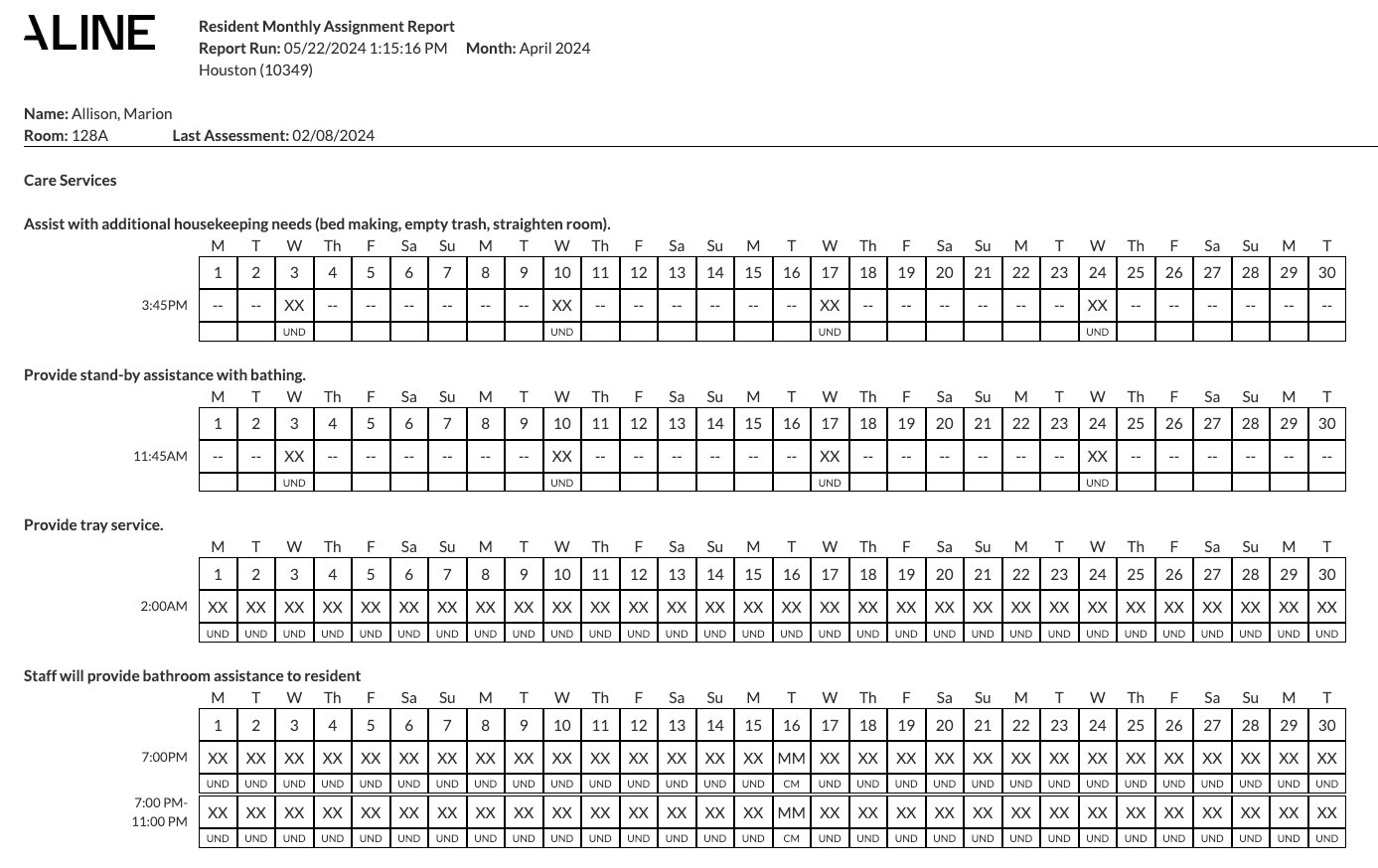
2) Resident Monthly Completed Tasks by Resident
This report allows care leadership to review completion of care tasks assigned. Initials of care provider staff are included upon task completion with Aline CareMobile. The report can be ran for specific residents, specific service codes, and a selected month.
Was this article helpful?
That’s Great!
Thank you for your feedback
Sorry! We couldn't be helpful
Thank you for your feedback
Feedback sent
We appreciate your effort and will try to fix the article