Overview
In this article, we will review how to Modify Resident Care Services Information for items like allergies, diagnosis, code status, emergency needs, among other pieces of medical or demographic information.
Video Tutorial
Modify Resident Allergy
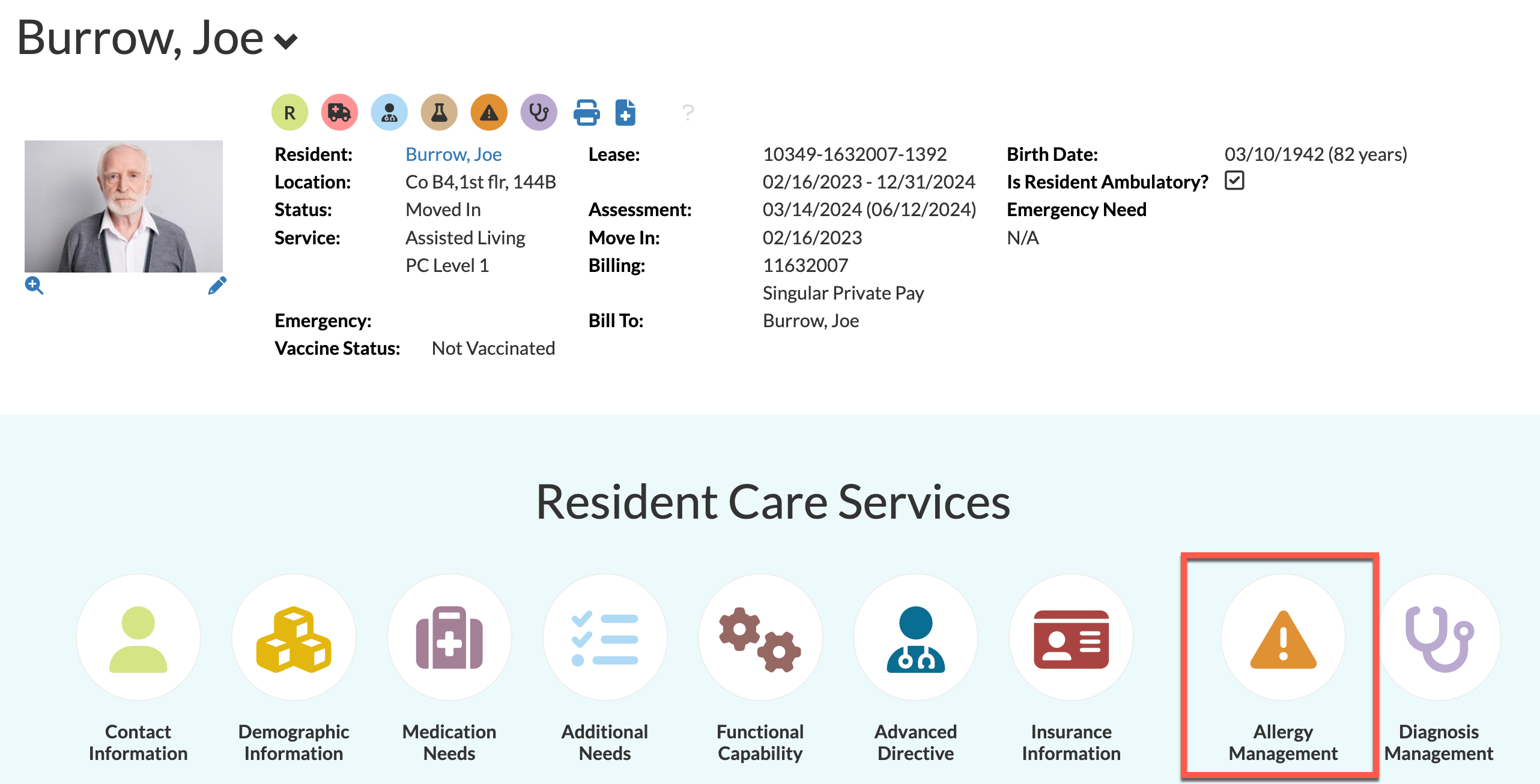
Step 1: Pull up the desired resident profile page.
Step 2: Navigate to their “Resident Care Services” section that is just below their summary details and click on the “Allergy Management” icon.
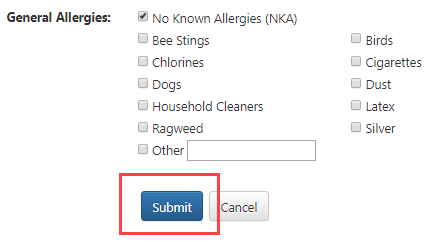
Step 3: In the resulting page, you can adjust the effective date, add comments, and of course modify allergies by checking from an extensive list of allergies.
Step 4: Once all required changes have been made you will click “Submit” at the bottom of the page.
Modify Resident Diagnosis
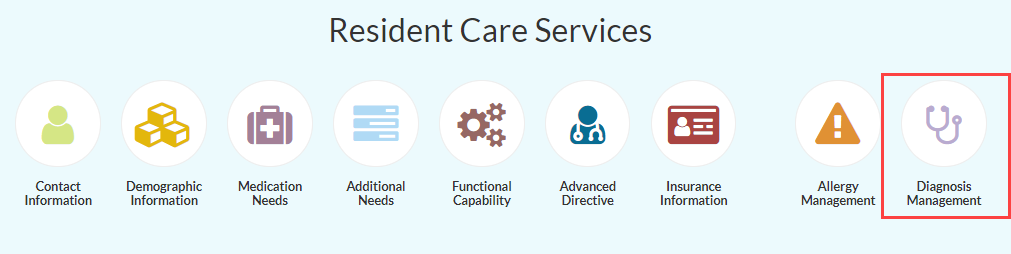
Step 1: From the resident profile page, navigate to the “Resident Care Services” section that is just below their summary details.
Step 2: Select “Diagnosis Management.”
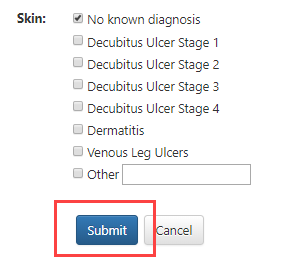
Step 3: In the resulting page, you can adjust the effective date, add comments, and modify diagnosis by checking the options from an extensive list of diagnoses.
Step 4: Once all required changes have been made you will click “Submit” at the bottom of the page.
Modify Resident Status Code
Step 1: From the resident profile page, navigate to the “Resident Care Services” section that is just below their summary details.
Step 2: Select “Advanced Directive.”
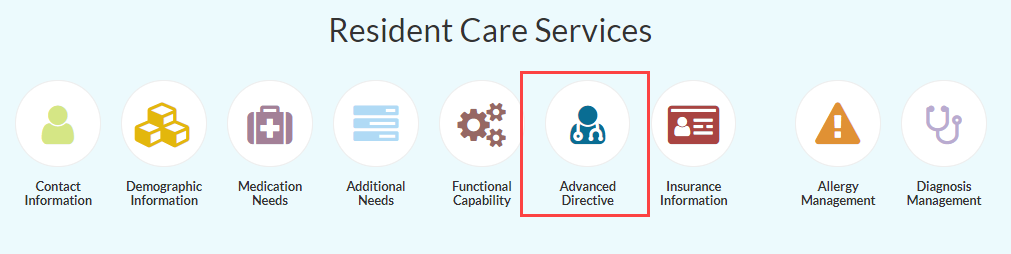
Step 3: In the resulting “Advanced Directive” page, you can adjust the status code by changing the “Do Not Resuscitate” options.
Step 4: Once the necessary changes have been made, select “Submit” at the bottom of the page.

Modify Resident Emergency Needs
Step 1: From the resident profile page, navigate to the “Resident Care Services” section that is just below their summary details.
Step 2: Select “Advanced Directive.”
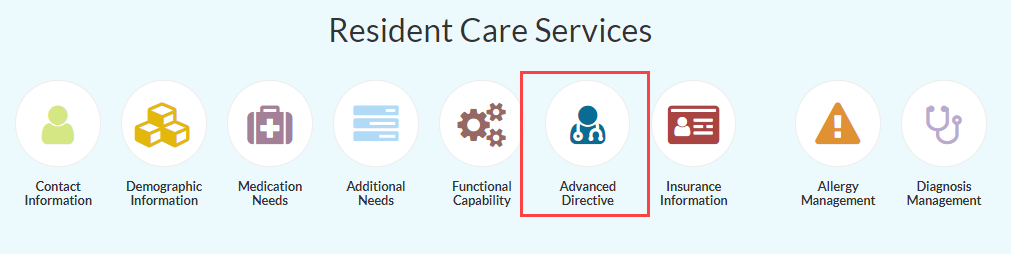
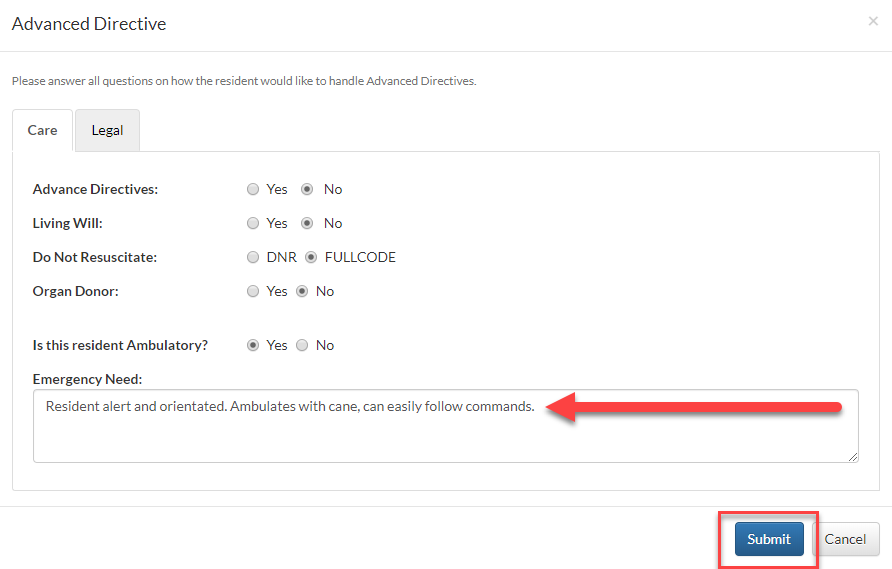
Step 3: In the resulting “Advanced Directive” page, you can adjust the resident emergency needs by selecting the available options. Enter specific emergency needs in the “Emergency Need:” field. Emergency Need is a required field.
Step 4: Once all required changes have been made, click “Submit” at the bottom of the page.
Was this article helpful?
That’s Great!
Thank you for your feedback
Sorry! We couldn't be helpful
Thank you for your feedback
Feedback sent
We appreciate your effort and will try to fix the article