Overview
In this article, we will walk through adding and editing resident profile photos.
Resident photos can be imported to resident profiles in both Aline Care and in Aline Leasing & Billing. Once resident photos are added to a profile, they will automatically display in Aline Care, Aline Leasing & Billing, and Aline eMAR.
Steps to Add & Edit a Resident's Photo
Note: Before adding a photo, you must have the photo saved on your device as a JPEG or a PNG image. The Aline Care application will not accept any other format other than a JPEG or a PNG file type.
Step 1: After logging into Aline Care, navigate to the desired resident's profile page.
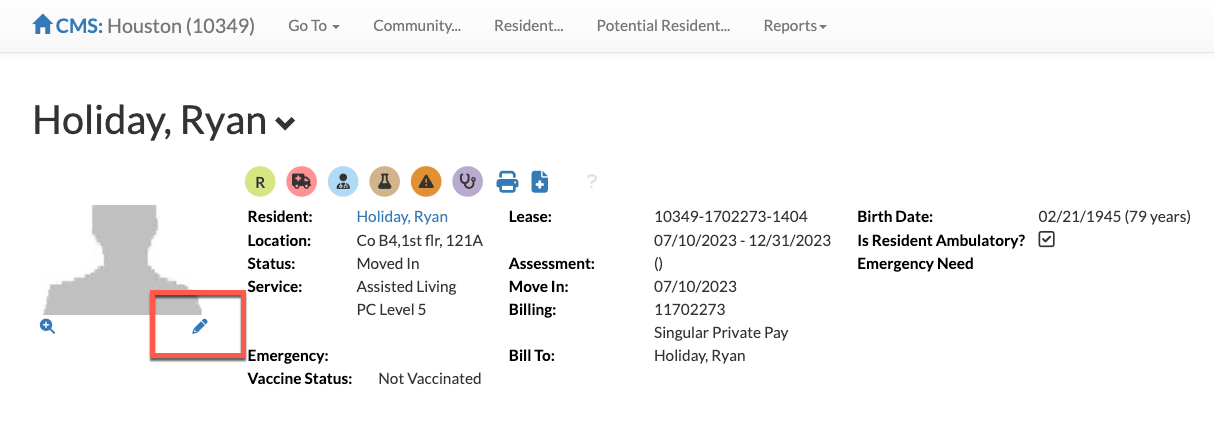
Step 2: From the resident profile page, select the small pencil icon to the bottom right of the current resident photo. If no photo has been added, a generic gray silhouette will display in place of a resident photo.
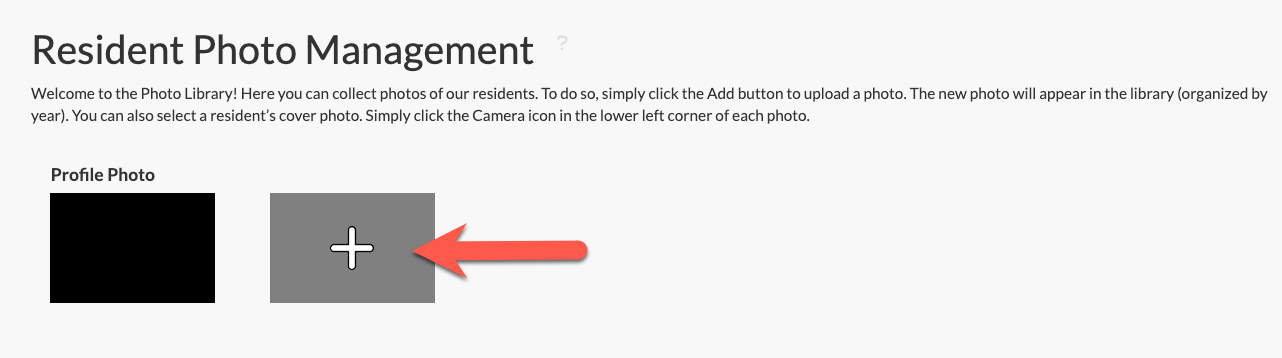
Step 3: From the Resident Photo Management page, select the plus sign.
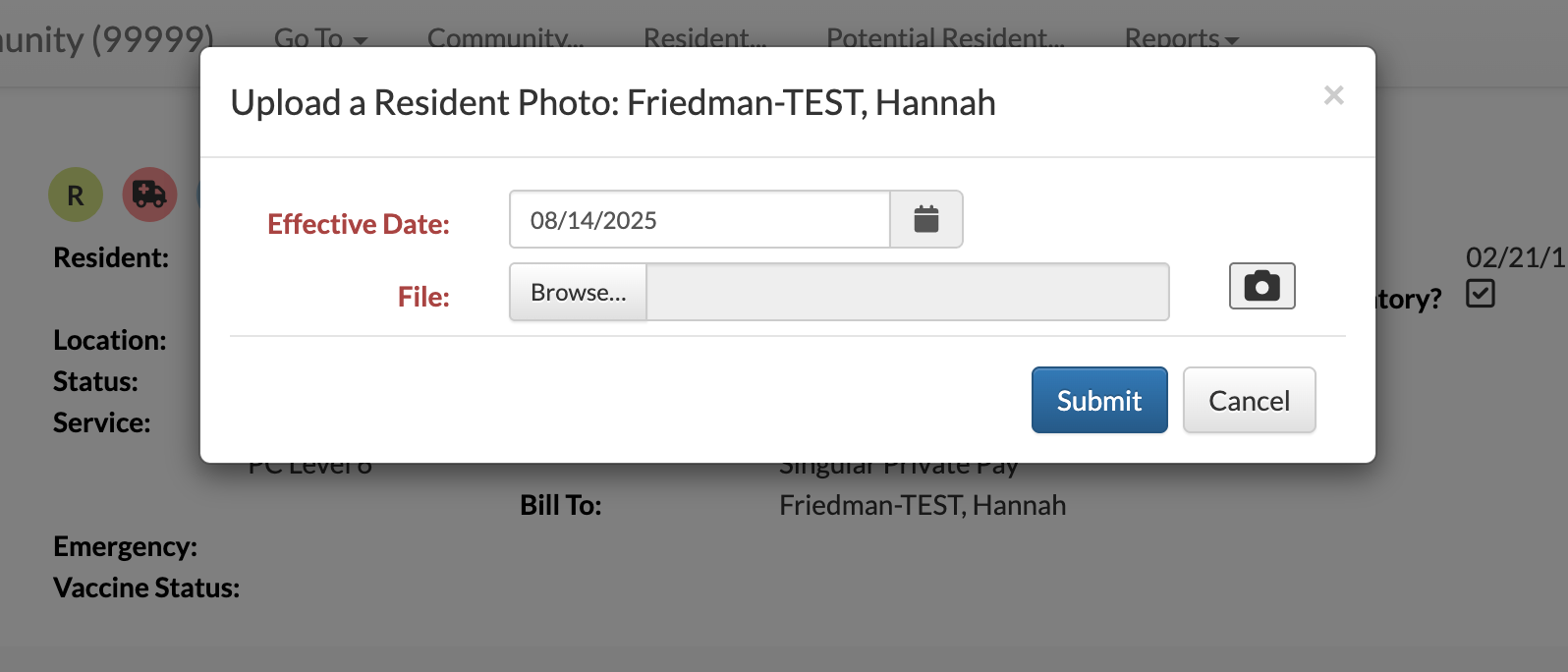
Step 4: In the resulting window, select “Browse…” to choose a photo from your device OR select the Camera Icon to take a photo with your device. Simply select Capture to snap the new photo. Whether the photo is sourced from your device or taken by your device, select Submit to save the new photo.
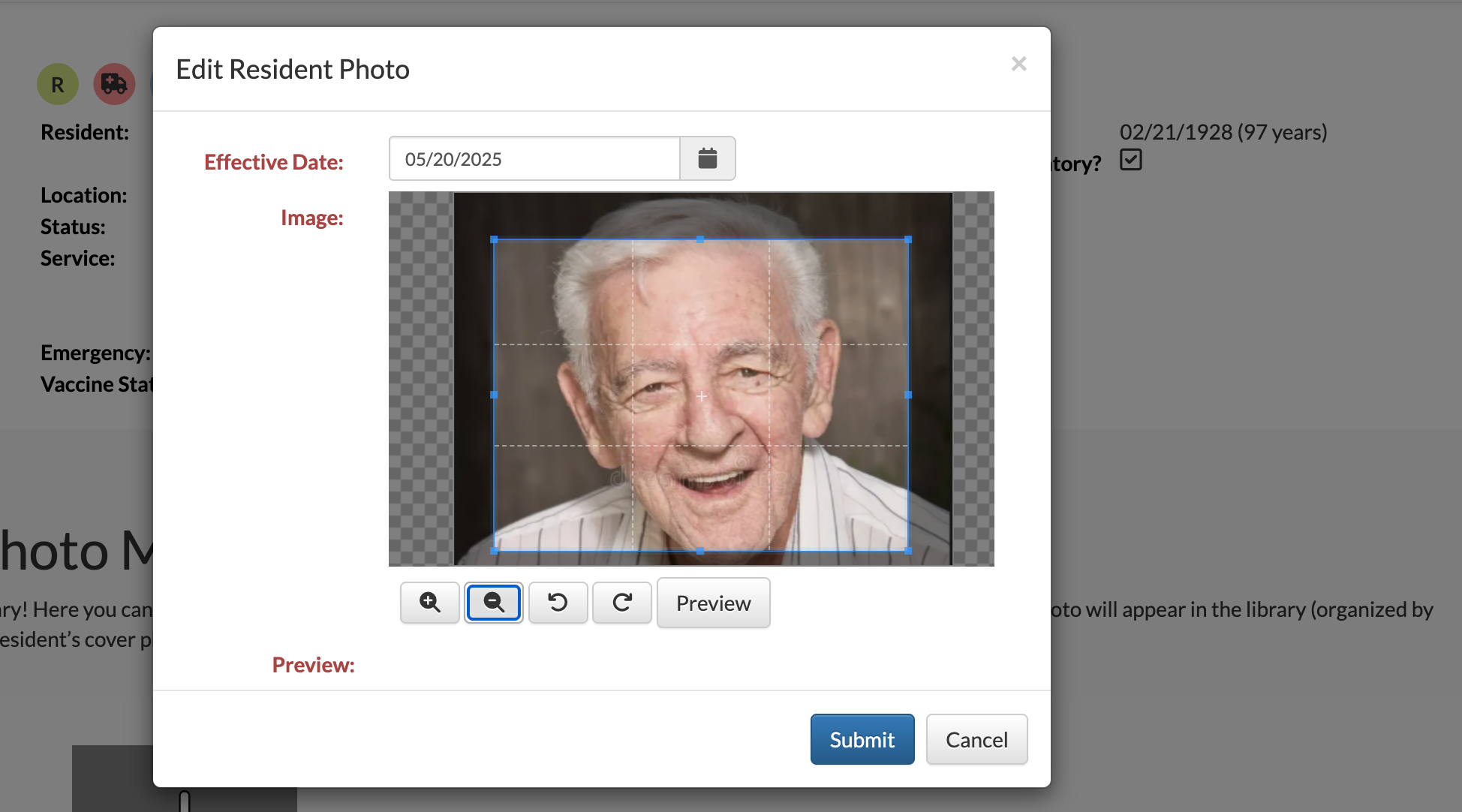
Step 5: After selecting a photo, users can edit the photo as necessary by zooming in or out, cropping the photo, or flipping the photo. Select preview to view the edited photo. Select Submit to add the photo to the resident's profile.
Step 6: You can add as many photos of the resident as is necessary. Previously added photos can be edited at any time by selecting the Edit Pencil icon.
To set a resident photo as the profile photo, select the camera icon below the desired photo.
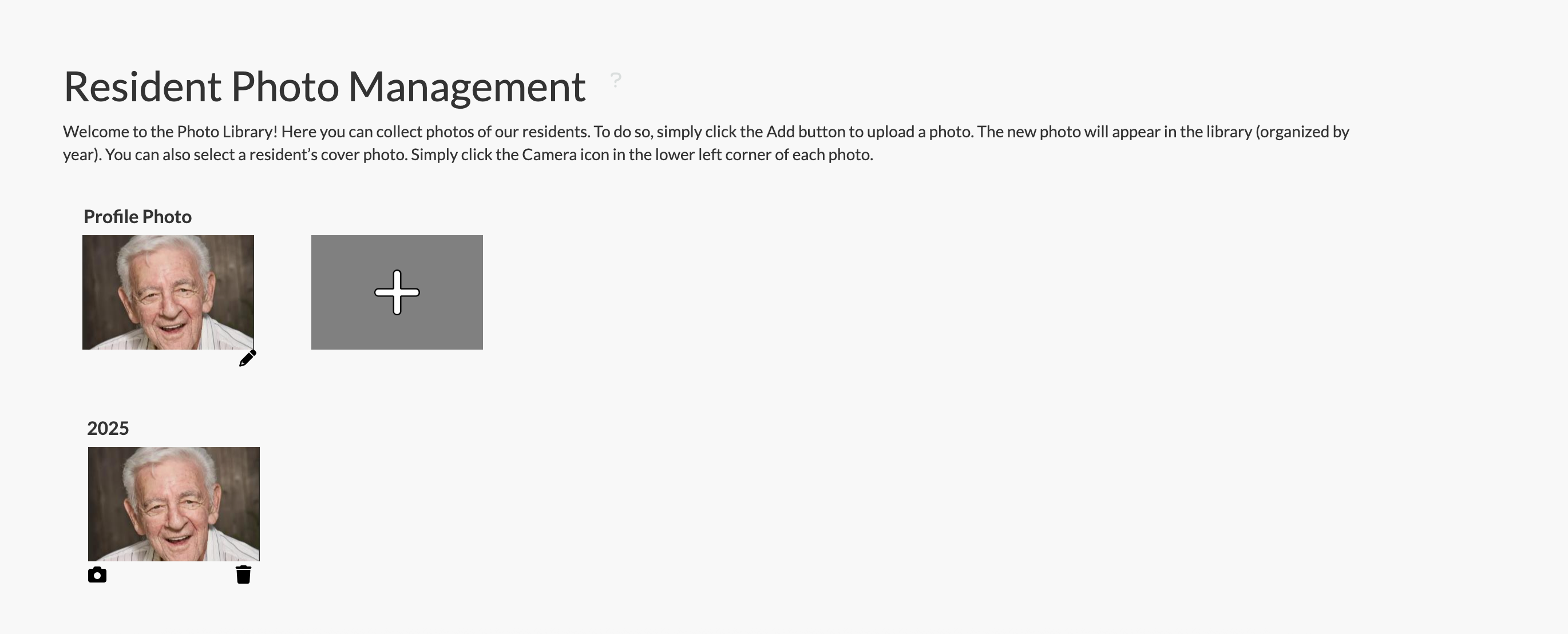
The photo will now display in Aline Care, Aline Leasing & Billing, and Aline eMAR as the resident's profile photo.
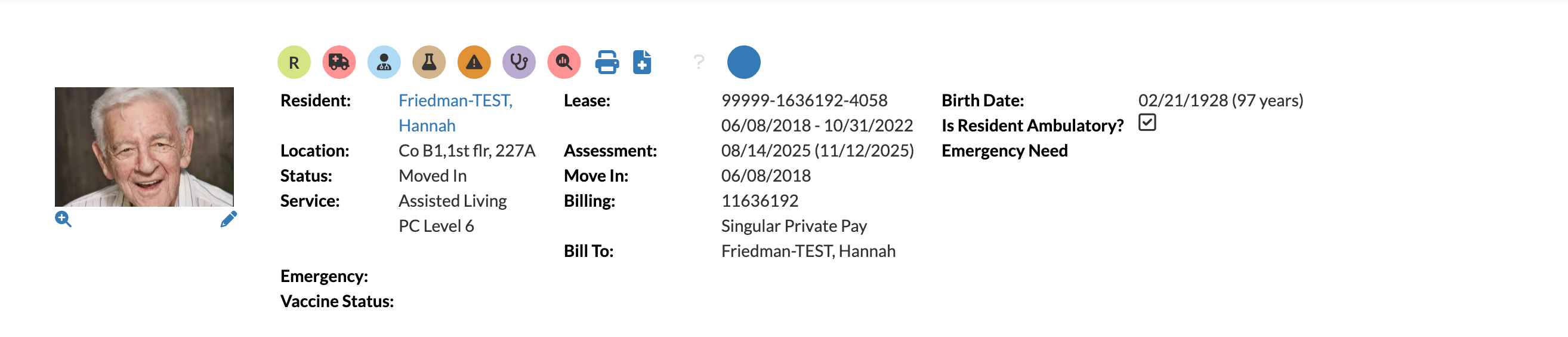
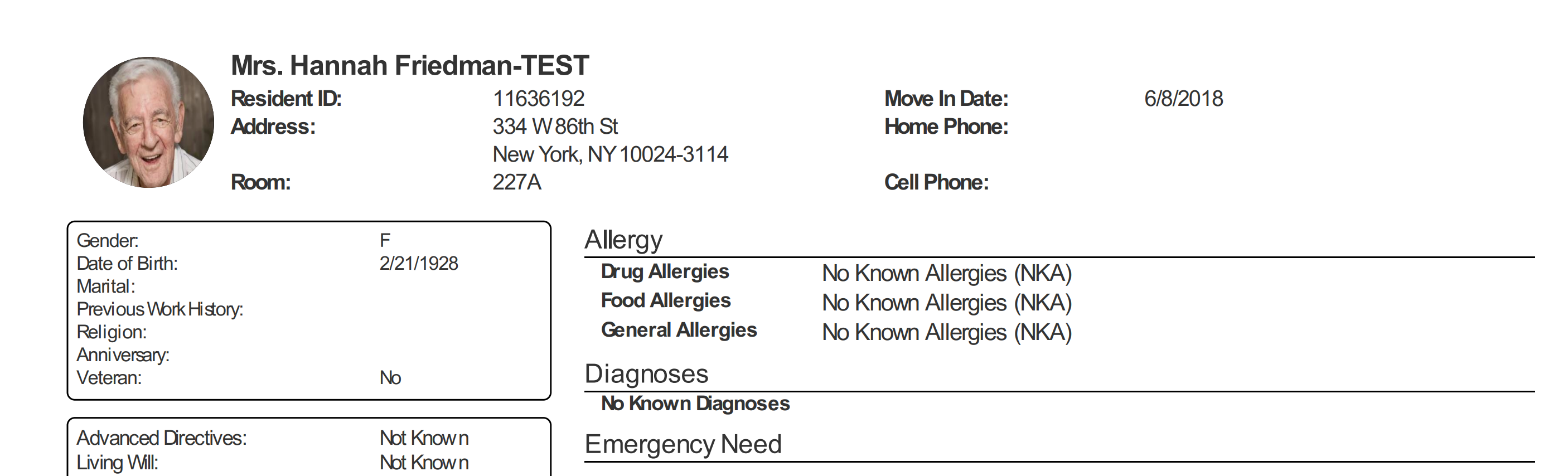
Please Note: Remember, resident photos can also be added by the administrative / business office team in the Aline Leasing & Billing application. Photos added to Aline Care will automatically flow into Aline Leasing & Billing and photos added into Aline Leasing & Billing will automatically flow into Aline Care, so no duplication of effort is required.
Photos added directly to Aline eMAR will NOT automatically flow into Aline Care or Aline Leasing & Billing.
Was this article helpful?
That’s Great!
Thank you for your feedback
Sorry! We couldn't be helpful
Thank you for your feedback
Feedback sent
We appreciate your effort and will try to fix the article