Overview
In this article, we will review the steps to report an observed incident via mobile.
Steps to Reporting an Observed Incident via Mobile
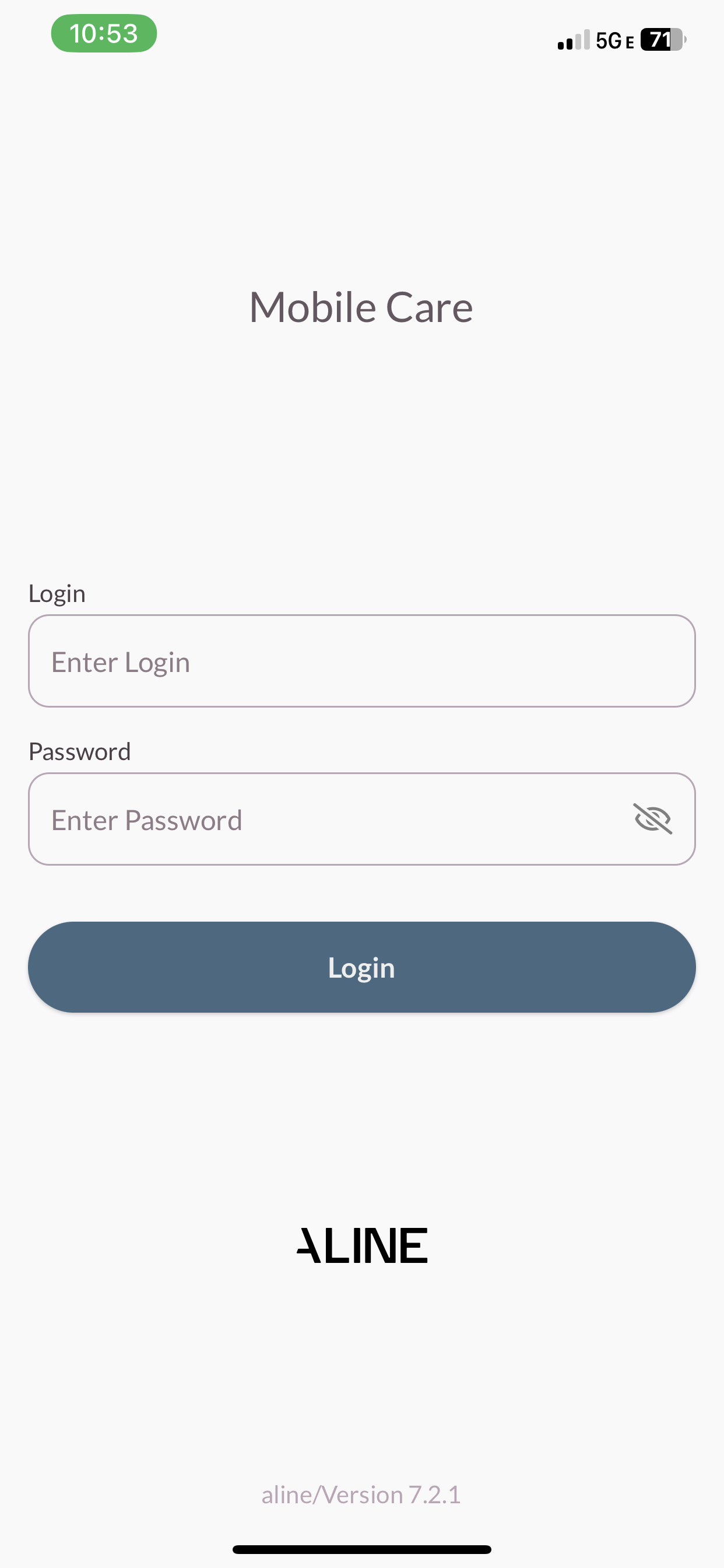
Step 1: Sign-in to the Aline Care Mobile application using your Username and Password.
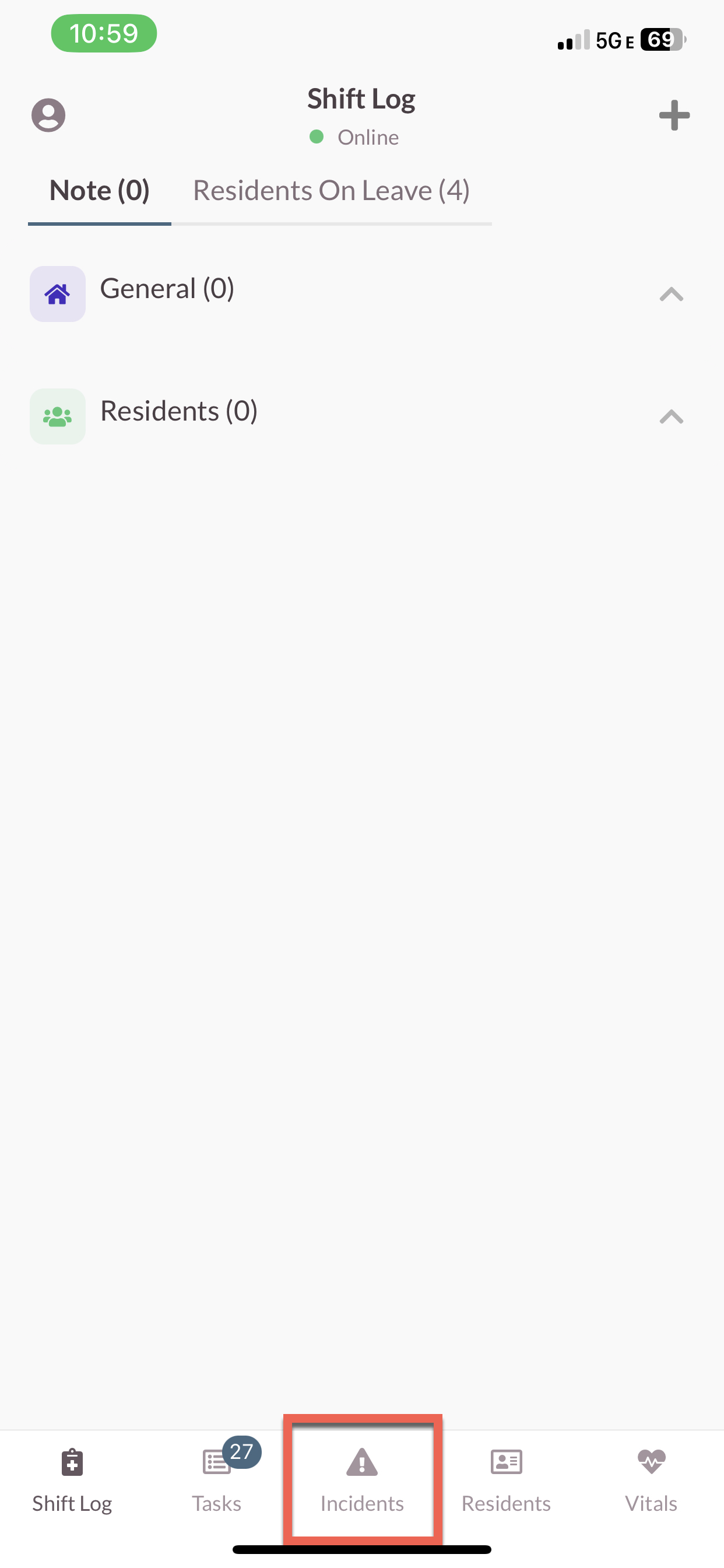
Step 2: Select the Incident tab.
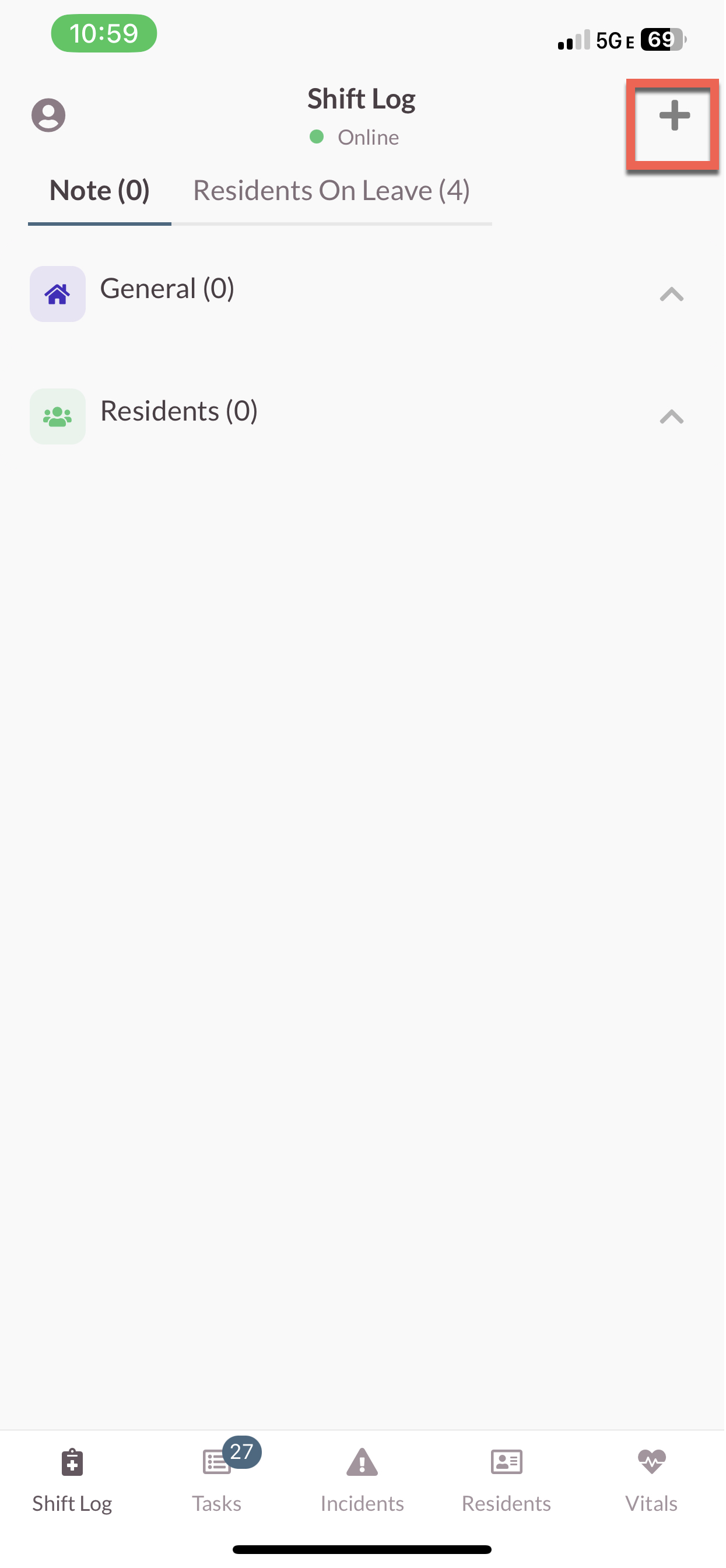
Step 3: To report an incident, click the plus sign in the top right corner.
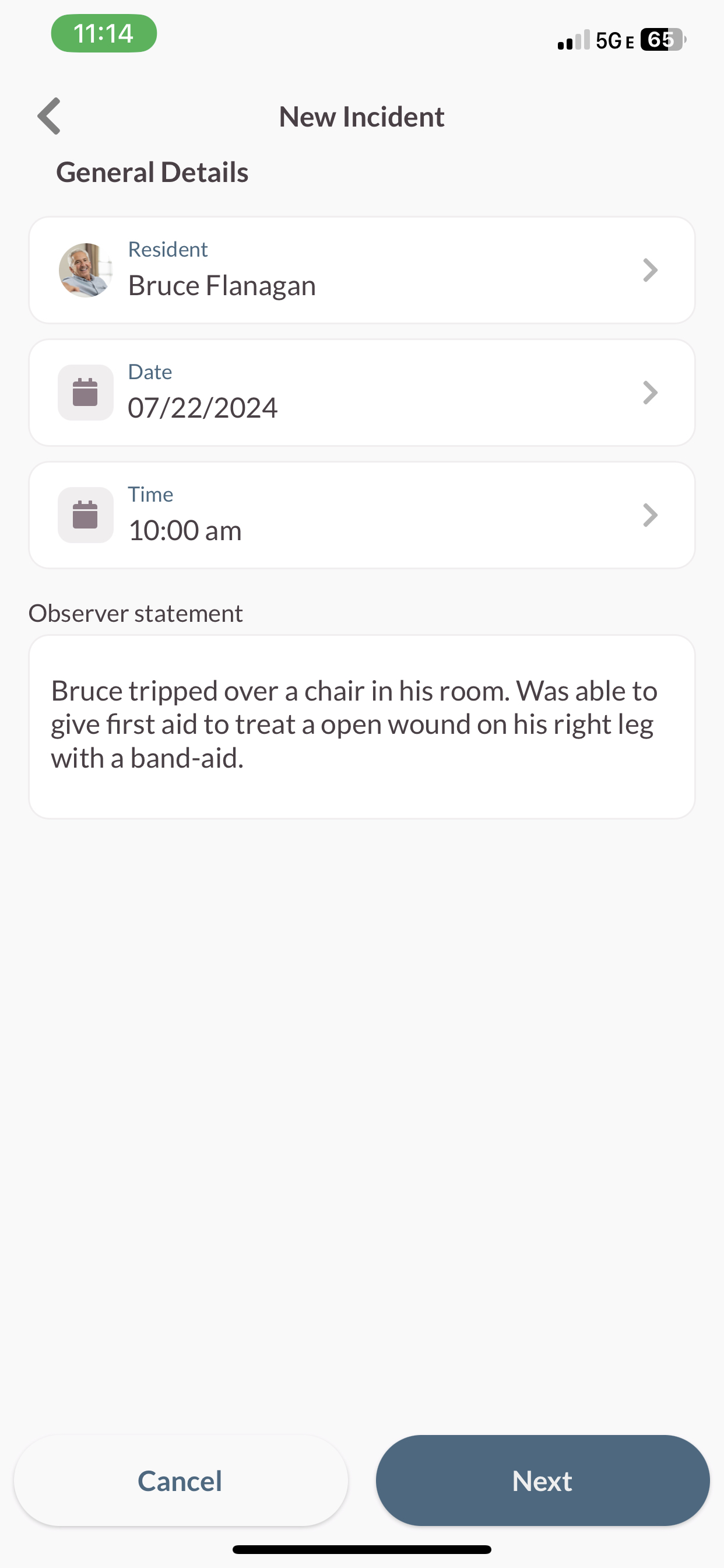
Step 4: Choose Resident, Date, and Time Observed. Enter the Observer Statement. Select Next.
Step 5: Click on an indicator to select dimensions within it.
Step 6: Select Next to continue answering the information regarding the indicator.
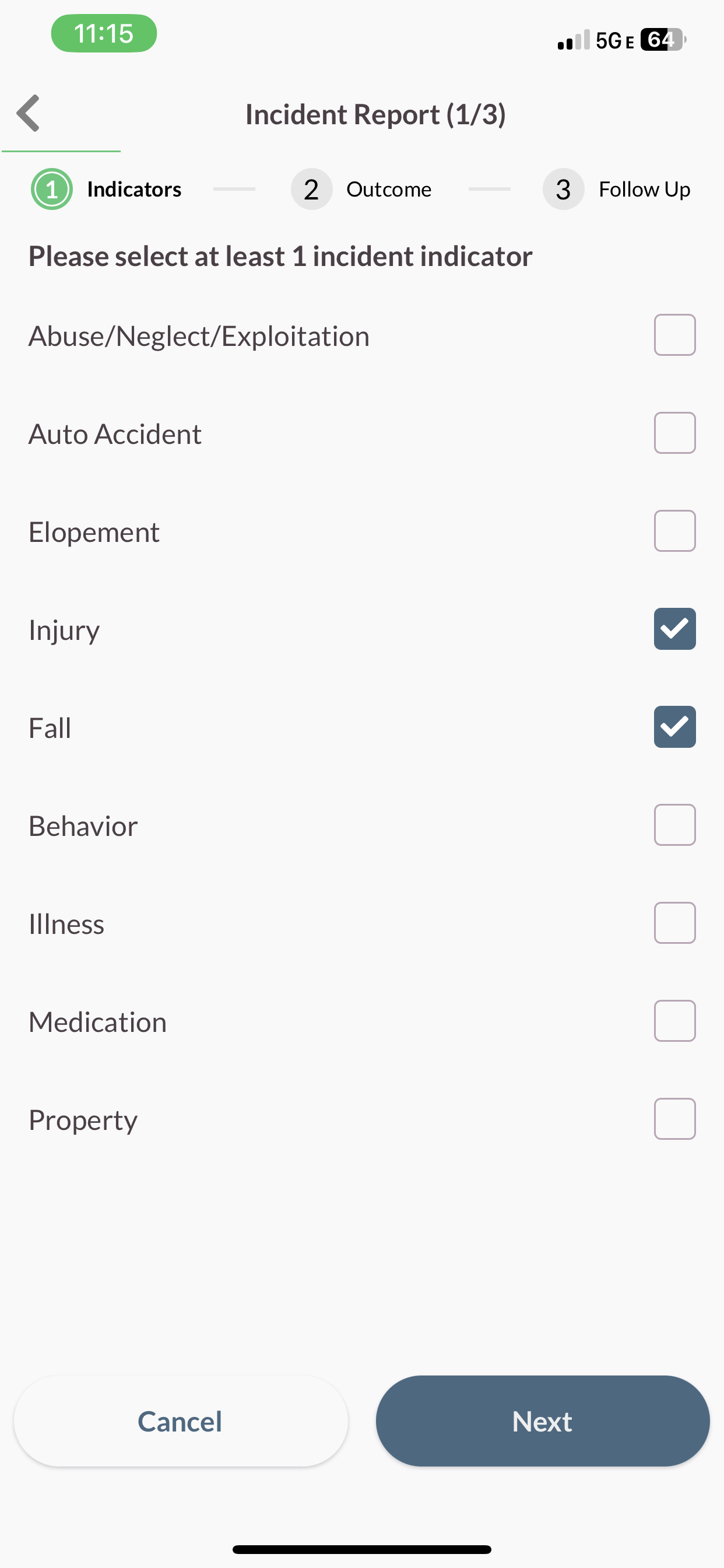
Step 7: Once all questions within an indicator are chosen, a check mark will appear to the right of the indicator name.
Step 8: Once the all appropriate indicators are completed, select Next.
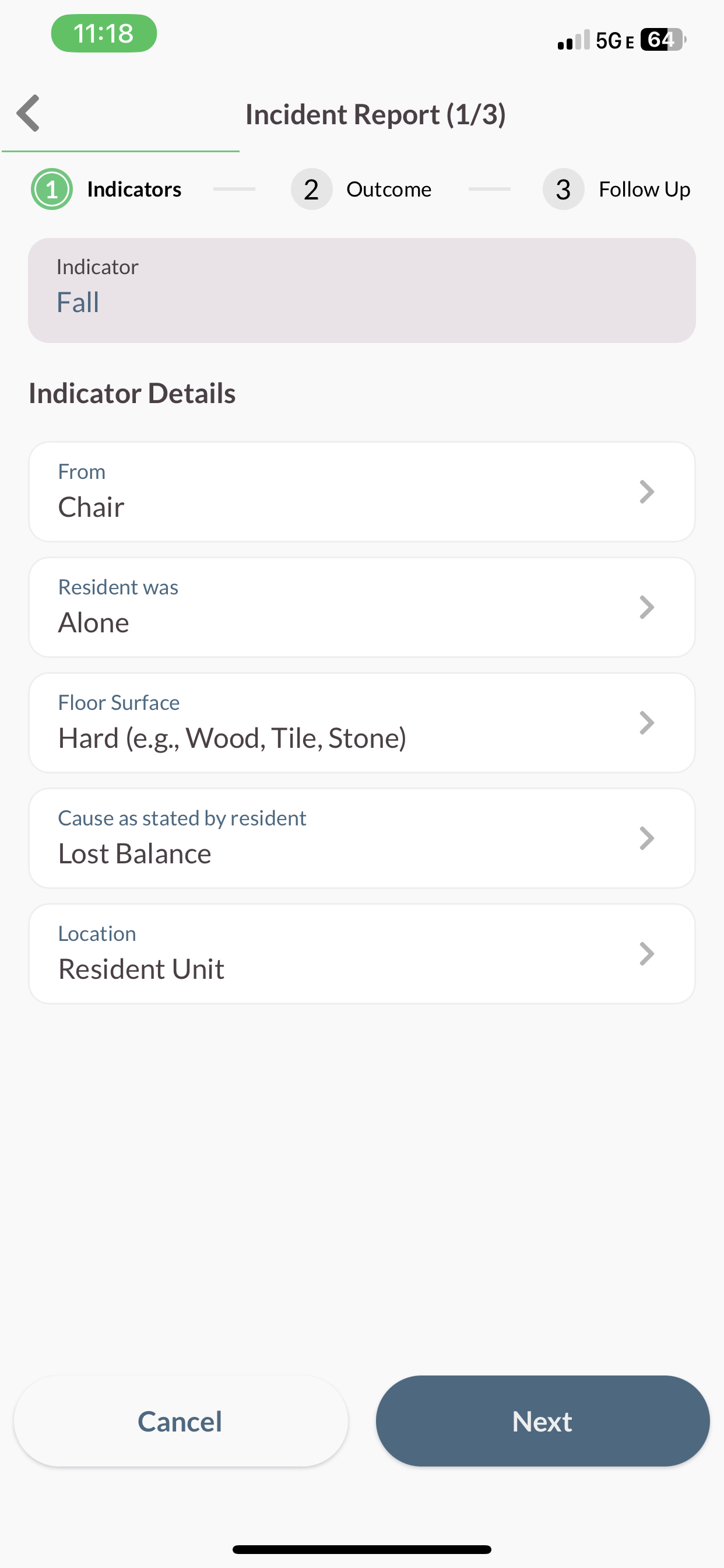
Step 9: Select the Outcome(s) and then select Next.
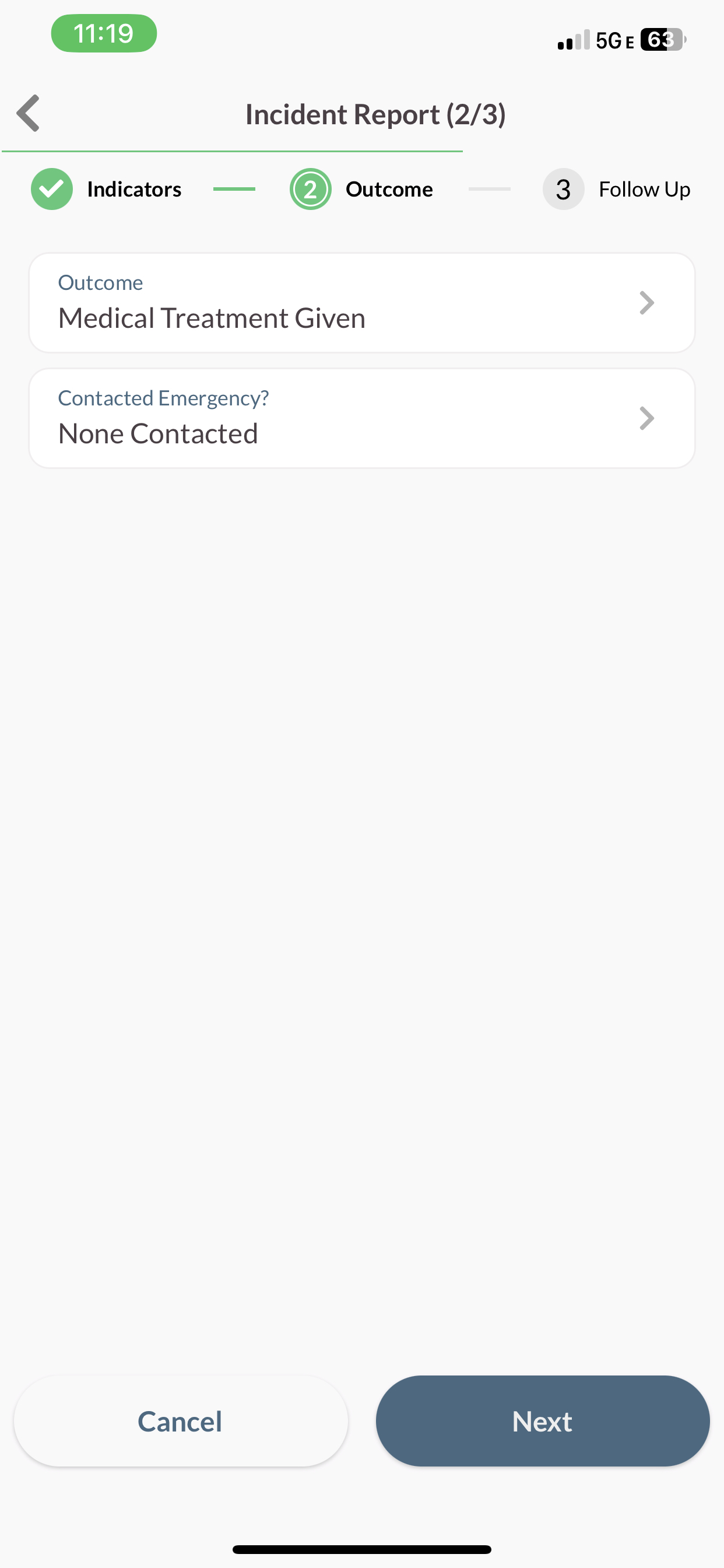
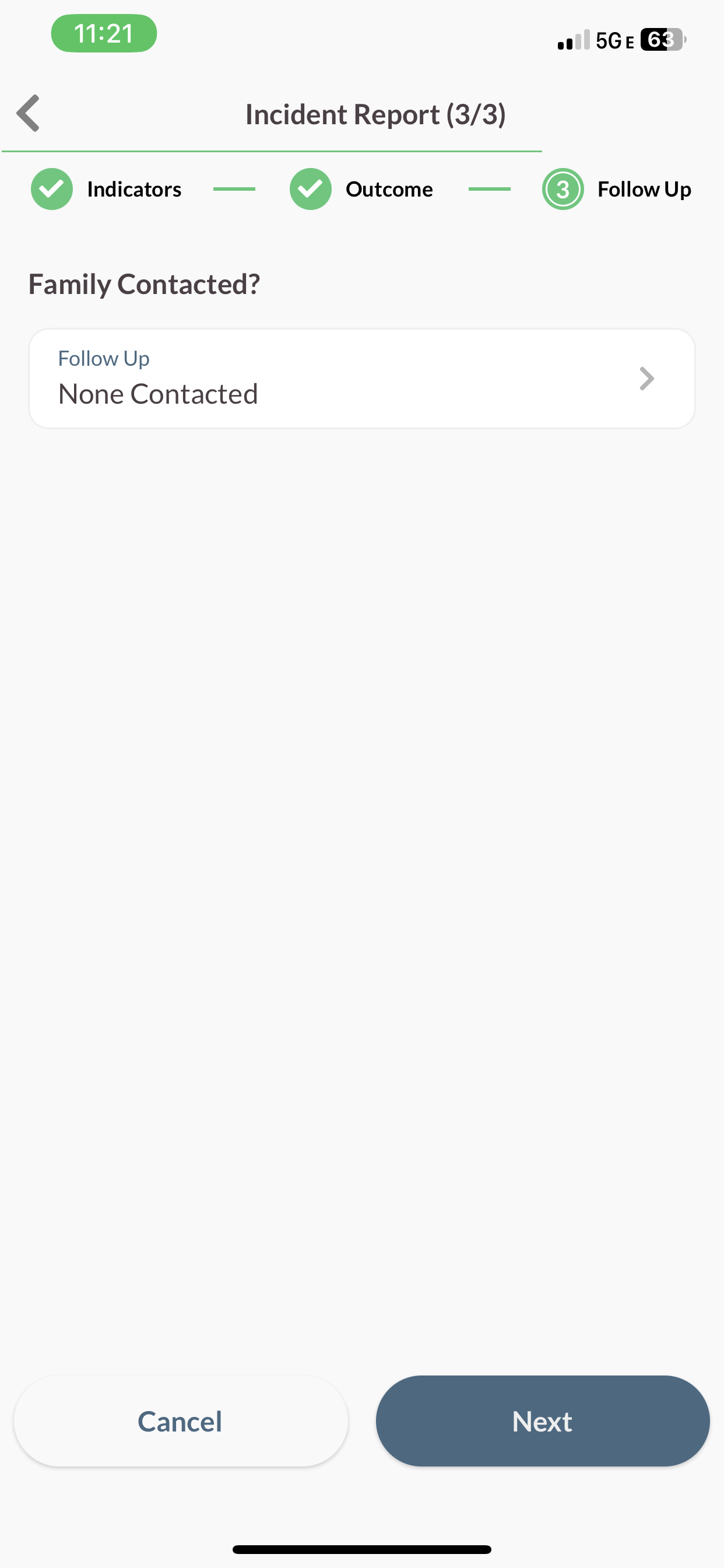
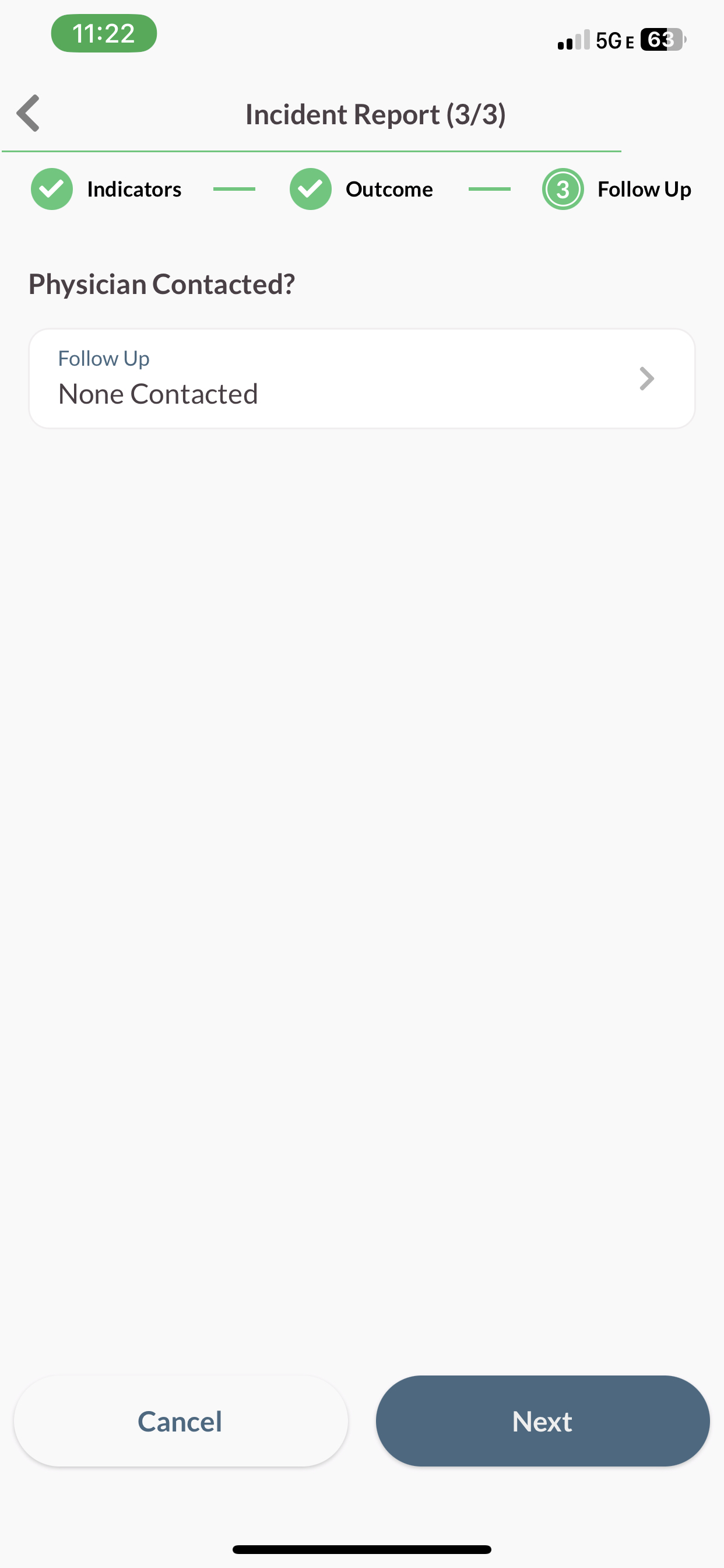
Step 10: Select through all follow ups, which include family contact, and physician contact.
Step 13: View the Incident details.
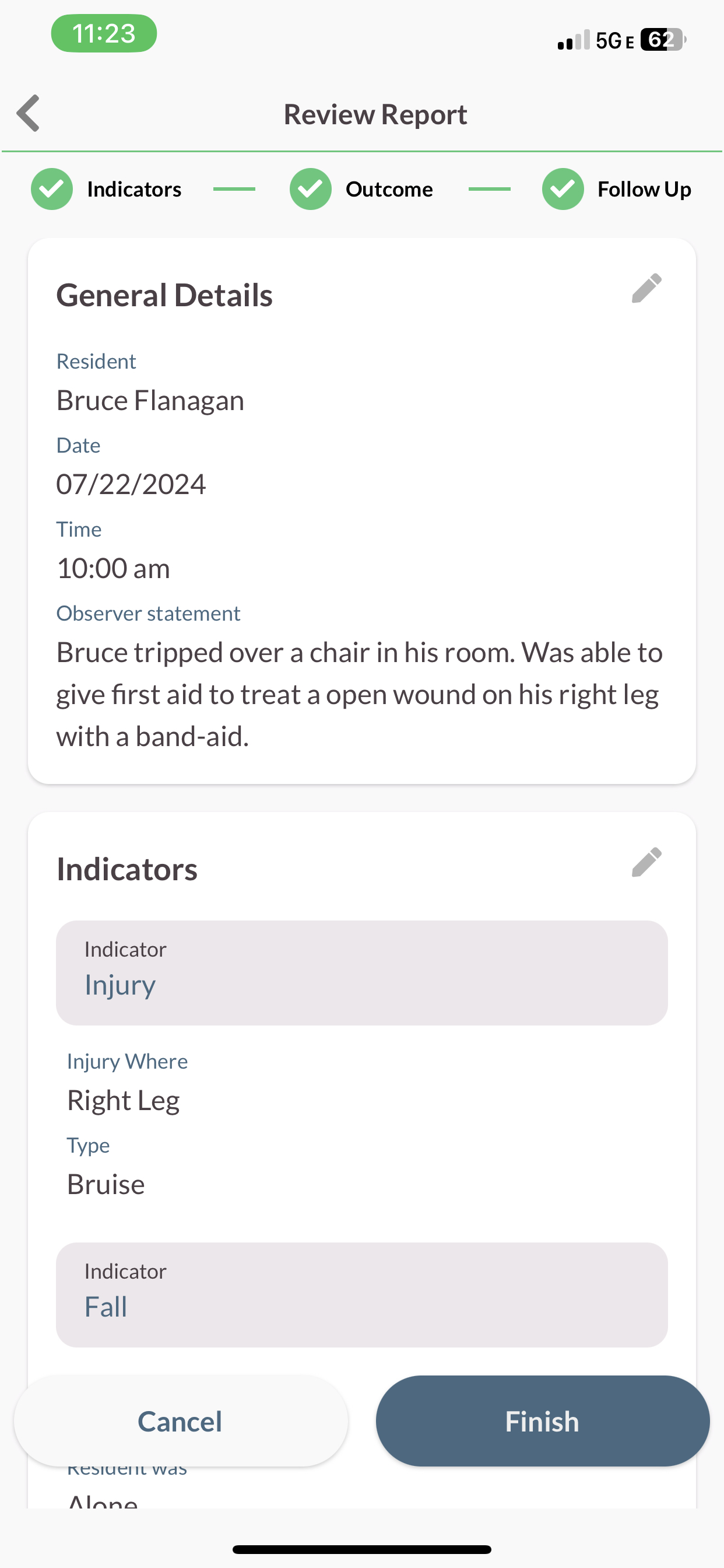
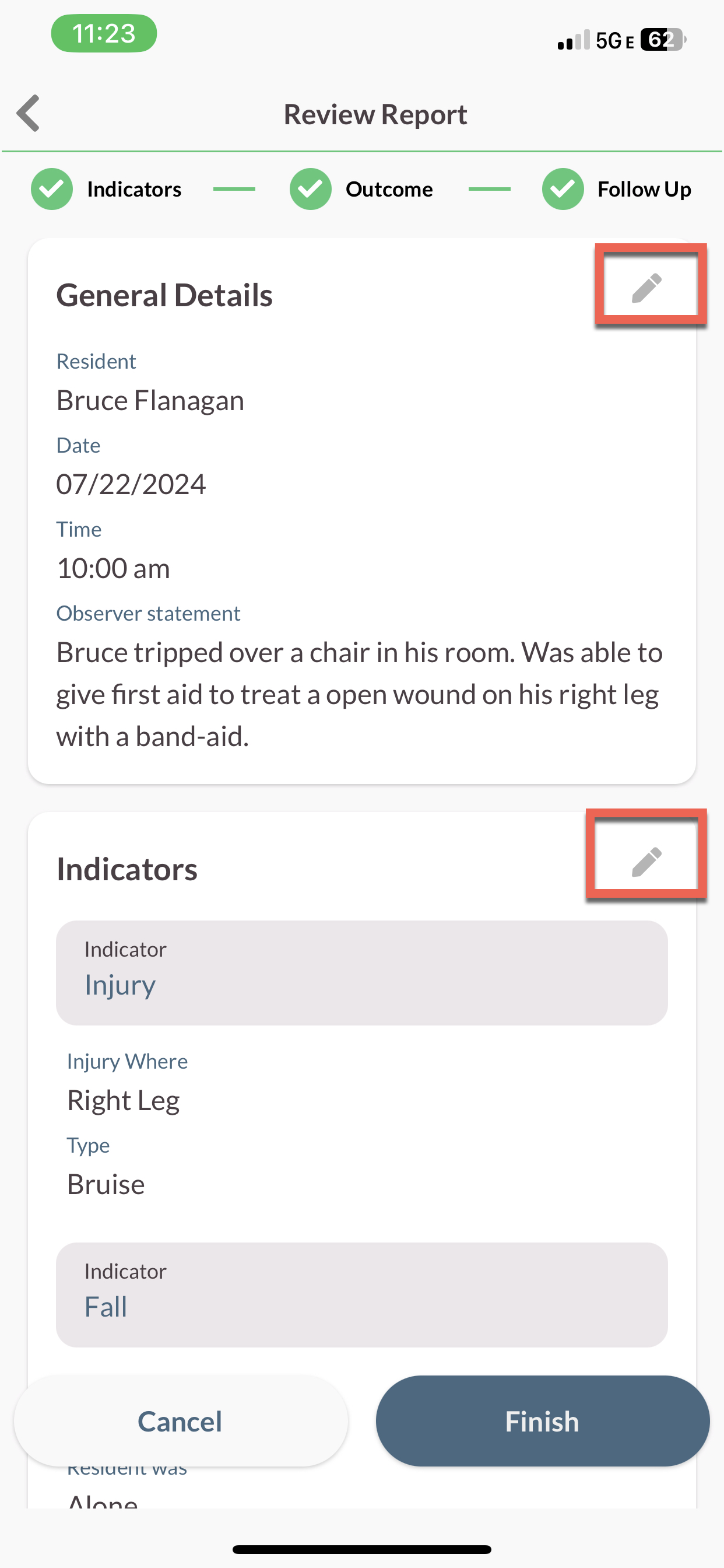
Step 14: To view or edit the information, tap the pencil icon of any section to drill-down and view the chosen dimensions.
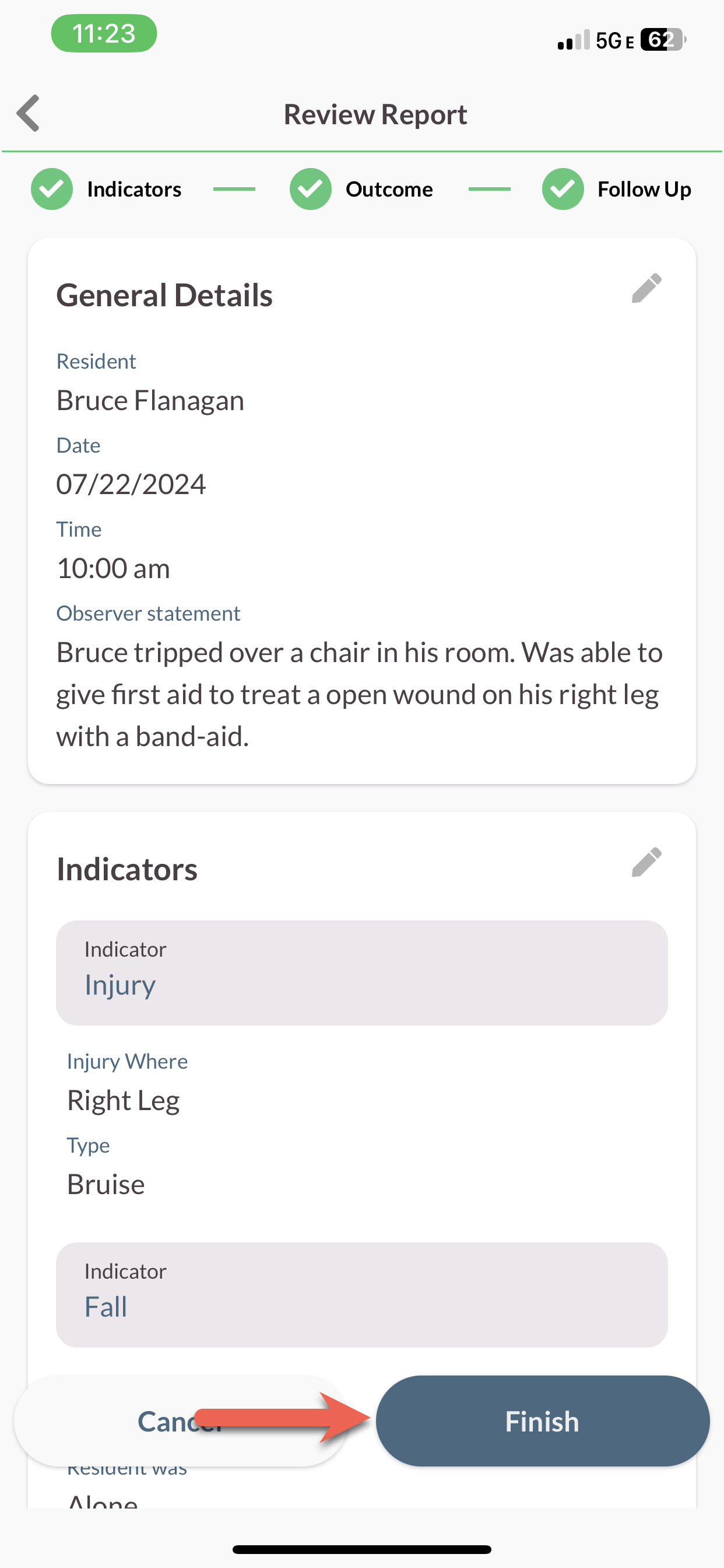
Step 15: Tap Submit to submit the Observed Incident for review. Tap Clear to clear all selections and start over.
Was this article helpful?
That’s Great!
Thank you for your feedback
Sorry! We couldn't be helpful
Thank you for your feedback
Feedback sent
We appreciate your effort and will try to fix the article