Overview
In this article, we will discuss what Alert Charting, or incident follow ups, can do for your clinical operation, how to use them, and how to configure alerts in accordance with what works best for your community.
You can also check out the helpful tutorial below to gain a basic understanding of the Alert Charting process!
Video Coming TBD
What is Alert Charting?
Alert Charting comes into play after a resident incident has taken place in the community. Think of Alert Charting as simply a standard follow up procedure post-incident.
For instance, if a fall has taken place, perhaps the community's standard Alert Charting procedure dictates that check ins with the affected resident should take place twice daily for three days.
Each type of incident a resident may encounter can come with its own set of defined incident follow ups - this Alert Charting also conveniently applies, or copies, into the original incident report in order to capture the full picture of not only the incident itself but also the information surrounding post-incident activities.
Utilizing Alert Charting
Alert Charting, or incident follow ups, can be attached to each specific incident type. For instance, a fall may require follow ups multiple times a day for multiple days whereas an elopement may only require a single follow up.
Let's take a look at how to work with Alert Charting. In the following example, we'll work with a resident who has had a recent fall reported as an incident. As you can see below, my Alert Charting for fall-type incidents is customized to require three follow ups - one on the first day, the second day, and then one week post-fall.
Alerts can appear as Resident Notes in the Aline Care application, as Shift Logs in the Aline CareMobile application, OR both simultaneously. In our example, we'll conduct the incident follow ups via Resident Notes.
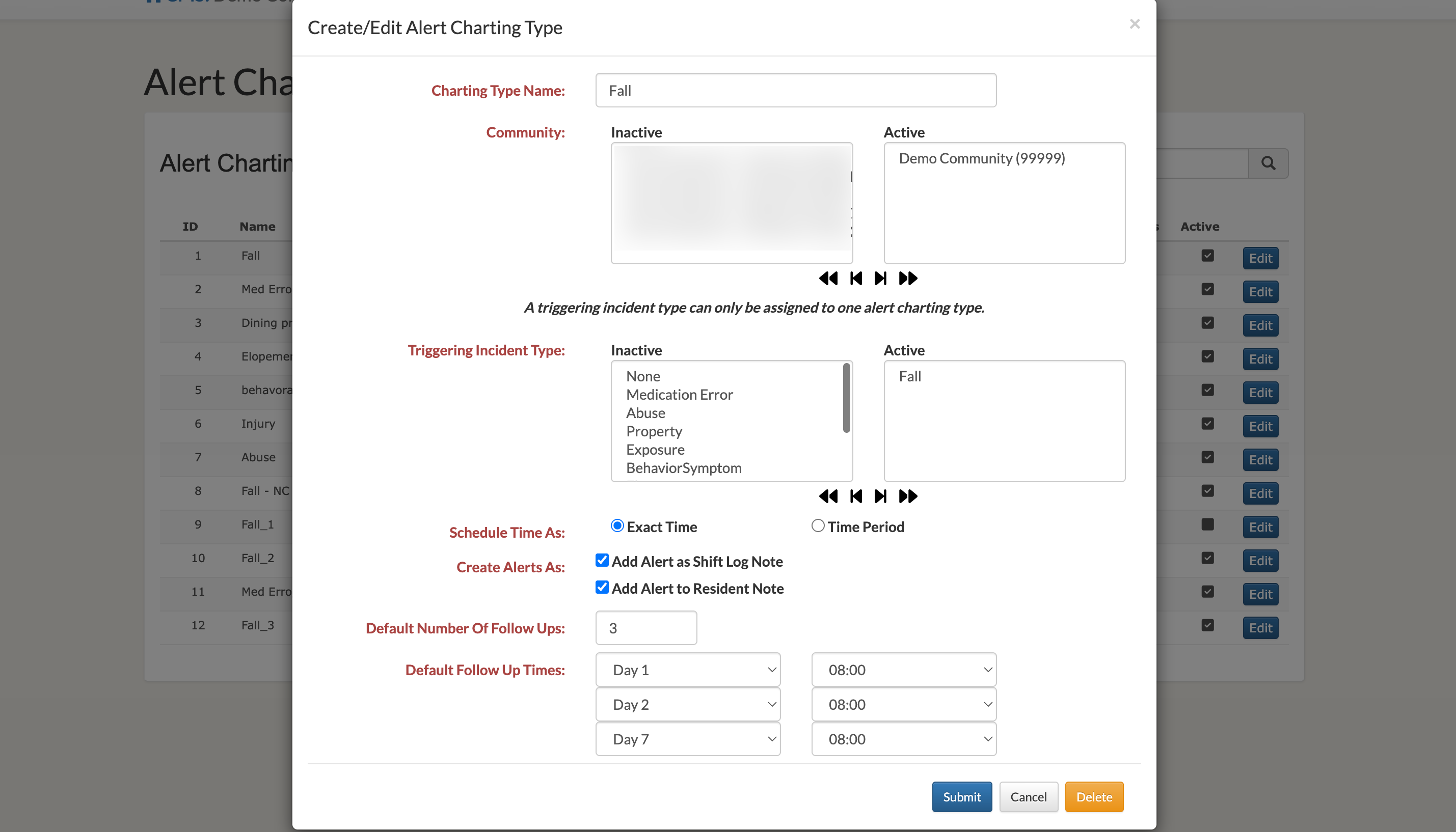
Step 1: Complete the initial incident report.
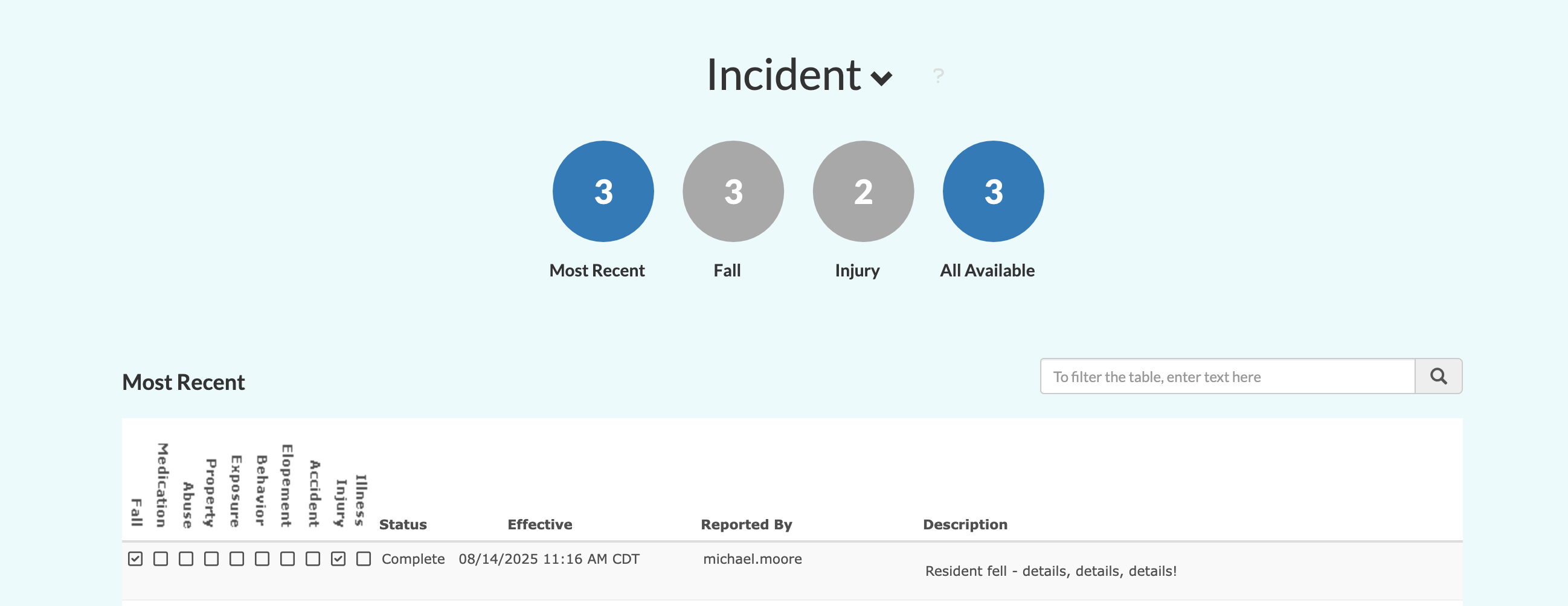
Step 2: Once the incident has been reported, Alert Charting will be available for follow ups in the Resident Notes section of the resident profile (if configured that way, as in our example here). Alert Charting required will also display on the main Aline Care dashboard.
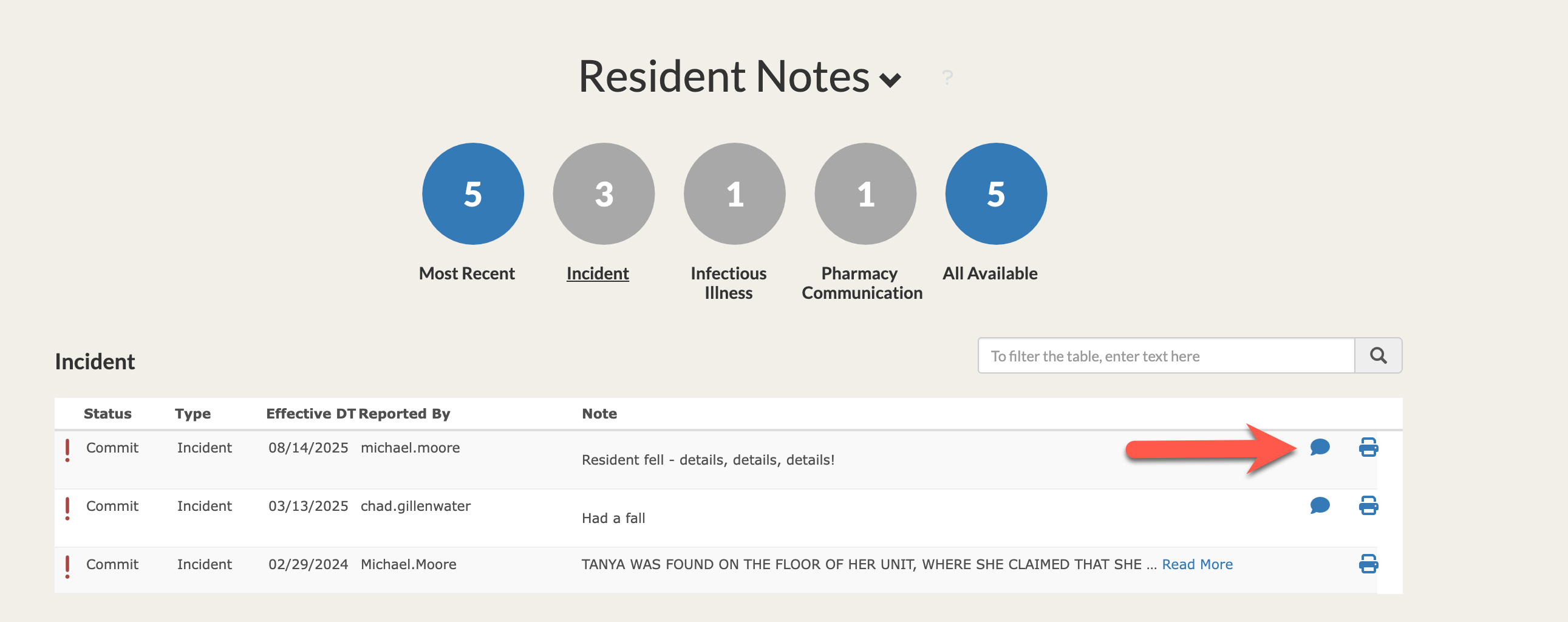
Selecting the speech bubble icon will allow users to supply the required follow up information.
Step 3: When supplying follow up information during Alert Charting, users will start by confirming which follow up date and time they are supplying information for. In our example below, I have the first follow up date/time selected. Users will then plug in the date and time that the follow up was actually conducted along with the necessary follow up note text.
Select Submit to save the note.
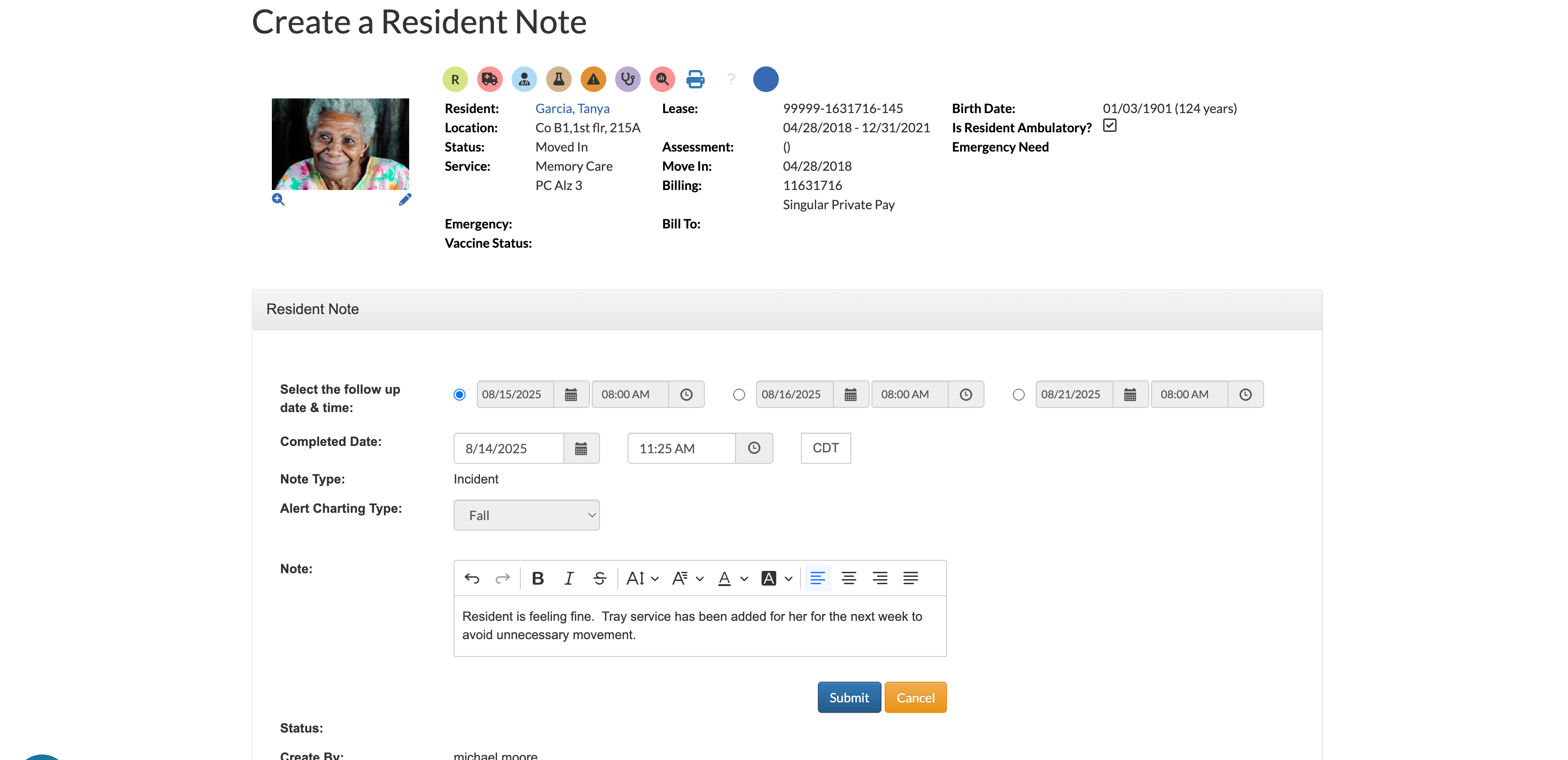
Step 4: In this scenario, users would then supply the remaining incident follow up notes at the time and date required. Once all Alert Charting has been completed, the complete history will be saved in the Resident Notes section. Users can also run the Alert Charting Report.
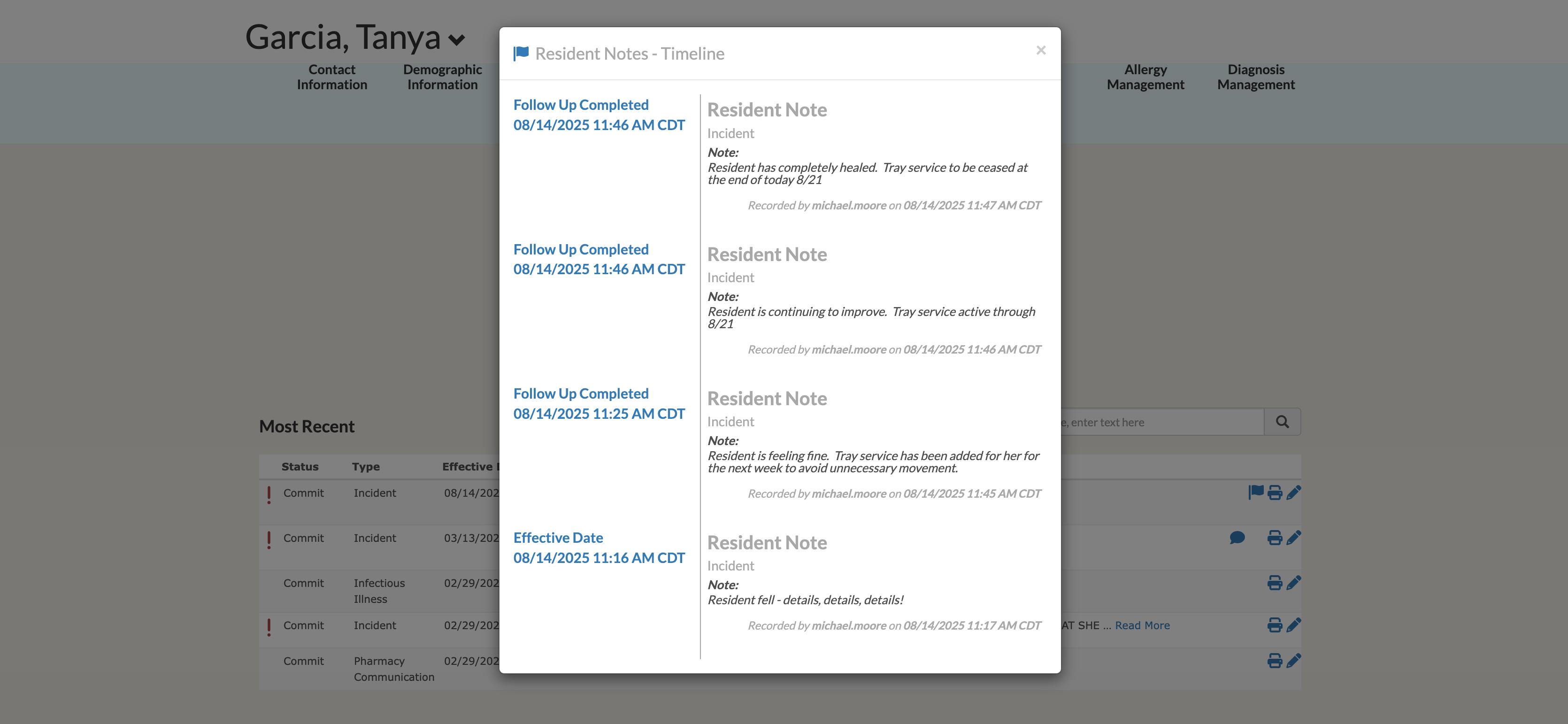
Configuring Alert Charting
Administrative users may be granted the ability to add new or edit existing Alert Charting types for their organizations. We'll walk through those steps below.
Step 1: To get started, let's hop into the Go To menu and select Application Configuration.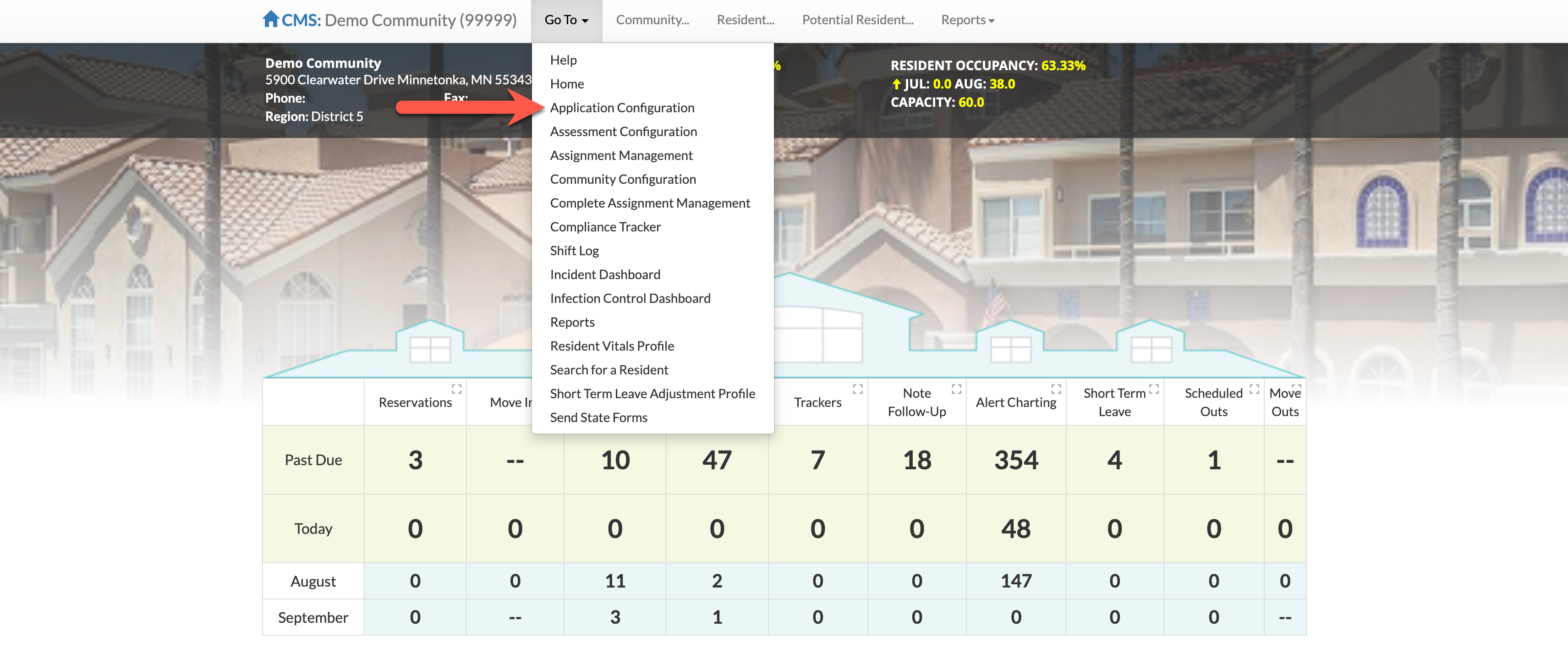
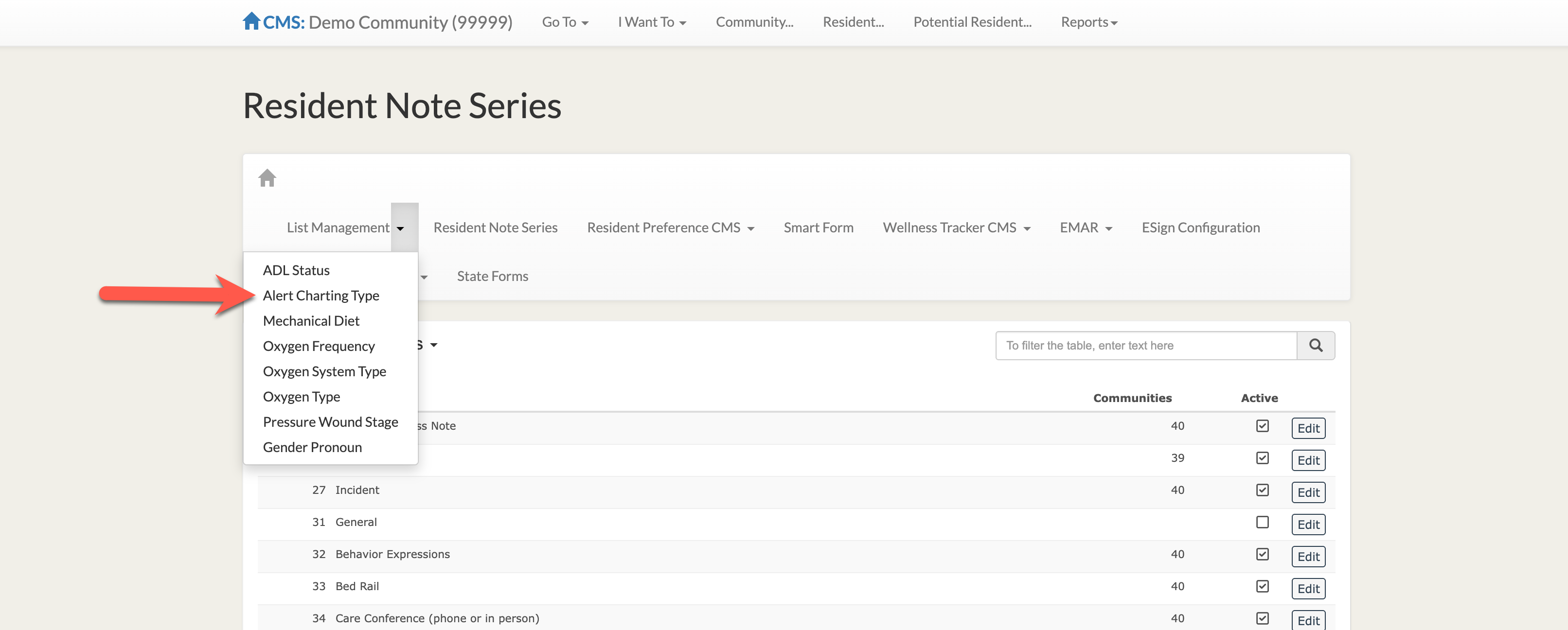
Step 2: From the Application Configuration page, select the little arrow next to List Management and then select Alert Charting Type.
Step 3: This page will list all currently existing Alert Charting Types.
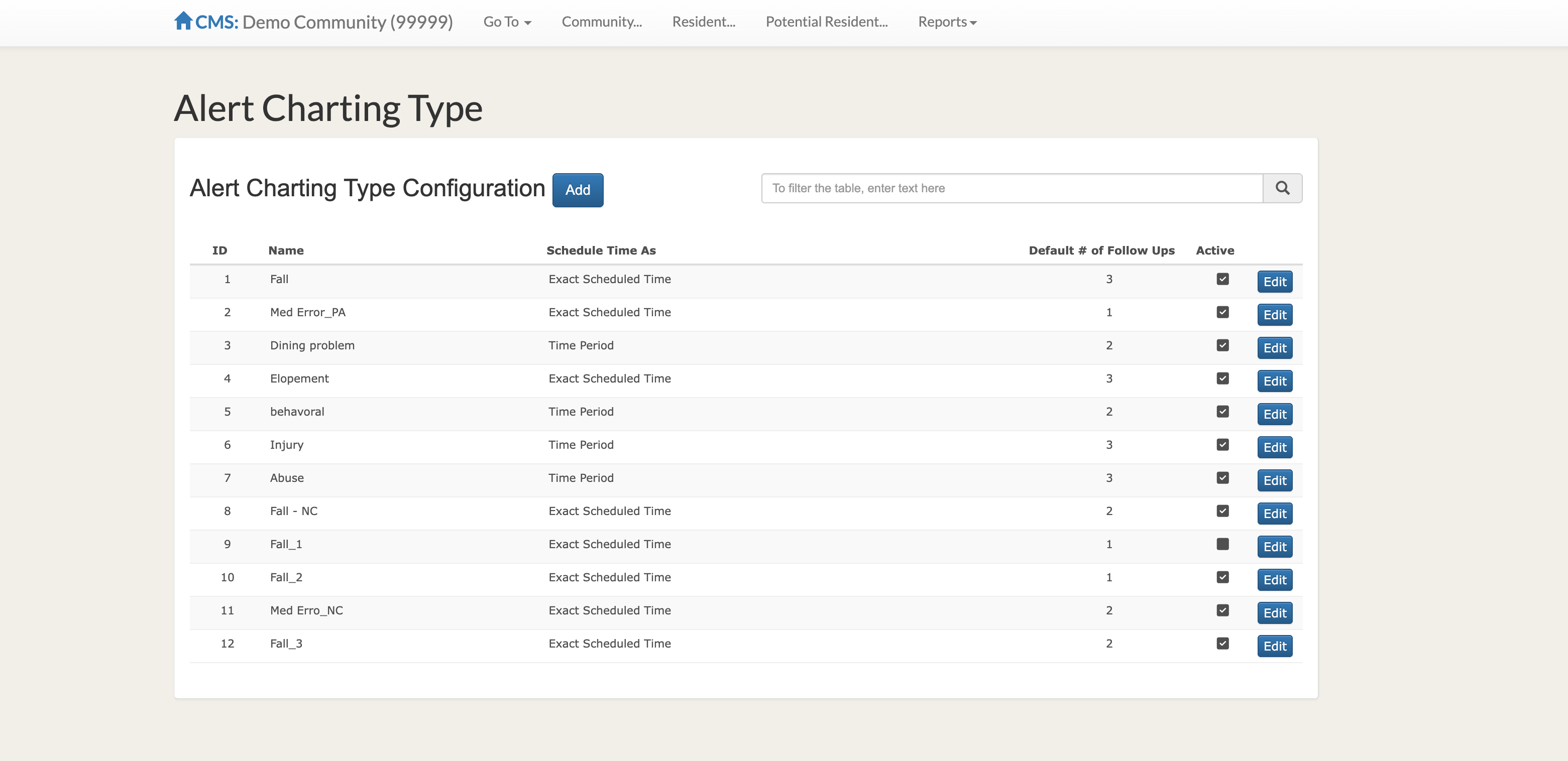
Users can select the Edit button to edit an existing Alert Charting Type or the Add button to create a new Alert Charting Type. Selecting Edit will allow users to edit any components of the existing type - users can also delete the existing Alert Charting Type if it is no longer needed. Simply select Submit after making any changes.
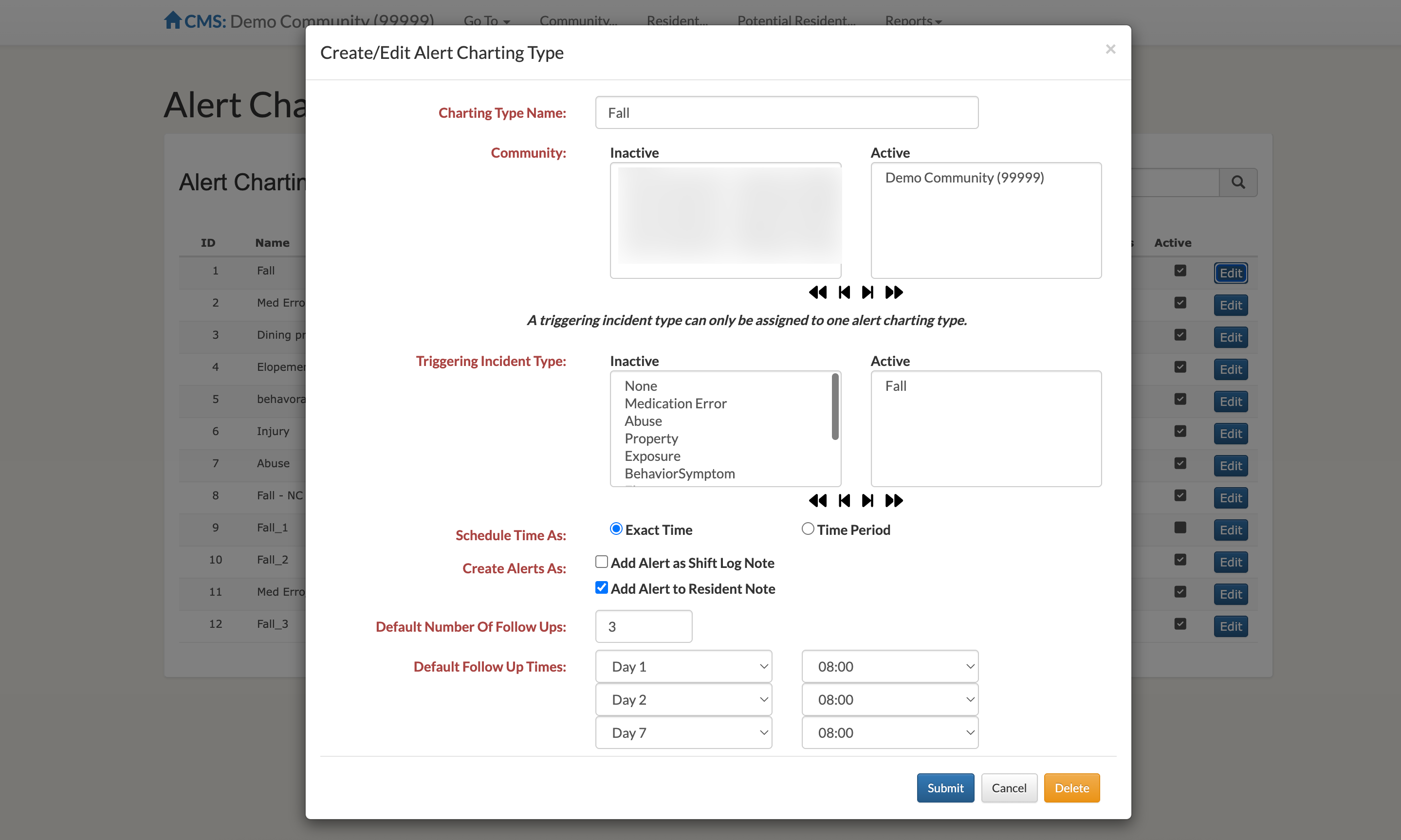
When adding new Alert Charting Types, users will fill in the required information before submitting. This includes:
- Charting Type Name
- Communities where the Alert Charting Type should be active
- Triggering Incident type (this is the incident that triggers the Alert Charting Type we're creating)
- Schedule Time As (Exact Time for specific times or Time Period for time ranges)
- Create Alerts As (either Shift Log Notes, Resident Notes, or both)
- Default Number of Follow Ups
- Default Follow Up Times (both days post-incident and time or time range.
Please Note: Only one Alert Charting Type may be attached to each Incident Type per each community.
In this example, a user has created a new Alert Charting Type named Exposure Follow Up that applies solely to the Demo Community. The Alert Charting will trigger when an exposure incident is reported and will require a follow up in the Resident Notes section on the day of exposure, the day after exposure, and two days after exposure during the time range of the first shift.
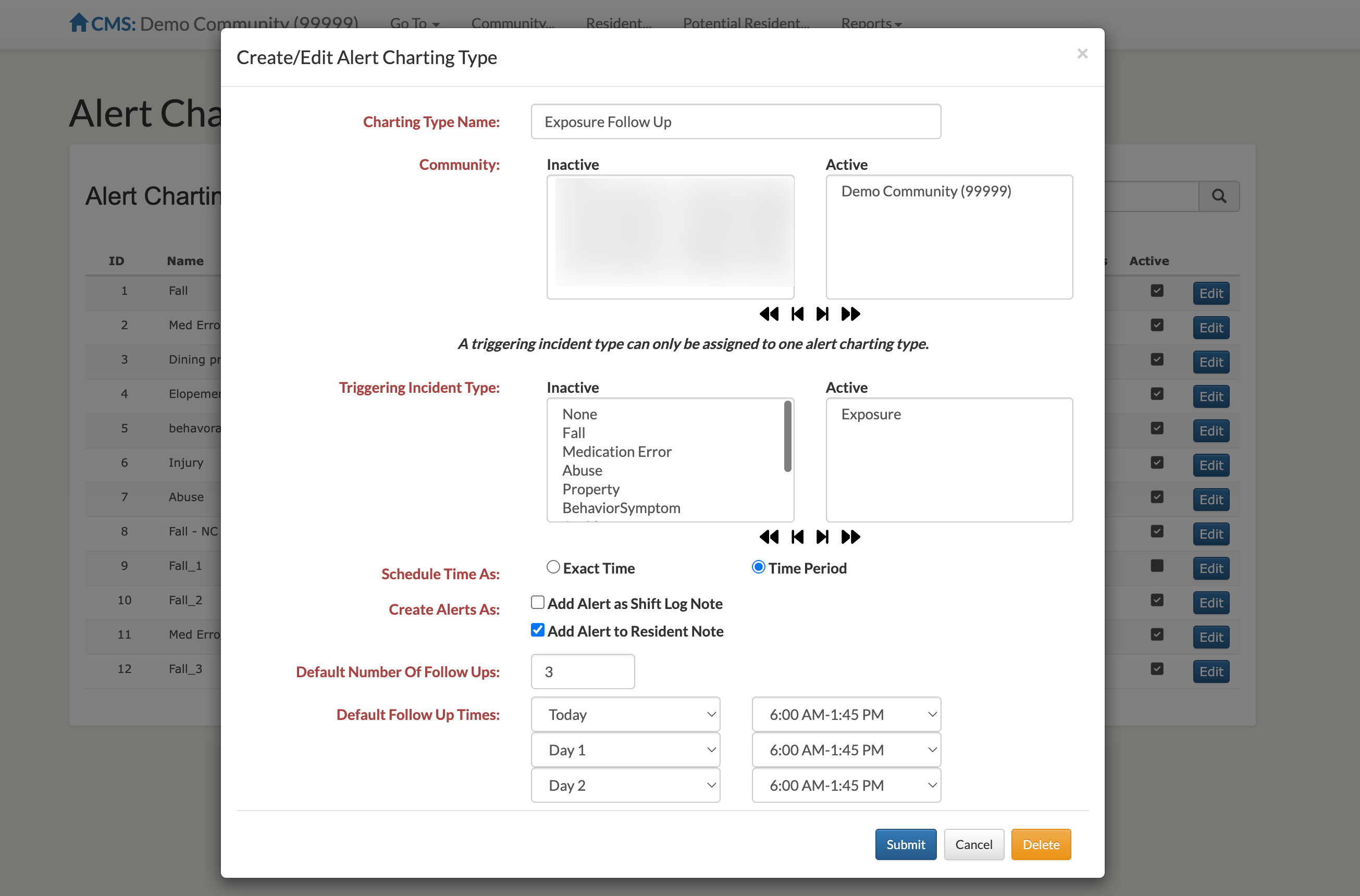
After submitting the new Alert Charting Type, it is now live in Aline Care and can be edited or deleted whenever necessary.
Was this article helpful?
That’s Great!
Thank you for your feedback
Sorry! We couldn't be helpful
Thank you for your feedback
Feedback sent
We appreciate your effort and will try to fix the article