Overview
In this article, we will review the Care Tasks Workflow.
Care Tasks Workflow
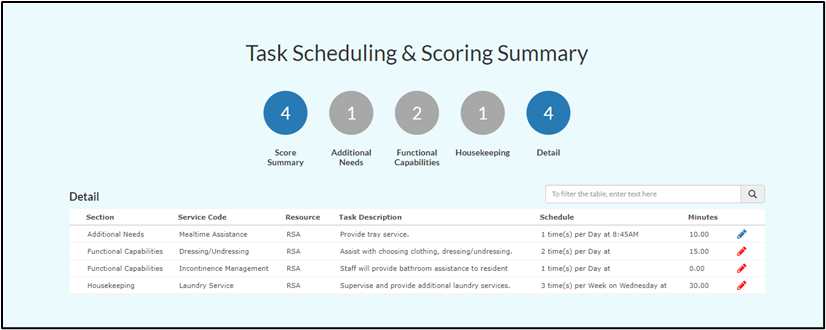
Care tasks in the Care application are generated from a resident’s assessment. After assessing a resident, community leadership will schedule all resident care tasks generated by the assessment. Users do this by selecting the red edit pencil beside the task. The pencil turns blue when the task schedule is complete.
Note: Care users also build and manage room/group assignments for caregiver roles through the Resource Management tool located in the Go To Menu under Community Configuration.
When signing in to the CareMobile application, users will select the role they are filling that day. Selecting a role will display a task list in chronological order of all the tasks due for that role. Care providers can view more information about a task by selecting the task. They can then mark each task as Complete or as Exception, which will then prompt users for more information regarding task completion.
Care users can also chart tasks from the Care application from the Complete Assignment Management tool in the Go To menu. Care users have access to the previous two weeks’ and the upcoming week’s tasks.
Was this article helpful?
That’s Great!
Thank you for your feedback
Sorry! We couldn't be helpful
Thank you for your feedback
Feedback sent
We appreciate your effort and will try to fix the article