Overview
In this article, we will review Shift Log management. You will learn how to navigate the Shift Log tool, how to add Shift Logs, Edit Shift Logs, remove Shift Logs, and review Shift Logs.
Navigating to the Shift Log Tool
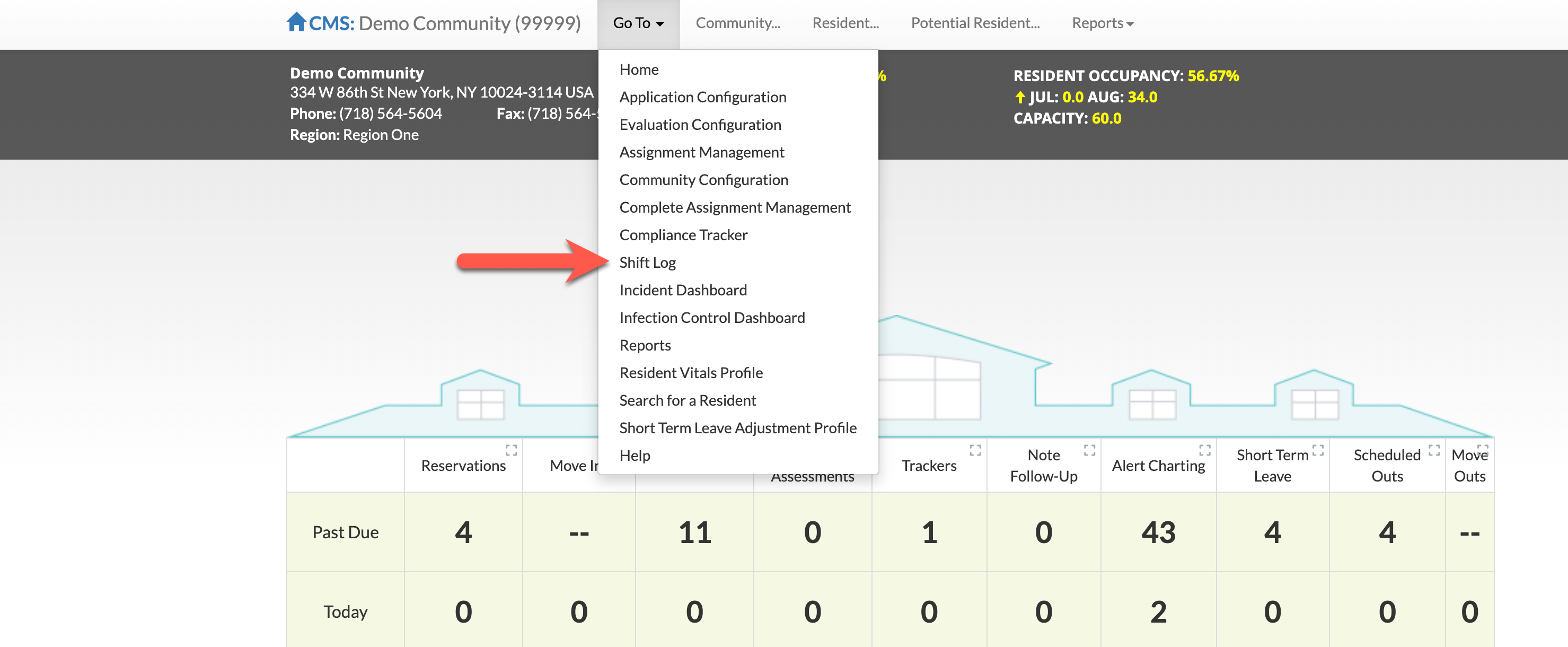
Step 1: Select the "Go To" option on navigation bar
Step 2: Select Shift Log
Search for Shift Logs
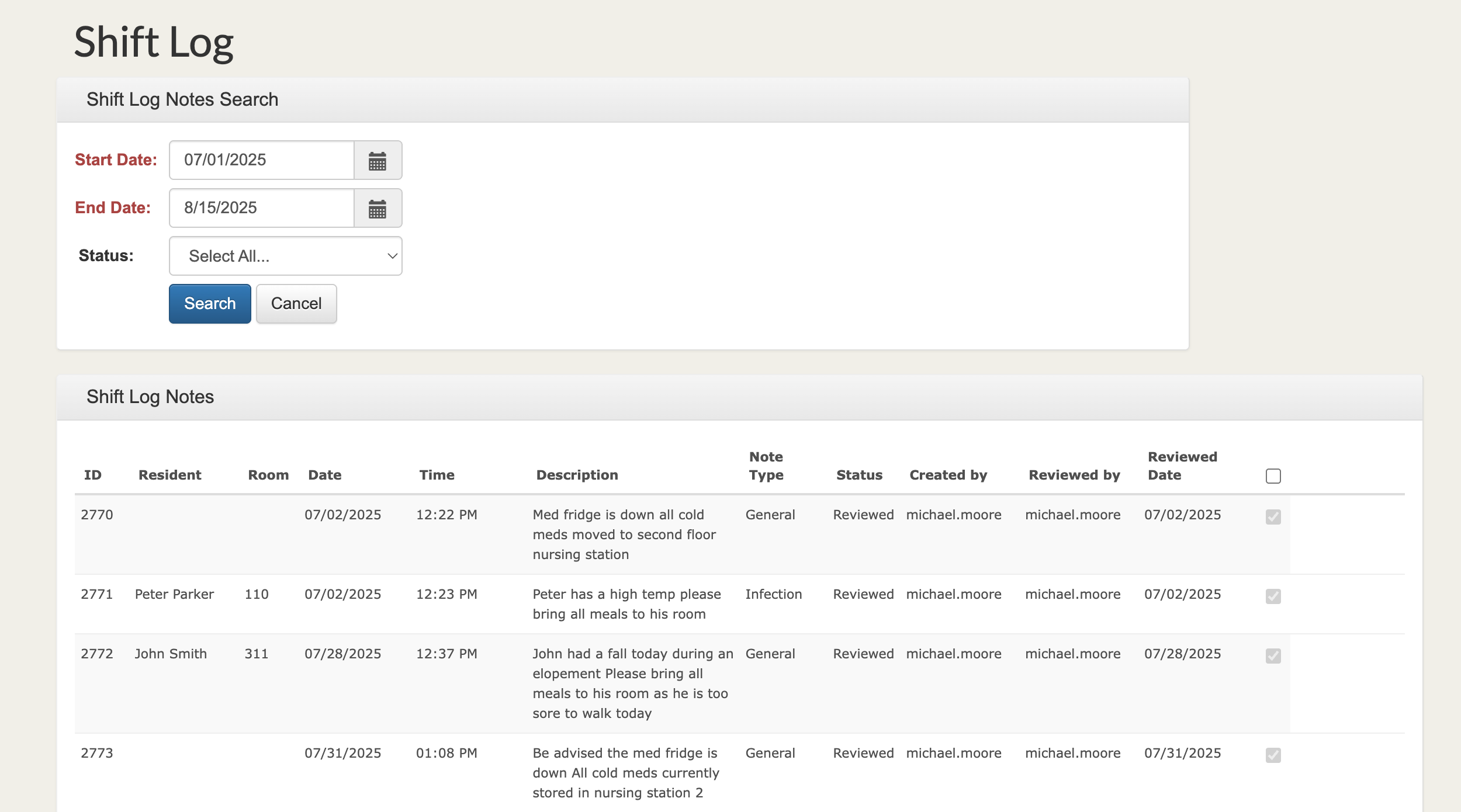
Step 1: From the Shift Log Notes page, enter filter criteria.
Step 2: Start and End Dates filter the note created date and are required.
Step 3: User can also filter looking at submitted or reviewed status logs.
Step 4: Select the Search button.

Step 5: Notes will display in the table below the filters.
Making Edits to Shift Logs
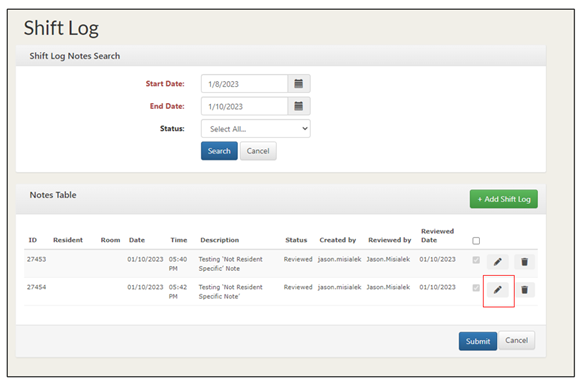
Step 1: After submission if there is a note that needs to be edited, after searching for shift log notes, select the 'Pencil Icon’ next to the note in question.
Step 2: Edit your changes in the Edit Shift Log Note Module.
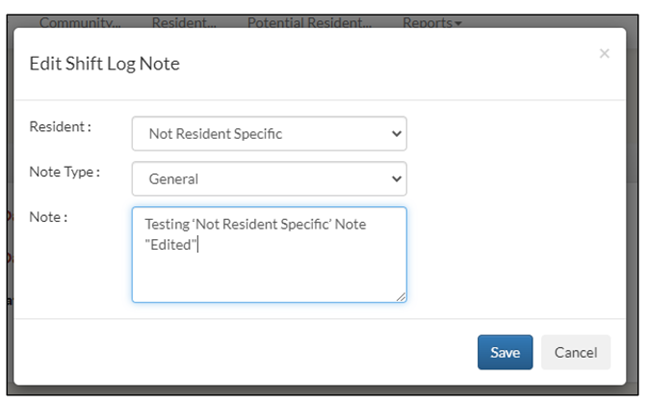
Step 3: Select Save to save the updated note or Cancel to back out of the module.
Removing Shift Log Notes
Step 1: After submission if there is a note that needs to be removed, after searching for shift log notes select the Trash Can icon next to the note in question.
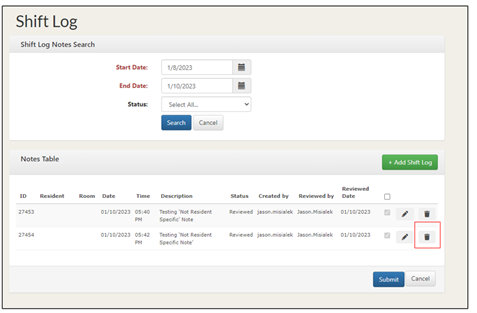
Step 2: Select ‘OK’ to Do you want to Delete this Shift Log Note?
Mark Shift Log Notes as Reviewed
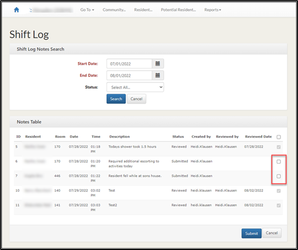
Step 1: After searching for shift log notes, select any notes to mark as reviewed by selecting the checkbox to the right of the note.
Step 2: To select all notes, select the checkbox at the top of the table.
Step 3: Select submit.
Note: Shift Log notes that have previously been marked as reviewed cannot be marked as reviewed again.
Reviewing Shift Logs on the Resident Profile
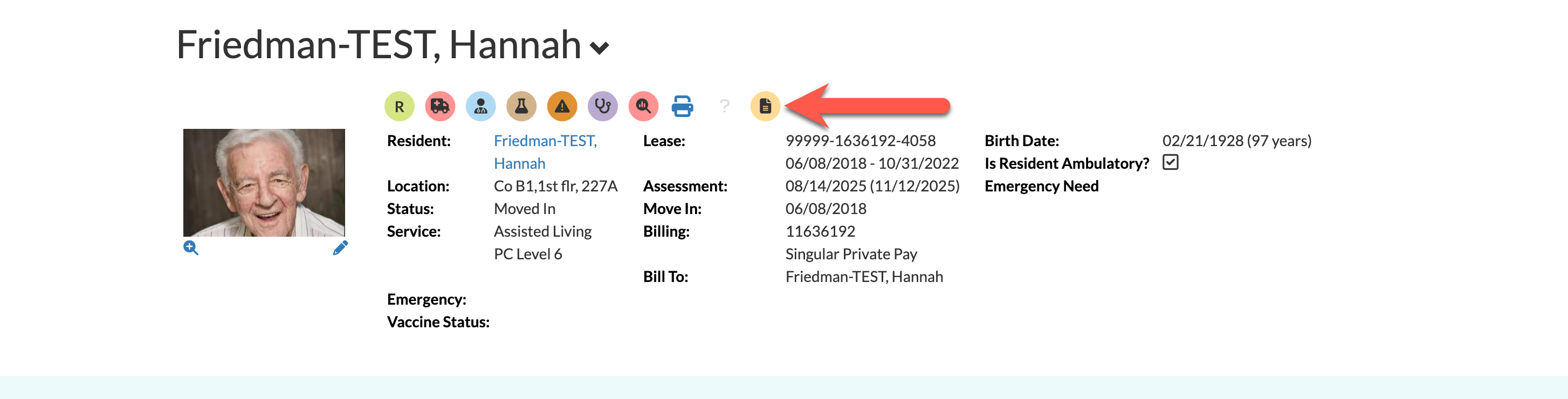
A shortcut to view Shift Logs related to a specific resident can be found on each resident profile at the top of the page. Selecting the Clipboard icon will take users to the Shift Log tool and display only logs that pertain to the selected resident.
Was this article helpful?
That’s Great!
Thank you for your feedback
Sorry! We couldn't be helpful
Thank you for your feedback
Feedback sent
We appreciate your effort and will try to fix the article