Overview
In this article, we will review the steps to access records for moved out residents.
Steps to Access Records for Moved-Out Residents
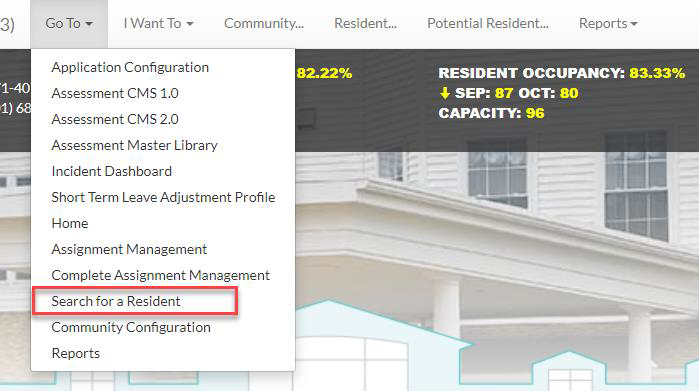
Step 1: Go to the “Go To” drop down menu in the top left corner of Care Management and choose “Search for a Resident” from the dropdown.
Step 2: From the “Search for a Resident” page type in the desired resident’s last name or leave this field blank to get a list of all available residents.
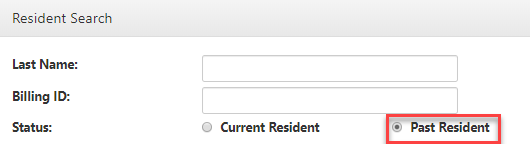
Step 3: Just below the name fields you will change the status to “Past Resident” by clicking the box.
Step 4: Then scroll to the bottom of the search page and click “Submit.”
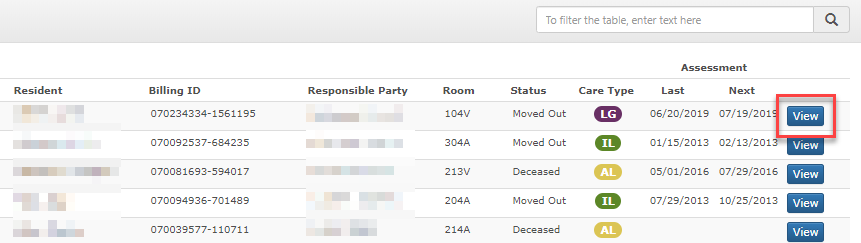
Step 5: Under the “Resident Search” box the list of past residents will appear. Click “View” to the right of the resident record and you will be taken to the Resident Dashboard page
Note: Once at the Resident Dashboard you can finish any documentation that you must, and you can print notes if needed. You will navigate through the management page of a past resident just as you do for an active resident. This page will always remain in the system, allowing you to access it in the future if needed.
Was this article helpful?
That’s Great!
Thank you for your feedback
Sorry! We couldn't be helpful
Thank you for your feedback
Feedback sent
We appreciate your effort and will try to fix the article