TABLE OF CONTENTS
Overview
In this article, we will review how add diet preferences, printing the diet report, and printing assessment sheets.
Choosing Resident Diet Preferences
Step 1: From the Care Management community homepage, select the Reports dropdown, then Resident information, then select Resident Diet.

Step 2: Once on the Resident Diet page, choose specific residents by clicking their name and move them to the Selected box using the blue arrows just below. Selecting a diet is done in the same manner.
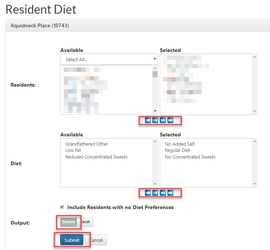
Step 3: To enable resident profile pictures when viewing the report, select Screen. You should only have to enable this setting once, it should be preselected for future printing.
Step 4: When the desired selections have been made, click Submit. The Resident Diet Preferences should now be displayed further down the page.
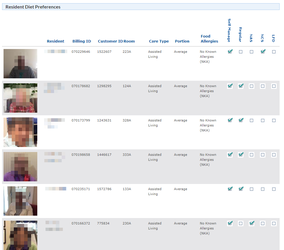
Step 5: Remain on this page and follow the section below to print the report.
Printing the Resident Diet Report
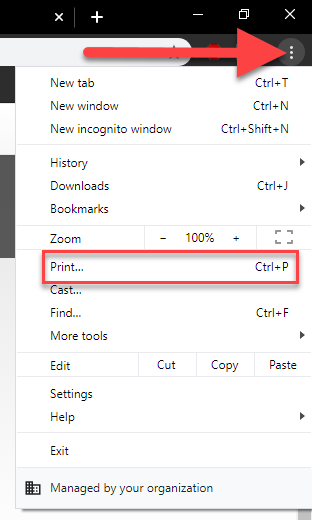
Step 1: While still on the Resident Diet page, the diet report can be printed by expanding the web browsers controls and selecting Print In Google Chrome, this is located just below the X that closes the webpage.
Note: The keyboard shortcut Ctrl + P can be used in all major internet browsers to open the print window.
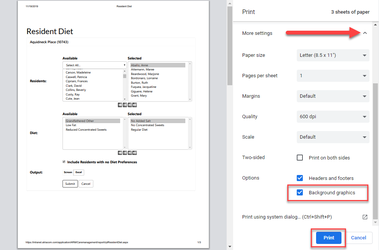
Step 2: In the resulting print preview window, select the More Settings dropdown option. Scroll down to Options and check the Background Graphics box. This enables resident profile pictures to print with the report. Then, click Print.
Printing Assessments
Step 1: Sign on the Intranet.
Step 2: Under applications, choose Care Management
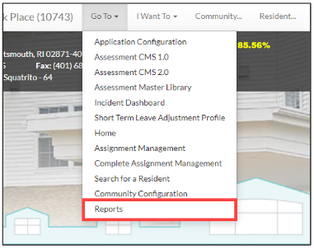
Step 3: From the home page, select the “Go To” dropdown menu and choose Reports.
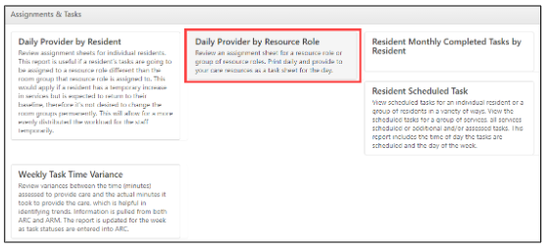
Step 4: Choose Daily Provider by Resource Role.
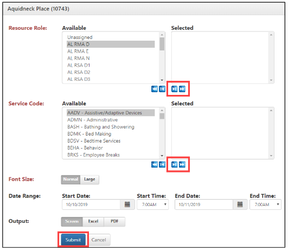
Resource Roles
- Choose the resource roles you want to print by clicking on them to highlight your selection. They can be moved to the box on the right-hand side by clicking on the single arrow pointing to the right.
Note: If you want to select all resource roles, simply click on the outside arrow to move all of them into the box on the right.
Service Codes
- Choose the service code the same way, so you can choose all by clicking on the outside arrow on the right and that will move them all over to the box on the right.
Note: If you only want a select service code or even a few services, click on the ones you want to see to highlight them, and then click on the single arrow pointing to the right box.
Step 5: Clock submit once you have a set your date range.
Was this article helpful?
That’s Great!
Thank you for your feedback
Sorry! We couldn't be helpful
Thank you for your feedback
Feedback sent
We appreciate your effort and will try to fix the article