Overview
In this article, we will detail the process by which users will log into Aline CRM with the SSO (Single Sign On) login page. In essence, with the SSO configured, users will simply supply their Aline Suite username to login. The SSO will do the rest!
Please note: organizations without an SSO configured will continue to utilize both their username and password as always.
Logging in with SSO
Step 1: After opening the Aline CRM application, users will be greeted by a login screen wherein only a username is required. Enter your username and then select Next.
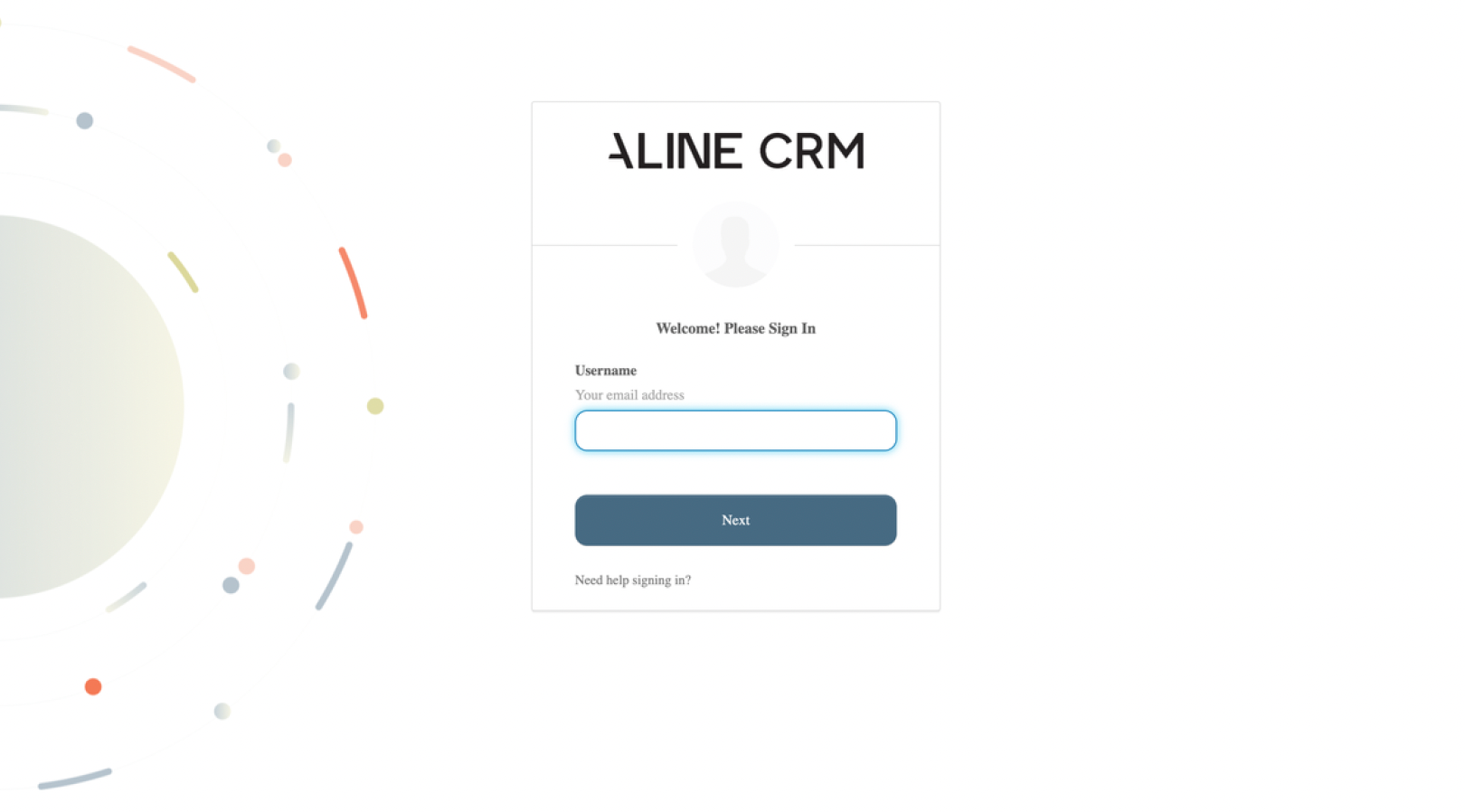
Step 2: After supplying your username and selecting Next, users belonging to organizations with an SSO configured will automatically be signed into Aline CRM.
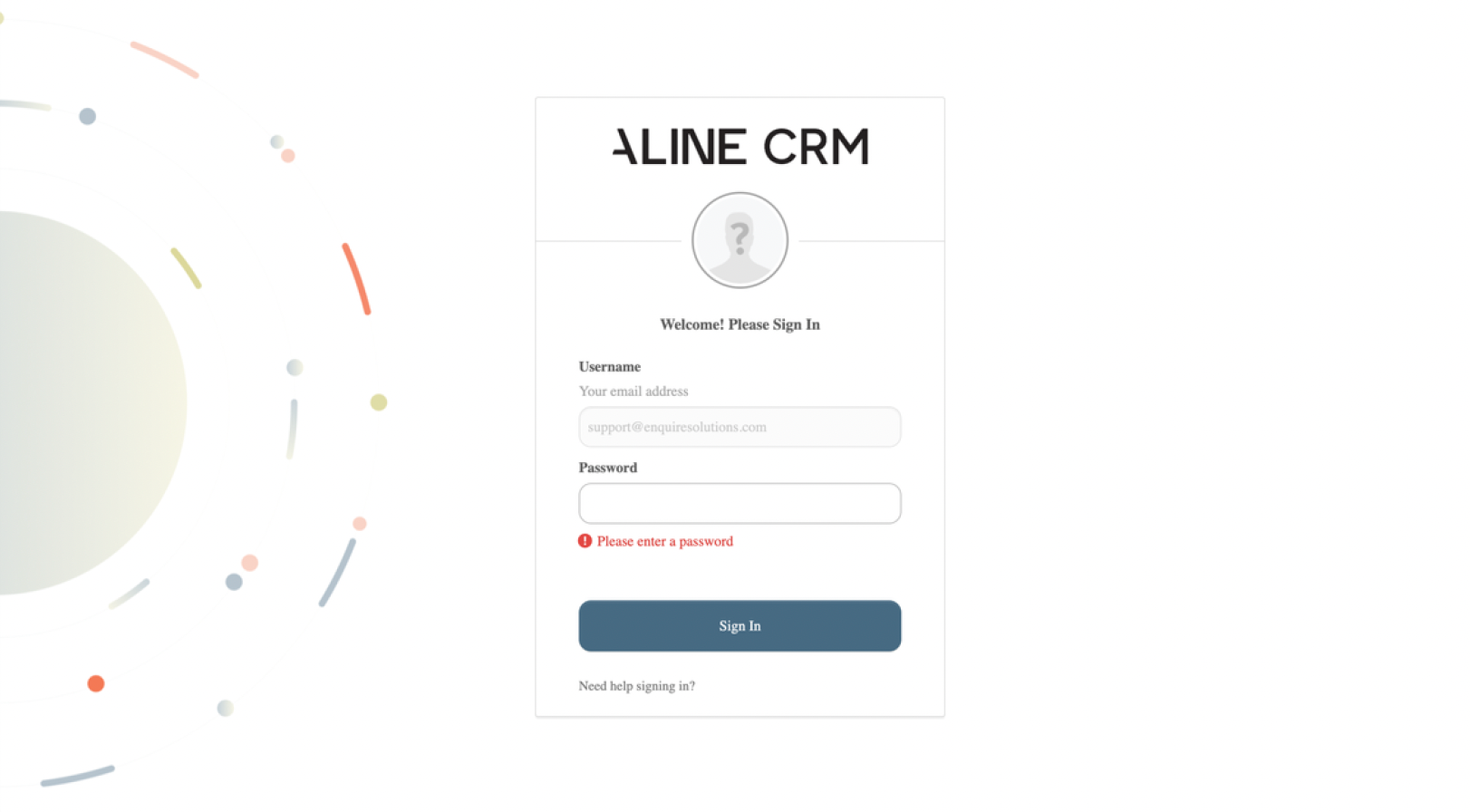
Users belonging to an organization without an SSO configured will continue by providing their Aline Suite password and then selecting Sign In to sign into Aline CRM.
Was this article helpful?
That’s Great!
Thank you for your feedback
Sorry! We couldn't be helpful
Thank you for your feedback
Feedback sent
We appreciate your effort and will try to fix the article