Overview
In this article, we will review how to reset your password if you have forgotten it.
Resetting a Forgotten Password
Step 1: Navigate to Enquire
Step 2: Click Need help signing in?
 Step 3: Click Forgot password?
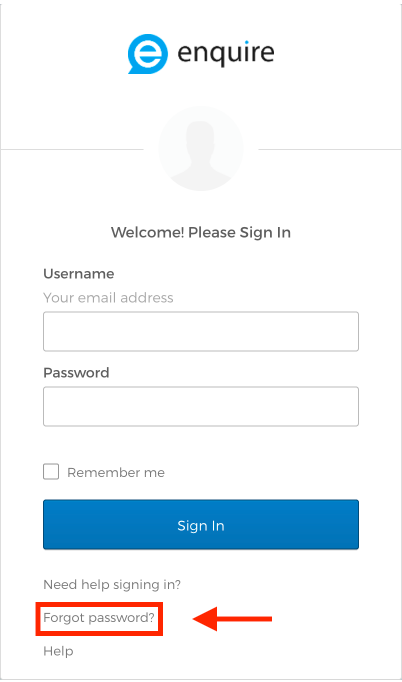
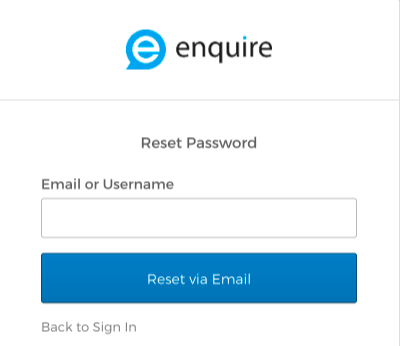
Step 4: Enter your email address and click Reset via Email.
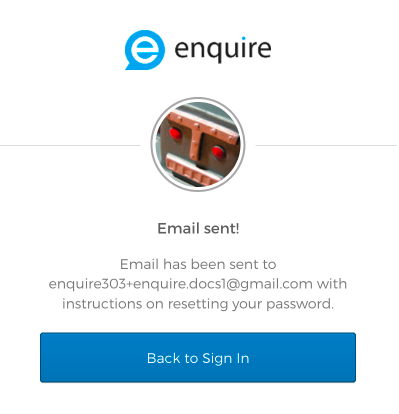
Step 5: You should see a screen that looks like the following (image in circle may differ).
Step 6: Check your Inbox for an Email from Okta with the subject Account password reset. This email will contain a reset password button. Click the button.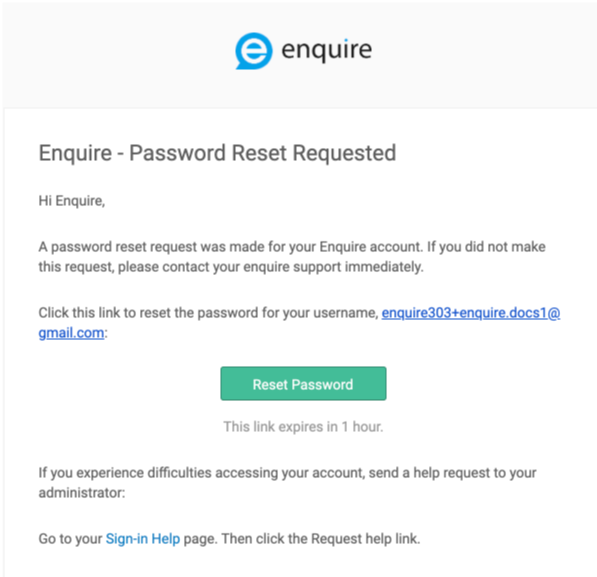
Step 7: You will be brought to an Enquire login page that will allow you to reset your password after you answer your Security question previously setup. Please note, your security question may differ from the image below.
Step 8: After successfully answering your security question, you will be able to set a new password on the following screen. Please pay special attention to the Password requirements listed.
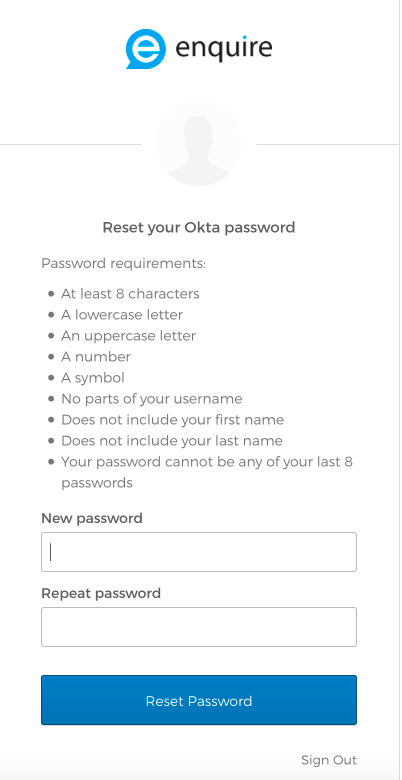
Step 9: Click Reset Password and you will now be logged into Enquire with your new password!
FAQ's
My account has been locked out, what do I do?
- You will need to contact your Community Admin to have your account unlocked. For security reasons, Enquire Solutions is unaware of who is locked out and why and cannot unlock accounts. If you are unsure who your Community Admin would be, please send an email to Enquire.support@enquiresolutions.com and we'll get the contact information for you.
Was this article helpful?
That’s Great!
Thank you for your feedback
Sorry! We couldn't be helpful
Thank you for your feedback
Feedback sent
We appreciate your effort and will try to fix the article