Overview
In this article, we will review a new incident modal.
New Incident Modal
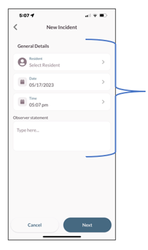
Step 1: From the New Incident Modal that displays:
- Select the Resident.
- Verify the date.
- Verify the Time.
- Enter the Observer Statement.
Step 2: Select the Next button.
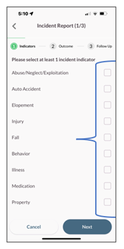
Step 3: Select at least 1 incident indicator.
Note: If the Injury indicator is selected, the app will require you to select a second indicator in addition to injury.
Step 4: Select the Next button.
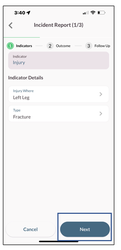
Step 5: Select or fill in all Indicator Details, and select the apply button.
Step 6: The indicator workflows will vary depending on which indicator was selected.
Step 7: When all Indicator Details are filled in, select the Next Button.
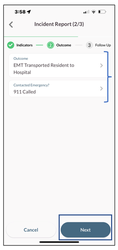
Step 8: Select Outcome.
Step 9: Select Apply.
Step 10: Select Contacted Emergency.
Step 11: Select Apply.
Step 12: Select the Next button.
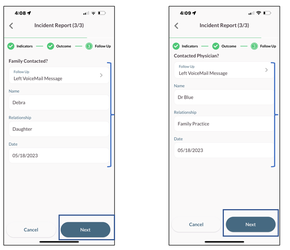
Step 13: Family contacted and enter the information below.
- Select Family Follow Up.
- Enter Name.
- Enter Relationship.
- Verify Date.
Step 14: Select the Next button.
Step 15: Contacted Physician and enter the information below.
- Select Physician Follow up
- Enter Name.
- Enter Relationship.
- Verify Date.
Step 16: Select the Next button.
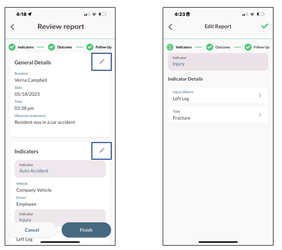
Step 17: Prior to submittal verify you have all the information you need in the following sections:
- General Details.
- Indicators.
- Outcome.
- Follow-up.
Note: To edit/add more information to a section, select the pencil icon to open the Edit Report module for that section.
Was this article helpful?
That’s Great!
Thank you for your feedback
Sorry! We couldn't be helpful
Thank you for your feedback
Feedback sent
We appreciate your effort and will try to fix the article