Overview
In this article, we will review how to complete a task for a resident.
Steps to Complete a Task for a Resident
Accessing the Task Completion Page
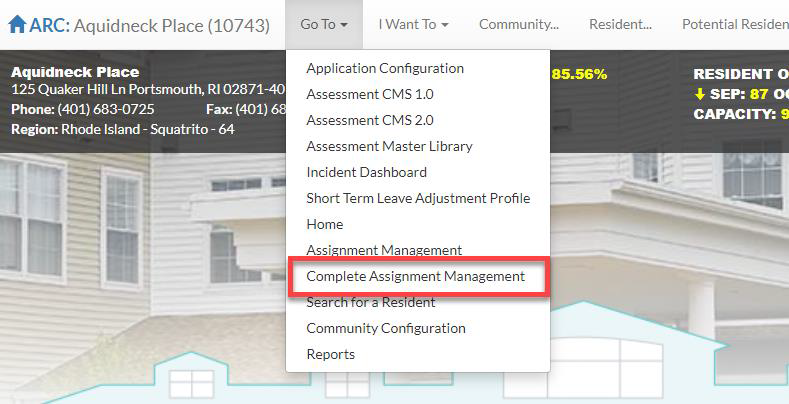
Step 1: On the Care Management Home page, click on the Go To dropdown in the top left and select the Complete Assignment Management option to navigate to the new task completion page.
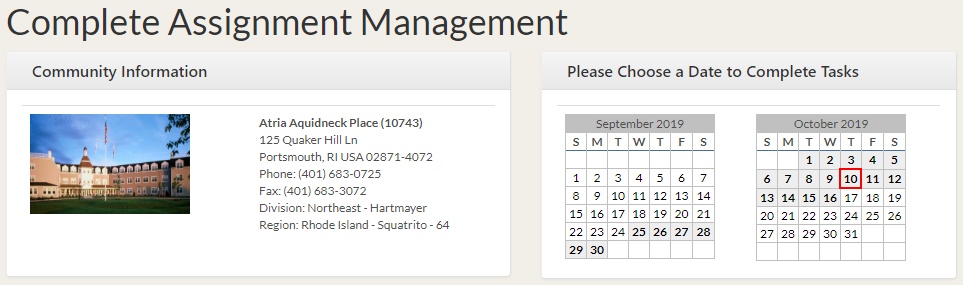
Step 2: Choose a date from the calendar boxes near the top of the screen. Please keep in mind the following regarding the calendar boxes:
- Dates that are bolded and have a light grey highlight are dates that have open tasks.
- The current date is outlined in red and the selected date is highlighted dark grey.
- The calendar dates are from 12:00 AM – 11:59 PM on the selected date, which means that night shift tasks will have to be entered on two different days (i.e., if the night shift is 10:00 PM on 9/1 – 6:00 AM on 9/2, the tasks from 10:00 PM – 11:59 PM will be entered using 9/1, but the calendar date will have to be changed to 9/2 to enter the tasks from 12:00 AM – 6:00 AM).
Task Filter Tabs
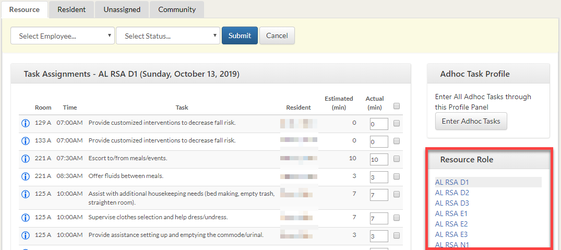
Step 1: Click on the Resource, Resident, Unassigned, or Community tab to filter tasks. The is selected by default.

Tasks on the Resource Tab are filtered by resource role and the first resource role in the list will automatically populate the Task Assignment grid. Only resource roles with open tasks for the selected date will be displayed in the Resource list. Clicking on a resource role will populate the Task Assignment grid with the resource role’s open tasks.
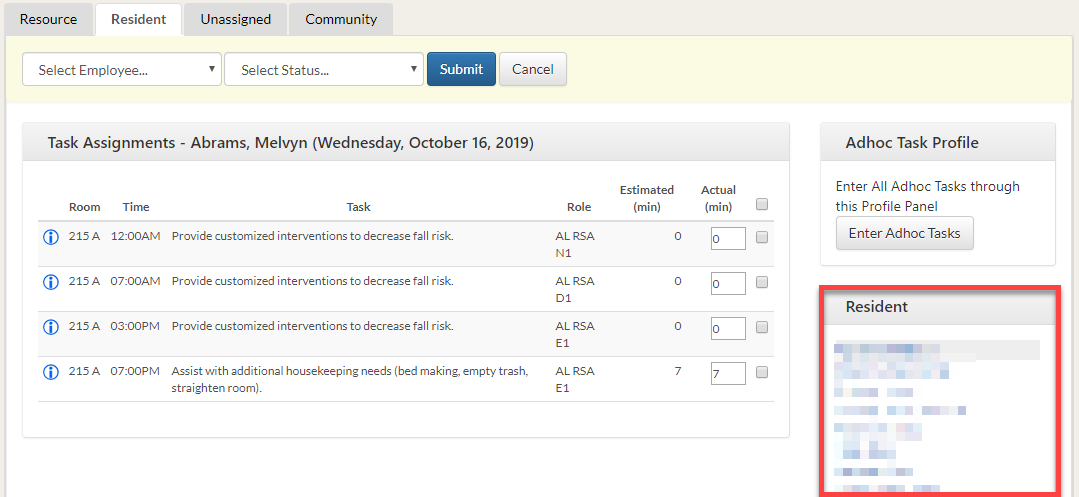
Tasks on the Resident Tab are filtered by resident and the first resident in the list will automatically populate the Task Assignment grid. Only residents with open tasks for the selected date will be displayed in the Resident list. Clicking on a resident will populate the Task Assignment grid with the residents open tasks.
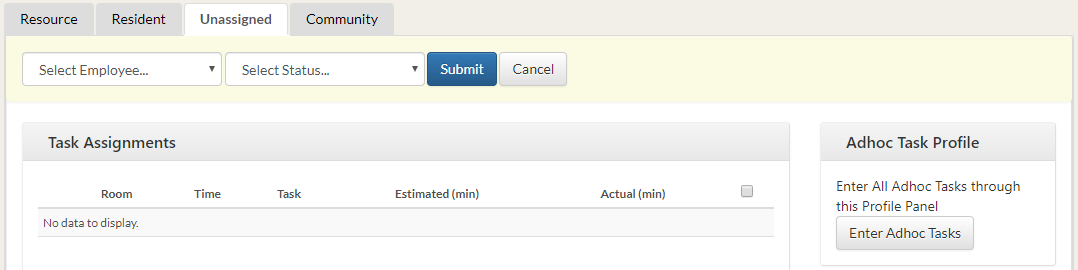
The Unassigned Tab displays any tasks that are not assigned to a resource role or to a resident.
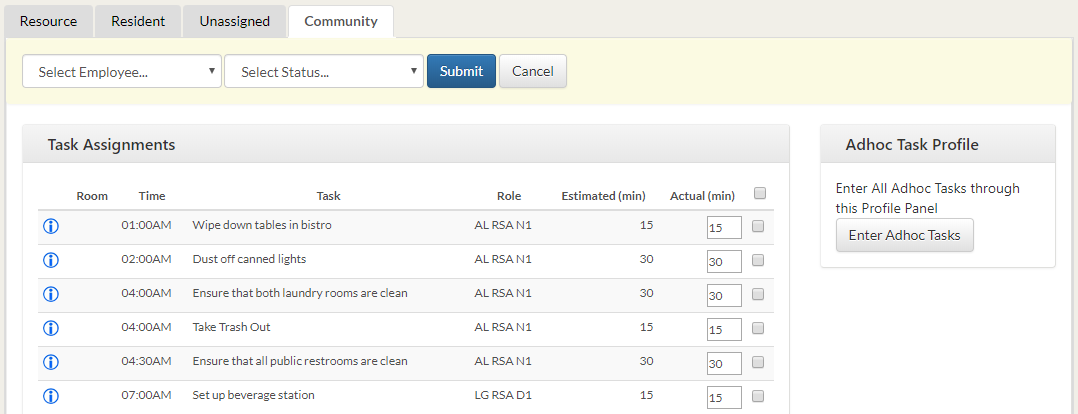
The Community Tab displays all community tasks.
Completing Tasks
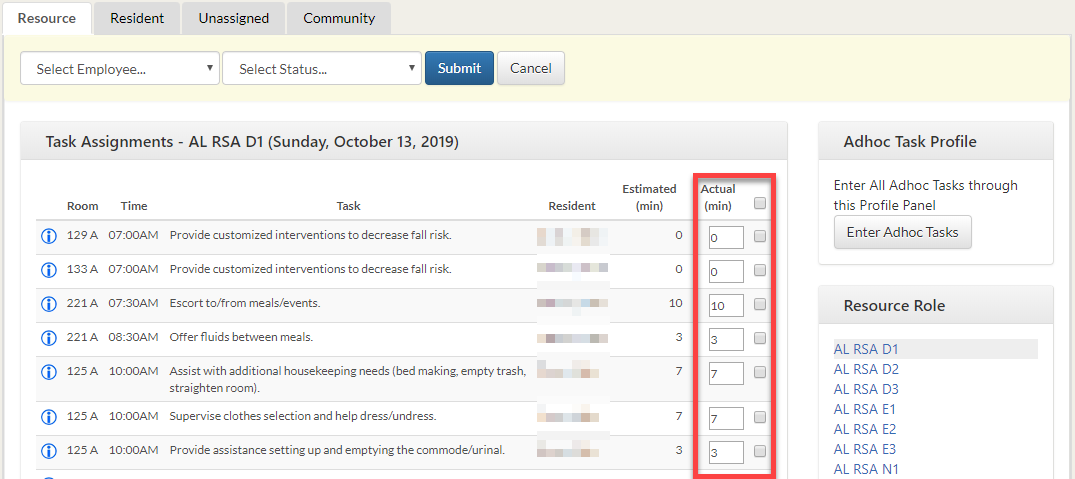
Step 1: To complete a task, adjust the time in the Actual (min) box (if needed) and then check the checkbox that corresponds to the action. The checkbox in the header will select all visible tasks.
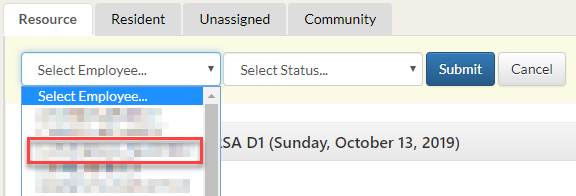
Step 2: Select an employee from the Select Employee dropdown. All Care employees for the community are included in this dropdown. To add additional employees to this dropdown, see the Add Employees section below.
Step 3: Select a status from the Select Status dropdown.

Step 4: Click Submit.
Enter an Adhoc Task
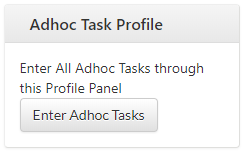
Step 1: On the right side of the screen, click the Enter Adhoc Tasks button.
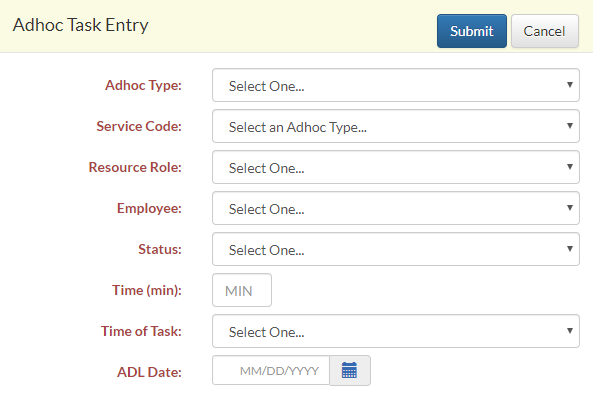
Step 2: A modal window will appear. Choose an Adhoc Type (either Community or Resident). If Resident is chosen, a Resident dropdown will appear, and a resident must be chosen. Fill out the remaining fields and click Submit in the top right corner to submit the Adhoc task.
Add Employee to Dropdown
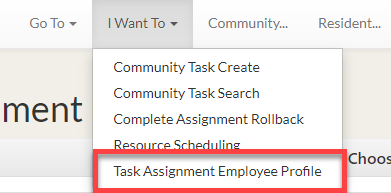
Step 1: In the I Want To dropdown, select the Task Assignment Employee Profile option.
Step 2: On the Task Assignment Employee Profile page, choose a Community in the Task Owner box. A list of all employees for the selected community will populate in the Available box.
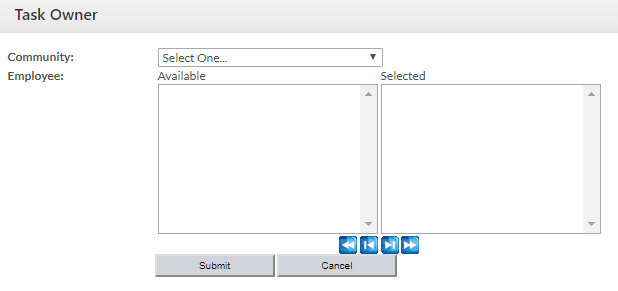
Step 3: Choose employees from the Available list (multiple employees can be selected by holding the “Ctrl” key) and click the button to add the selected employees to the Selected list. Clicking the button will add all employees from the Available list to the Selected list.
Step 4: Click on the Submit button in the bar at the top of the page to add the Selected employees to the Community Task Owner list.
Remove Employee from Dropdown
Step 1: In the I Want To dropdown, select the Task Assignment Employee Profile option.
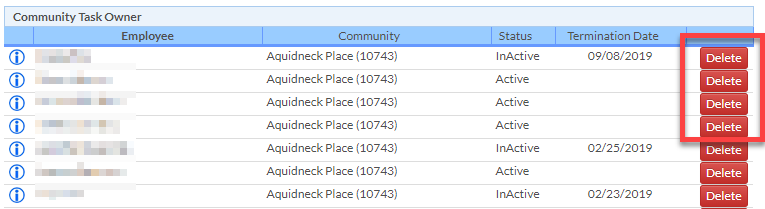
Step 2: All current employees are listed in the Community Task Owner list at the bottom of the page. To remove an employee from this list, click the Delete button on the right-hand side of the list.
Was this article helpful?
That’s Great!
Thank you for your feedback
Sorry! We couldn't be helpful
Thank you for your feedback
Feedback sent
We appreciate your effort and will try to fix the article