Overview
In this article, we will review removing a document from a residents profile.
Video Tutorial
Steps to Remove a Document from a Resident's Profile
Step 1: Choose a resident from the “Resident…” option located in the menu bar at the top the Aline Care home page. This will redirect you to the resident’s profile page.

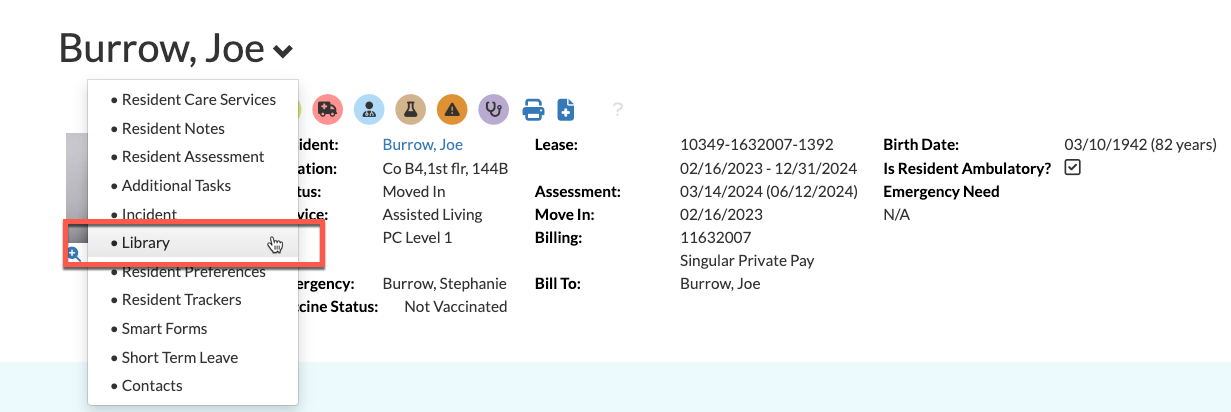
Step 2: From the Resident Dashboard, select the dropdown arrow next to the resident’s name and select “Library” OR simply scroll down to the Library tool. The resident library will display any documents previously uploaded to the resident's profile.
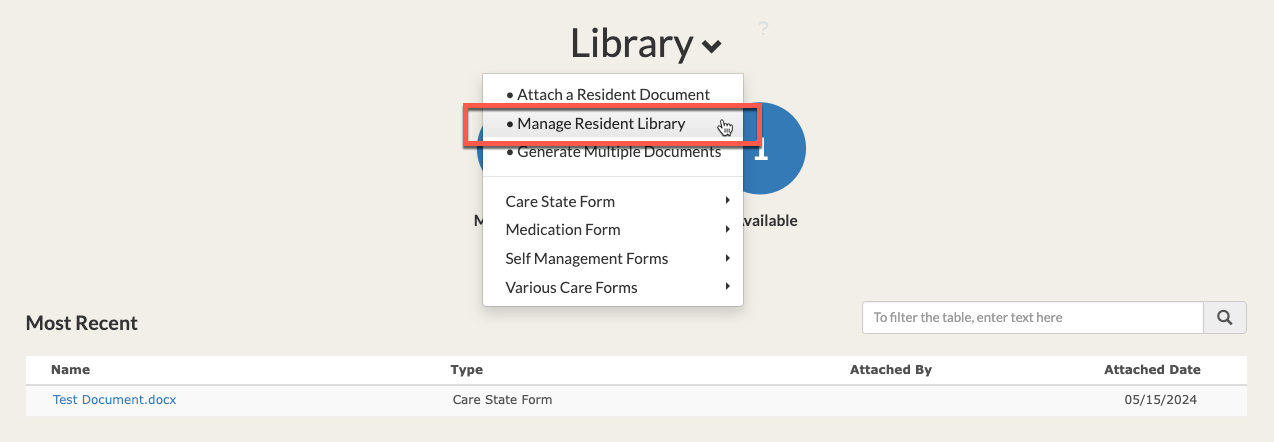
Step 3: Select the dropdown arrow next to the “Library” header and select “Manage Resident Library”. You'll then be taken to the Resident Attachment page.
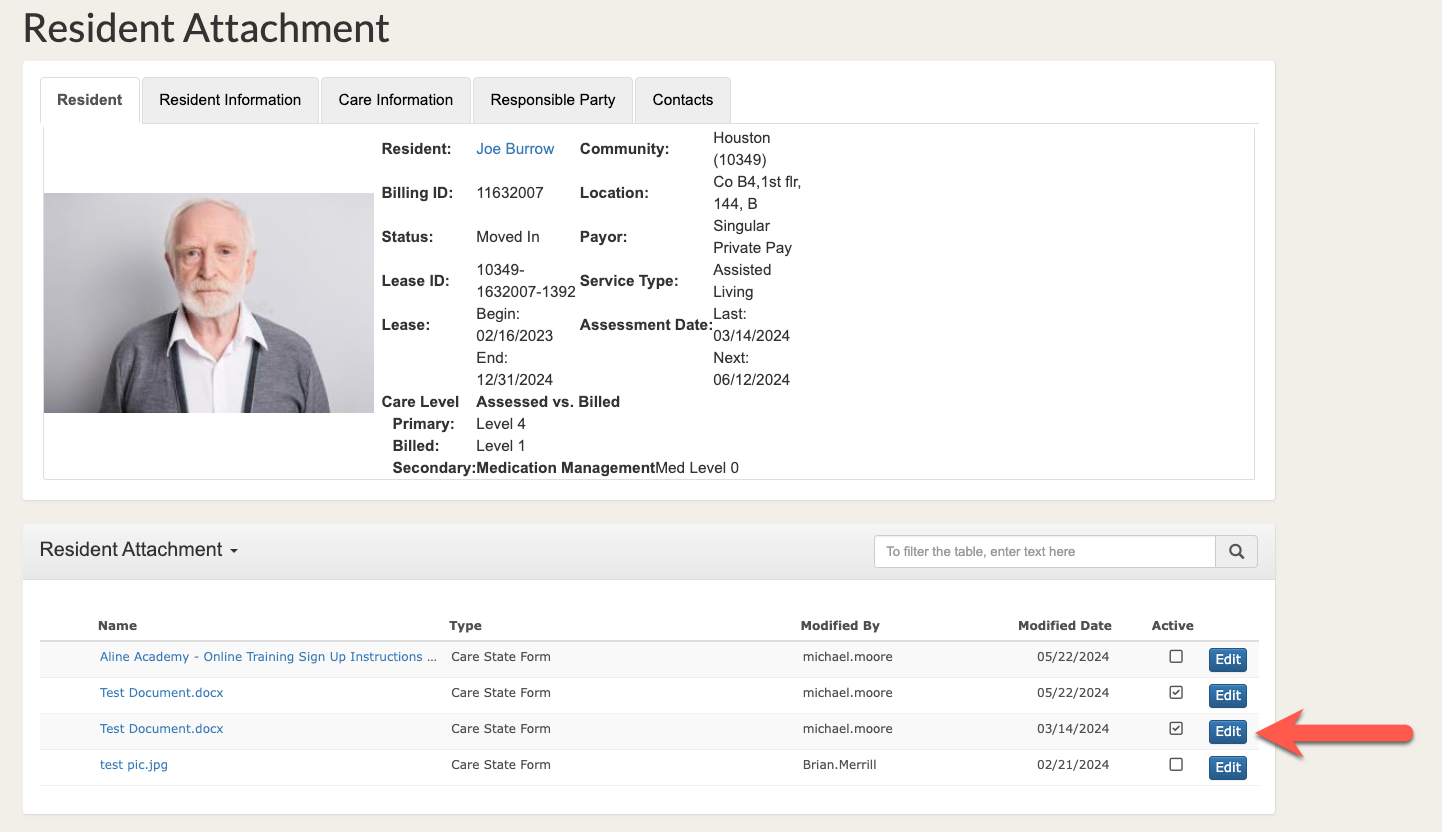
Step 4: From here, all resident documents that have been previously uploaded will display - whether they have been removed or not. Using filters or the search bar, find the desired document and select the blue “Edit” button.
Step 5: The Edit Resident Attachment window will display. Select the “Remove” button in the bottom right hand corner to deactivate the document. This will remove it from the display on the resident's Library section.
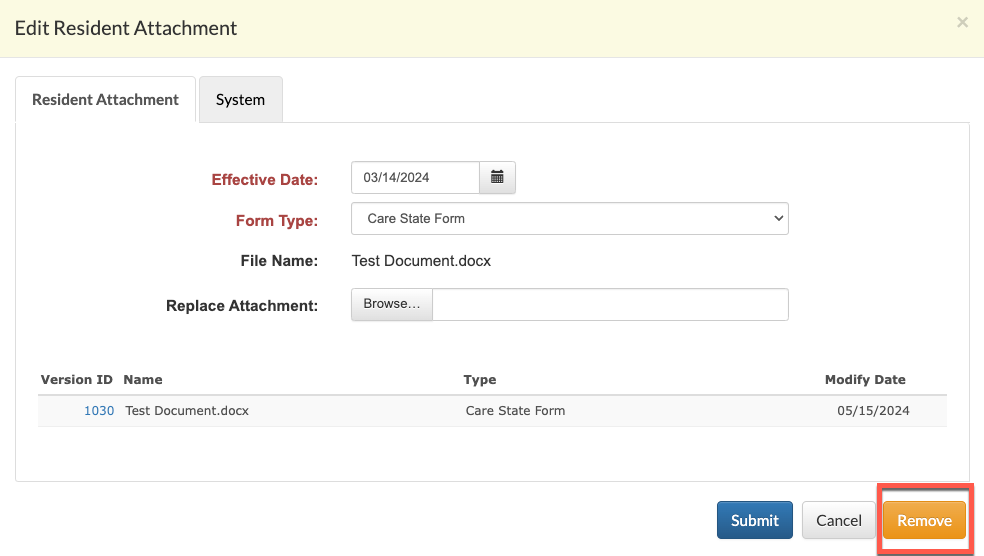
Note: users can also elect to replace the document if an update to the original document is required by browsing for a replacement attachment. Additionally, removed documents will still be available in the Manage Resident Library tool in case they ever need to be reactivated, but they will not display in the resident's Library while removed / deactivated.
Was this article helpful?
That’s Great!
Thank you for your feedback
Sorry! We couldn't be helpful
Thank you for your feedback
Feedback sent
We appreciate your effort and will try to fix the article