
Aline Care Release Announcement – November 2025
Available: As of November 2025
We’re excited to launch the ALINE Care 2.40 release, introducing two all-new features – Sub Assessments and Automated State Forms along with a several other enhancements and fixes.
To learn more about Care Version 2.40 and the newly included features, please review the information below and feel free to contact your Aline CSM with any questions or concerns.
New Features and Enhancements
Introducing Sub Assessments
Sub Assessments are a grouping of scored questions that will populate from within Primary Assessments depending on answers entered by users in the Primary Assessment. Sub Assessment point totals will roll into the overall level of care score, and completing these assessments will populate additional care tasks along with additional billing for the assessed resident when necessary.
Sub Assessments can be configured and linked to Primary Assessments exactly like Secondary Assessments. Sub Assessments are required to be completed prior to submitting the Primary Assessment.
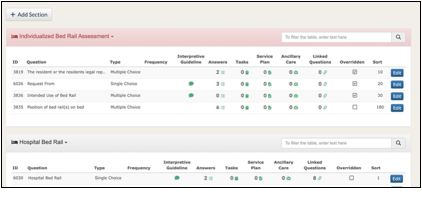
Both Sub Assessments and Secondary Assessments can be linked to a Primary Assessment. Multiple questions on a Primary Assessment can be linked to a unique Sub Assessment, but only “Yes” type answers can trigger the Sub Assessment.
To configure or create new Sub Assessments, users can navigate to the Go To Menu > Assessment Configuration > Assessment Model Management. From here, Sub Assessment is available to select from the Type drop-down menu.
Next Assessment Date Added to Service Plans
Aline Care can now display the Next Assessment Date on each question in the Service Plan and Pending Service Plan reports.
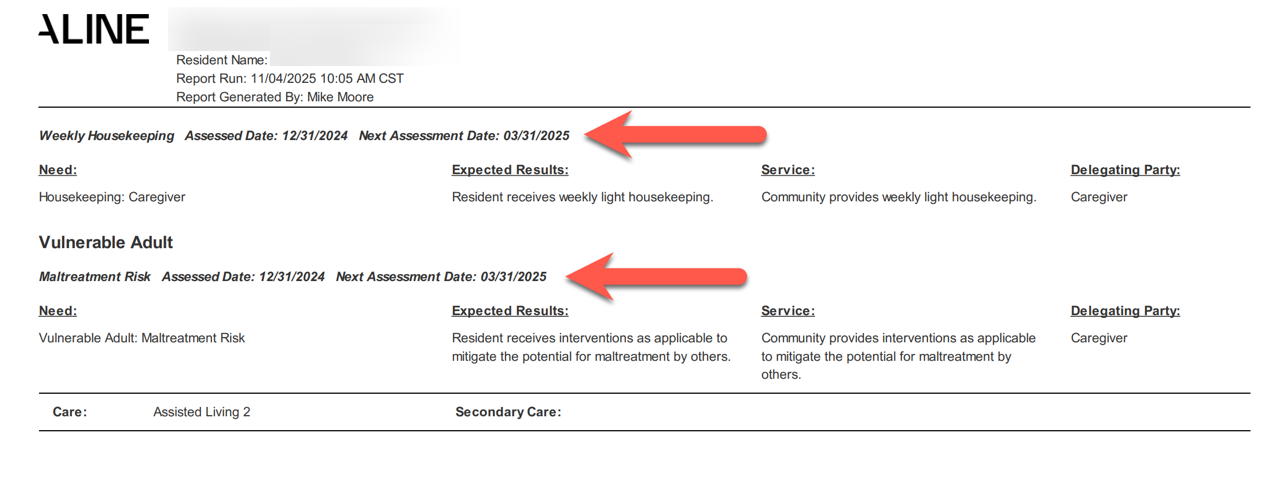
To edit this configuration, users can select the Go To Menu > Application Configuration > Report Configuration. Editing the key labeled FollowUpDTPerQuestionShowHideElement and setting the value to SHOW will enable the Next Assessment Date to display next to each question on the report.
Editing the key labeled FollowUpDTPerQuestionShowHideElement and setting the value to HIDE will disable the Next Assessment Date from displaying next to each question on the report. Note, this configuration is set to HIDE by default.
Introducing Automated State Forms
The Automated State Forms feature streamlines the way communities prepare and submit required state assessment paperwork. After a resident’s assessment is submitted, Aline Care can automatically generate a state-specific form and pre-populate the form with the resident’s most recent assessment data.
Users can then review, edit, and finalize the form, ensuring accuracy before printing, submitting to state agencies, or attaching it to the resident’s record.
Key benefits
- Eliminates manual data entry into state documents
- Auto-populates state forms using the most recent community care level assessment
- Reduces form submission time and human error
- Allows for editable fields for corrections or additions
- Pending / completed forms tracked on the Aline Care dashboard for easy follow-up
When the Automated State Forms module is configured, submitted level of care assessments will then display a state form selection box. Users can select the correct state form to associate with the submitted assessment.
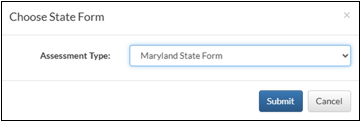
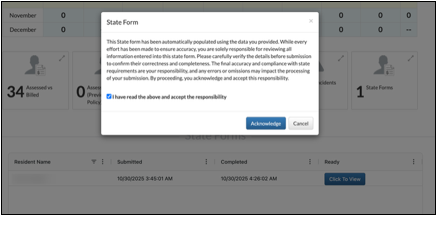
Once the appropriate state form has been selected, the State Form will begin to process in the background. A new tile on the Aline Care Dashboard labeled State Forms will display all processing and completed State Forms. Users can select the expander icon to view the forms.
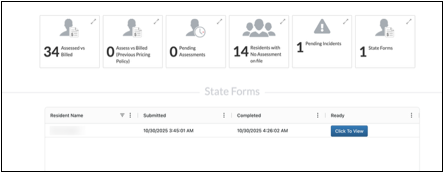
Once the State Form has processed, users can select Click To View to begin reviewing the state form. Users will be presented with an acknowledgement wherein the user acknowledges that the form they are about to view has been pre-populated with data provided from the assessment, and that they understand that they are responsible for ensuring all data included in the form is accurate and up to date before submitting the form to any state agency.
The pre-populated state form will then display in an editable state. Users must ensure all pre-populated data is accurate in addition to providing any extra data that is required on the form. Inaccurate pre-populated data can be edited, and missing data can be added.
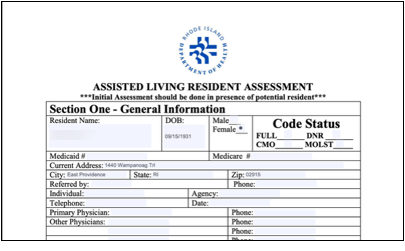
Completed state forms can then be printed and downloaded. Completed state forms can also be uploaded to the resident’s profile via the Library.
Sending State Forms
Users can also generate state forms from within Aline Care by navigating to the Go To Menu > Send State Form. From here, users will select the desired resident and state form. The select resident’s most recently submitted level of care assessment will be used to pre-populate the state form.
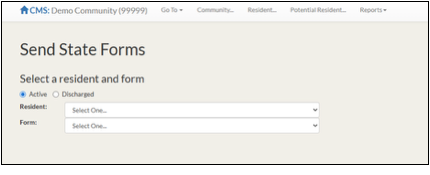
Users will again acknowledge their responsibility to review the form for accuracy and complete the form – correcting any inaccurate data and supplementing additional data as needed before printing or downloading.
Completed state forms can also be uploaded to the resident’s profile via the Library module.
Minor Fixes & Enhancements
- Updated linking in Secondary Assessments, allowing users to link multiple answers within the same question.
- Updated Service Plan to display “next assessment date” as part of a requirement for communities in Virginia.
- Fixed an issue where users were receiving an authentication error message prior to receiving the emails in DocuSign to authenticate. Improved error handling and messaging as well to identify any future issues more efficiently.
- Fixed an issue where an Incident follow up dated the current day were giving an error message. The follow up note will now allow the user to enter TODAY’S date as one of the follow up dates.
- Fixed issue regarding a Next Assessment date. If the date for the next assessment in the set up for a secondary assessment was not entered, it caused the date to show up on assessment reporting as 01/01/1900. It also showed in the list of assessments for the resident incorrectly. This has been corrected to show the date as a blank.
- Fixed an issue where Alert Charting types were deactivated, and the Incident Note section would not populate the Note if an Incident type was selected. This has been corrected to allow communities who deactivate Alert Charting types to utilize Notes as their vehicle to enter incident reports. Users can do this by selecting the Incident Type and adding the Observer Statement, which will be recorded in the Notes.
Was this article helpful?
That’s Great!
Thank you for your feedback
Sorry! We couldn't be helpful
Thank you for your feedback
Feedback sent
We appreciate your effort and will try to fix the article